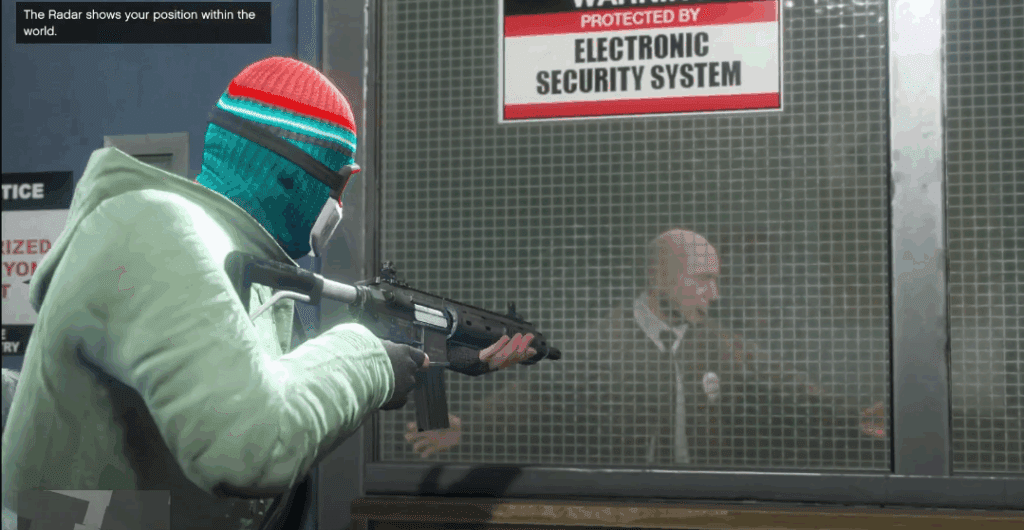
If you’re facing the “Couldn’t Start the Game” error while trying to run GTA 5 using the FitGirl Repack version, you’re not alone. This issue is common due to how some antivirus programs falsely detect modified files as threats and block them. In this detailed guide, we’ll walk you through the steps to fix this problem and successfully launch the game in fullscreen mode.
🚀 Step-by-Step Guide to Fix GTA 5 FitGirl Launch Error
Step 1: Add Game Folder to Windows Security Exclusions
Windows Security (formerly Windows Defender) can sometimes interfere with repacked game files. Here’s how to exclude your GTA 5 game folder:
- Open Windows Security
- Press the Windows key + H, or simply search for Windows Security in the Start Menu.
- Click on Open.
- Navigate to Virus & Threat Protection Settings
- On the left-hand side, click on Virus & threat protection.
- Now click on Manage settings under the “Virus & threat protection settings” section.
- Add an Exclusion
- Scroll down and click on Add or remove exclusions.
- Click Add an exclusion, then choose Folder.
- Browse to the folder where GTA 5 is installed (the FitGirl Repack version).
- Select the folder and confirm.
Why this helps: This tells Windows Security to ignore files in the selected folder, preventing it from quarantining important launch files needed to run the game.
Step 2: Run the Game Using the Correct File
Now that Windows Security is no longer interfering, launch the game with the correct file:
- Open the GTA 5 game folder.
- Look for a file named Play GTA 5.bat or similar.
- Double-click the
.batfile and, when prompted, click Yes to allow it to run.
This should start the game. If it opens in windowed mode, follow the next step to switch to fullscreen.
Step 3: Switch from Windowed Mode to Fullscreen
If your game launches in a small window, here’s how to change it to fullscreen:
- Press the Escape (Esc) key to bring up the game menu.
- Navigate to Settings → Graphics.
- Look for the Screen Type option.
- Change the Screen Type to Fullscreen.
- Press the Up Arrow key if needed to apply the settings.
- Click Yes to confirm and save changes.
Your game should now run in fullscreen mode without any interruptions.
✅ Final Result
After completing the above steps:
- The game will no longer be blocked by Windows Defender.
- You’ll be able to run GTA 5 via the
.batlauncher file. - You can play in fullscreen mode with no visual or technical interruptions.
🔒 Disclaimer
Disclaimer: This guide is intended for educational purposes only. FitGirl Repacks are modified versions of games and may not be legal in all jurisdictions. Always ensure you own a legal copy of the game before using repacks. The author is not responsible for any system damage, data loss, or software issues that may occur from following this guide.
🔗 Useful Links
🏷️ Tags
GTA 5 fix, FitGirl repack, couldn’t start the game error, GTA 5 launch issue, Windows Defender GTA 5, fullscreen GTA V, GTA 5 FitGirl Windows 11
🔖 Hashtags
#GTA5Fix #FitGirlRepack #GamingErrors #WindowsSecurity #GTAVFullscreen #GTA5PC #GameLaunchFix #Windows11Gaming #GTA5NotLaunching







Let us know in the comments if this guide helped you. Happy gaming!






