If you’ve ever tried reading or writing code inside ChatGPT, you’ve likely run into this frustrating issue—the code block window is too narrow. For developers, coders, or even advanced AI users, this layout limitation can make reading and debugging long lines of code unnecessarily painful.
You’re not alone in this. The default layout might be great for short conversations, but it definitely doesn’t cater to those of us using ChatGPT for serious technical work.
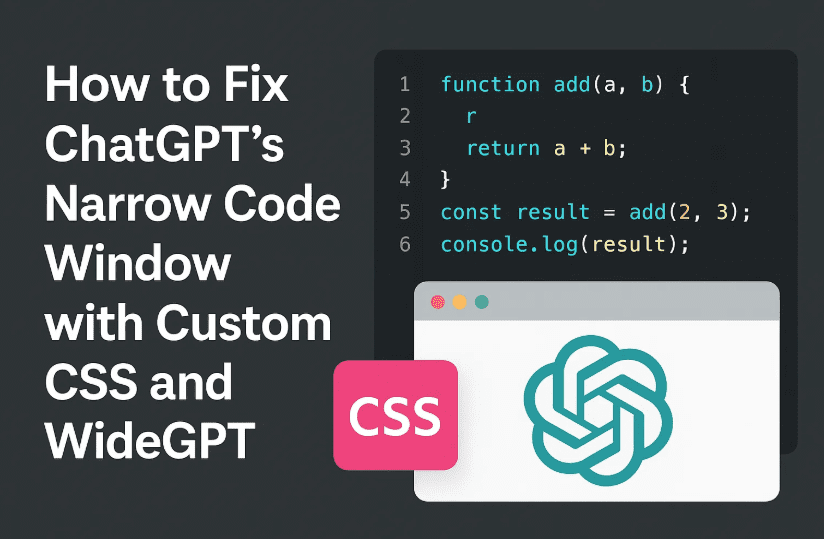
But don’t worry! This article walks you through two reliable solutions to expand ChatGPT’s code window width using browser-based tools:
- A Custom CSS workaround using a browser extension
- An easier alternative via the WideGPT Chrome extension
Both options are beginner-friendly and completely local to your browser—meaning no server-side risks or complex hacks. That said, before we proceed…
⚠️ Disclaimer:
These changes are client-side only, which means they will only affect your local view of ChatGPT. If OpenAI updates their site’s CSS or layout in the future, some of these tweaks might break or require updating. Proceed at your own discretion.
Why Is ChatGPT’s Code Window So Narrow?
ChatGPT, especially in dark mode, has a beautifully minimal interface. However, when you’re trying to review multi-line functions, HTML, or even JSON output, those narrow code containers become a big bottleneck.
The default CSS (.text-base) limits the width of content to preserve UI aesthetics—but it wasn’t designed with developers in mind.
So, let’s take control and fix it ourselves.
🛠️ Method 1: Use Custom CSS via Browser Extension
This is the more customizable option and works for most Chromium-based browsers like Chrome, Brave, Edge, and even Opera.
Step-by-Step Guide
Let’s break this down clearly. If you’re not very tech-savvy, don’t worry—I’ll walk you through each step like a friend helping you over a call.
✅ Step 1: Install a Custom CSS Extension
You’ll need a browser extension that allows you to inject your own CSS on specific websites. One popular and trusted extension is called:









Custom CSS & JS by Denis Isakov
You can find it on the Chrome Web Store here
After installation, pin the extension to your toolbar for quick access:
- Click the puzzle icon (🔧) next to your address bar.
- Find “Custom CSS & JS” and click the pin 📌 icon.
✅ Step 2: Open ChatGPT in a Tab
Now visit https://chat.openai.com and leave that tab open.
✅ Step 3: Copy This Custom CSS
Here’s the magic bit of code that fixes the narrow window issue:
.text-base {
    max-width: 100% !important;
    padding-left: 20px !important;
    padding-right: 20px !important;
}
This will:
- Force the main text area to use 100% of available width.
- Add some padding so the text doesn’t hug the edges.
✅ Step 4: Apply the Custom CSS
Now let’s apply the CSS to ChatGPT:
- Click on the Custom CSS extension you pinned earlier.
- Click on “Add new”.
- Set the Target URL to:
https://chat.openai.com/* - Paste the CSS from above into the code editor.
- Click Save.
- If prompted for permission, grant it.
Now refresh your ChatGPT tab.
🎉 Boom! Your code windows are now finally full-width and way easier to work with.
🧩 Alternative: Use the “WideGPT” Chrome Extension
If you prefer a plug-and-play solution without custom code, WideGPT is a brilliant option.
It’s a dedicated Chrome extension built specifically to widen ChatGPT’s layout without requiring any CSS tweaks.
🔧 Steps to Use WideGPT
- Open the WideGPT extension page on Chrome Web Store
- Click “Add to Chrome”
- After installation, refresh https://chat.openai.com
That’s it! No configuration required. It widens the conversation area automatically and cleanly. It also works in tandem with dark mode and doesn’t conflict with OpenAI’s own layout.
Which Option Should You Choose?
| Feature | Custom CSS | WideGPT |
|---|---|---|
| Requires Manual CSS? | ✅ Yes | ❌ No |
| One-click Setup | ❌ | ✅ |
| Fully Customizable | ✅ | ❌ |
| Works with other mods | ✅ | ✅ |
| Easiest for beginners | ❌ | ✅ |
If you’re comfortable with tweaking settings and want to customize more than just code width, go with Custom CSS. If you just want something that “works out of the box,” then WideGPT is the way to go.
💡 Pro Tips for Power Users
Let’s go one step further. If you enjoy tweaking the UI for productivity, here are a few CSS snippets you can optionally add:
🧱 Widen the Sidebar
.w-full.lg\:max-w-3xl {
    max-width: 90% !important;
}
🎯 Make Prompts Stand Out (for YouTube or Blog Recording)
.prose {
    font-size: 18px;
    background-color: #222;
    border-left: 4px solid #00bcd4;
    padding: 10px;
}
You can mix and match these based on how you want your interface to feel—minimal, focused, or color-coded for screencasts.
🧩 Frequently Asked Questions (FAQs)
Q: Will these changes affect others or just me?
A: Only you. These are local browser modifications, and nobody else (not even OpenAI) can see your changes.
Q: Will this break if ChatGPT updates its UI?
A: Possibly. OpenAI sometimes changes their CSS class names. You may need to inspect elements and update your styles if the layout breaks.
Q: Can I use this on mobile?
A: No, these browser extensions are desktop-only. Most mobile browsers don’t allow injection of user CSS.
Q: Will this work on other AI chat tools like Claude or Gemini?
A: If the extension allows you to target specific URLs, you can apply similar customizations to those tools as well.
So, What Have We Achieved?
Let’s quickly recap before wrapping up:
- We fixed ChatGPT’s narrow code window with two methods.
- We explained both Custom CSS and WideGPT, step-by-step.
- We offered bonus UI tweaks for power users.
- We answered the most common questions.
If you’ve followed along till here, awesome job! 👏 You’ve just unlocked a more comfortable, developer-friendly ChatGPT experience that helps you see your code clearly—without eye strain or horizontal scrolling.
Whether you’re building apps, prompting AI agents, or using ChatGPT as your coding assistant, layout matters—and now, you’ve got control.
Tags:
chatgpt customization, widegpt, custom css, developer tools, code block fix, chatgpt ui tweaks, css extensions, chrome extensions, productivity tools, coding with chatgpt, browser hacks
Hashtags:
#ChatGPTTips #WideGPT #CustomCSS #DeveloperTools #BrowserExtensions #ChatGPTFix #CodeWindowFix #FrontendTweaks #AIProductivity







