If you’re seeing the error message “Can’t find your camera” or “No cameras are attached” on your Windows laptop, don’t panic. This common issue can often be resolved with a few troubleshooting steps. In this guide, we’ll walk you through checking camera permissions, resetting the Camera app, updating drivers via Device Manager, and more.

🛠️ Steps to Fix Camera Not Working on Windows
1. Check Camera Access in Windows Settings
Before diving into advanced fixes, ensure your camera isn’t blocked by system settings.
- Press Windows Key + I to open Settings.
- Go to Privacy & Security > Camera.
- Toggle “Camera access for this device” to On.
- Enable “Allow apps to access your camera”.
- Scroll down and enable camera access for individual apps (e.g., Zoom, Skype).
If the camera still doesn’t work, proceed to the next step.
2. Reset the Camera App
Corrupted app data can cause camera malfunctions. Resetting the app may help.
- Open the Windows search bar and type “Camera”.
- Click App settings (on the right).
- Scroll down and select Reset.
- Confirm and wait for the process to complete.
After resetting, reopen the Camera app to check if the issue is resolved.
3. Troubleshoot via Device Manager
If the camera remains undetected, check Device Manager.
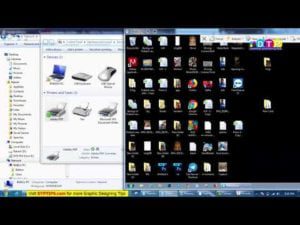
- Right-click the Start button and select Device Manager.
- Click View > Show hidden devices (if the camera isn’t visible).
- Expand Cameras or Imaging devices.
- If the camera has a downward arrow, it’s disabled. Right-click and select Enable device.
- If the camera is listed but not working, right-click > Update driver > Search automatically for drivers.
- If no updates are found, go to the Action tab and select Scan for hardware changes.
4. Restart Your Computer
After making changes, restart your PC and test the camera again.
❌ What If the Camera Still Doesn’t Work?
If the camera doesn’t appear in Device Manager, it may be a hardware issue. Consider:
- Checking for physical damage (e.g., disconnected cable).
- Testing with an external USB camera.
- Contacting manufacturer support for repair/replacement.
🔗 Useful Links
📌 Tags
#WindowsTips #CameraError #TechSupport #Windows10 #Windows11 #PCTroubleshooting
🔖 Categories
Windows Fixes, Hardware Issues, Tech Guides
Disclaimer: If your camera still doesn’t work after these steps, it may require professional repair. Always back up your data before making system changes.