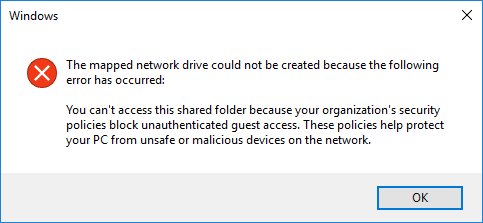
Have you encountered the frustrating error that says you “”You can’t access this shared folder because your organization’s security policies block unauthenticated guest access. These policies help protect your pc from unsafe or malicious devices on the network”. on your Windows PC? This issue can occur when trying to access shared files across a local network and is typically due to certain system security settings. The good news is—this issue can be fixed easily by adjusting a specific registry key and configuring your credentials.
In this article, we will walk you through step-by-step instructions to resolve this problem on all versions of Windows, from Windows 7 up to the latest Windows 11 updates.
Step-by-Step Guide to Fix Shared Folder Access Error
Step 1: Open the Windows Registry Editor
- Press the
Windows Logo Key + Ron your keyboard. - In the Run dialog box, type:
regedit - Press Enter or click OK. This will open the Windows Registry Editor.
Step 2: Navigate to the Required Registry Path
In the Registry Editor, navigate to the following path:
HKEY_LOCAL_MACHINE\SYSTEM\CurrentControlSet\Services\LanmanWorkstation\Parameters
If the folder path doesn’t exist fully, ensure you are typing and clicking each subfolder correctly.
Step 3: Create a New DWORD (32-bit) Value
- Right-click on the right-hand pane of the Parameters folder.
- Select New > DWORD (32-bit) Value.
- Name the new value:
AllowInsecureGuestAuth
Step 4: Set the Value Data
- Double-click on the newly created
AllowInsecureGuestAuth. - In the Value data field, input either:
0— Anyone can connect to the shared folder without credentials. (Not recommended due to security concerns.)1— Requires users to enter a username and password to connect. (Recommended for safer network sharing.)
⚠️ Important Security Note:
Setting the value to0lowers your network’s security by allowing unauthenticated access to shared folders. It’s safer to use1and set up a username and password for network sharing.
Step 5: Configure Windows Credential Manager
To ensure seamless access when authentication is required, follow these steps:
- Search for Credential Manager in the Windows Start menu.
- Open Windows Credential Manager.
- Click on Add a Windows credential.
- Enter the IP address or hostname of the computer you’re trying to access, along with the appropriate username and password.
This step helps store the credentials securely, allowing you to access the shared folders without re-entering your login info every time.
Conclusion
By modifying the AllowInsecureGuestAuth value in the Windows Registry and setting up proper credentials in the Windows Credential Manager, you can easily resolve the “Cannot access shared folder due to security policies” error. This method works seamlessly across all major versions of Windows—from Windows 7 to Windows 11.
Tags:
Windows shared folder fix, cannot access shared folder, Windows registry tweak, allow insecure guest auth, Windows Credential Manager, shared folder network access, Windows 11 network error, LAN sharing fix
Hashtags:
#WindowsFix #SharedFolderError #NetworkSharing #CredentialManager #Windows11 #RegistryHack #WindowsTips #LANSharing
Useful Links
Disclaimer
Disclaimer: Editing the Windows Registry can affect your system’s stability and security. Be sure to follow instructions carefully. It is recommended to back up your registry or create a system restore point before making any changes. Proceed at your own risk.