If you recently purchased the Boya M1 microphone and are facing problems using it with your PC or laptop, you are not alone. Many users experience issues where the mic either doesn’t work at all or delivers poor sound quality. Sometimes, it works initially but stops functioning properly after a while.
In this article, we will walk you through five essential troubleshooting steps to fix your Boya M1 mic problems. Whether you are planning to buy this mic or already own one, you will find this guide extremely useful.
1. Set the Boya Mic to Camera Mode
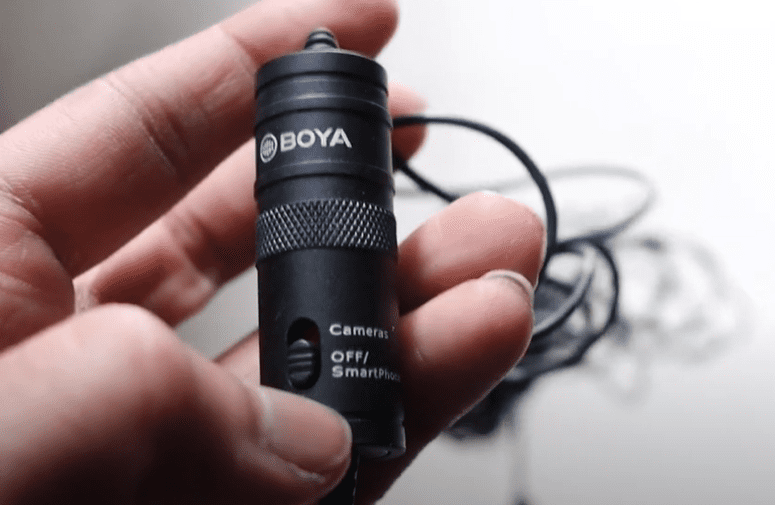
When connecting your Boya M1 mic to a PC or laptop, it’s crucial to set the mic switch to Camera mode instead of Smartphone mode.
You can find a small switch on the mic’s control unit labeled “Camera” and “Smartphone.”
Move the switch to Camera, then try recording or using the microphone again.
In many cases, this simple change can immediately fix the issue.
2. Use a TRRS to TRS Converter
If switching to Camera mode doesn’t resolve the problem, the next step is to check the audio jack compatibility.
Many PCs and laptops have separate microphone and headphone jacks, while the Boya M1 mic uses a TRRS (Tip-Ring-Ring-Sleeve) connector designed mainly for smartphones.
In such cases, you need to use a TRRS to TRS converter adapter, which costs around ₹200–₹300 online.
Simply attach the adapter to your Boya mic plug and then connect it to your PC’s microphone port.
This solution has worked for many users and often solves microphone detection issues instantly.
3. Check the Correct Port on Your PC or Laptop
Another common mistake is plugging the mic into the wrong port.
Always make sure you are connecting the Boya mic into the microphone input port — not the headphone or speaker port.
Look for the small mic icon near the port to identify the correct one.
Incorrect port connections often prevent the mic from working correctly.
4. Update or Install Audio Drivers
Outdated or missing audio drivers can also cause microphone issues.
If your Boya mic is still not working, you should check your PC’s audio drivers.
One simple way is by using a driver updater tool like AVAST Driver Updater:
- Open your browser and search for “AVAST Driver Updater.”
- Download and install the tool from the official website.
- Launch it and scan your system for missing or outdated drivers.
- Update your audio drivers, especially those related to “Realtek” or “High Definition Audio.”
A missing or outdated audio driver can completely block microphone functionality. After updating, your Boya M1 mic should work fine.
5. Check for Fake/Duplicate Boya Mics
Unfortunately, the market is flooded with duplicate Boya M1 mics.
Fake mics usually have terrible sound quality, stop working after a few uses, and often create strange noises during recording.
Here’s how to check if your mic is genuine:
- Look for a pink sticker with a QR code on the packaging or the mic control box.
- Scan the QR code on the official Boya website to verify authenticity.
- Make sure the pink stamp and QR code are present before purchasing.
If your mic doesn’t have these markings, it could be a duplicate — which might explain why it’s not working properly.







Bonus Tips
- Battery Check:
The Boya M1 mic has a small button cell battery inside its control box.
If your mic initially worked but now gives poor sound or stops working, the battery might be dead.
Replace the battery with a fresh one and check again. - Test on Another Device:
To confirm whether the issue is with the mic or your PC, try using the Boya mic on another PC, laptop, or camera.
If it works fine elsewhere, the problem lies with your PC settings. If it still doesn’t work, the mic might be faulty. - Reset Windows (last option):
If all else fails, and especially if you suspect system settings are corrupted, you can try resetting your Windows OS and reinstalling drivers.
This step should only be taken after all other methods are exhausted.
Conclusion
The Boya M1 is a great budget microphone, but like any tech device, it can have compatibility issues with PCs and laptops.
Following the steps in this article should help you fix most problems easily.
Make sure you verify your mic’s authenticity, check the port, update drivers, and replace the battery if needed.
If your Boya mic still doesn’t work after trying everything, it might be time to consult a professional or consider getting a replacement.
If you have any questions or face any other issues, feel free to leave a comment below!
Tags: boya mic, boya m1, mic not working on pc, mic troubleshooting, audio driver update, trs to trrs converter, mic quality fix, fake boya mic identification, pc microphone issues, sound recording issues, mic repair guide
Hashtags: #BoyaMic #BoyaM1 #MicNotWorking #MicFix #AudioDrivers #TRStoTRRS #MicrophoneSetup #FakeMicDetection #SoundQuality #RecordingIssues
Would you also like me to quickly create a shorter version for social media posting? 🚀
Or maybe a simple checklist version too? 📋








