Have you ever powered on your PC only to be greeted with a completely black screen? No desktop, no taskbar — just darkness?
You’re not alone. The black screen issue in Windows 11 or Windows 10 is one of the most common problems users encounter, whether it’s during boot, after login, or while working on something important. But don’t panic — this blog post will guide you through all the reliable fixes step-by-step.
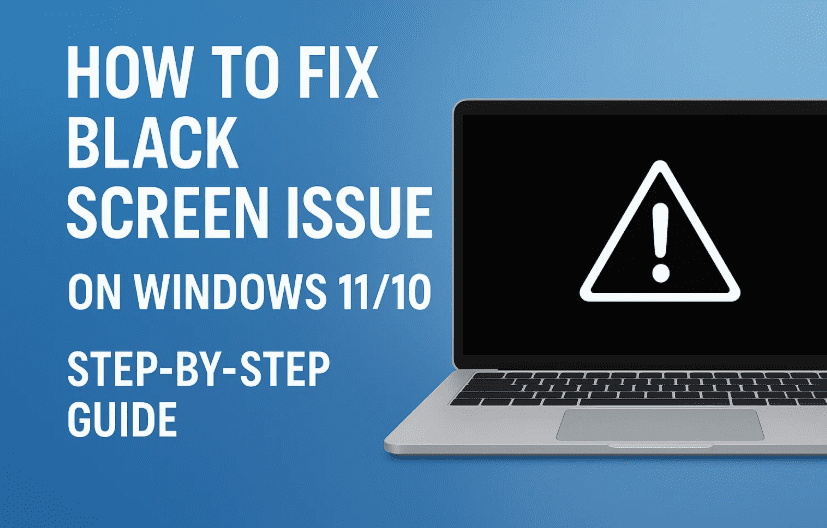
Let’s get you back to a working screen — without rushing to a repair shop.
🧠 Understanding the Problem
Before diving into the fixes, let’s understand what causes this frustrating problem:
- Faulty or outdated display drivers
- Incompatible Windows updates
- Misconfigured startup settings
- Power glitches or static buildup
- Hardware/display port misconnection
Now that we know the potential causes, let’s start with the most basic fix and gradually move to advanced recovery techniques.
🔁 Step 1: Restart the PC into Recovery Mode (With Shift Key)
If your screen goes black after login or while working, try this simple fix first:
Here’s what to do:
- Force shut down your PC by pressing and holding the power button until it turns off.
- Turn it back on and wait for the login screen.
- Hold down the SHIFT key on your keyboard.
- While holding it, click the Power icon on the bottom right of the screen.
- Choose Restart (keep holding SHIFT until you see “Please wait”).
- This will boot you into Advanced Recovery Mode.
Let’s move on to what to do once you’re inside that recovery environment.
🧰 Step 2: Force Entry to Recovery Mode (If You Can’t Reach Login)
If the black screen happens before you even see the login screen, try forcing the system into recovery:
On Laptops:
- Turn it on and force shut down by holding the power button.
- Repeat this three times in a row.
- On the third time, Windows should enter Advanced Recovery Mode.
On Desktops:
- Power on your system and unplug the power cord while it’s booting.
- Plug it back in, and do this three times.
- After the third attempt, it will detect abnormal shutdowns and trigger Recovery Mode.
Once you’re in, you’re ready for repair tools.
🛠️ Step 3: Run Startup Repair
In Recovery Mode:
- Click Troubleshoot > Advanced options > Startup Repair.
- Wait for the tool to scan and attempt to fix the issue.
If this works — great! If not, don’t worry, let’s keep moving.









🔄 Step 4: Uninstall Recent Windows Updates
Sometimes, a recent Windows update could be the culprit.
- Go back to Advanced Options.
- Click Uninstall Updates.
- First, choose Uninstall Latest Quality Update.
- If the issue persists, repeat and choose Uninstall Latest Feature Update.
This can take 5–10 minutes. Restart your PC after each uninstall and check if the black screen is resolved.
💻 Step 5: Boot into Safe Mode with Networking
Still stuck? Time to boot into Safe Mode — a stripped-down Windows environment that can help diagnose issues.
- From Recovery Mode, go to Troubleshoot > Advanced Options > Startup Settings.
- Click Restart.
- When options appear, press 5 on your keyboard (Safe Mode with Networking).
- Log in to Windows.
You’re now in Safe Mode — the perfect place to update or uninstall display drivers.
📁 Step 6: Update or Uninstall Display Drivers
Let’s now fix any potential driver issues.
- Right-click on the Start Menu, choose Run.
- Type
devmgmt.mscand press Enter to open Device Manager. - Expand Display Adapters.
- Right-click your graphics driver and choose Update Driver.
- Select Search automatically for drivers.
- If nothing updates, right-click again and choose Uninstall device.
- If there are multiple drivers, uninstall them all.
Now restart your PC. Windows will automatically reinstall the correct display drivers during boot.
Hopefully, your black screen is gone by now. If not, there’s one last solution to try.
🔋 Step 7: Perform a Power Flush (Static Discharge)
This might sound technical, but it’s actually very simple and effective.
For Desktops:
- Shut down the PC completely.
- Disconnect all power cables, including display cables (HDMI, DP).
- Press and hold the power button for 30 seconds.
- Reconnect everything and turn it on.
For Laptops:
- Shut down the laptop completely.
- Press and hold the power button for 30 seconds.
- Power it back on normally.
This process discharges any residual electricity that might interfere with display output or internal circuits.
🧪 Step 8: Check Display Cables and Ports
If your screen is still black with no signs of BIOS or boot, then it’s likely a hardware issue.
- Check if the HDMI/DisplayPort cable is properly plugged in.
- Try switching between onboard graphics and dedicated GPU ports (if using a desktop).
- Try a different monitor or cable.
- Try connecting your system to an external display (e.g., TV).
💡 Sometimes it’s just a loose cable — don’t underestimate the basics.
❓ FAQs
Q1. What causes the black screen after login?
This is usually due to faulty display drivers, incompatible updates, or software conflicts.
Q2. Is a black screen always a hardware issue?
No. In most cases, it’s a software or driver issue and can be fixed with the steps above.
Q3. Will uninstalling display drivers harm my PC?
Not at all. Windows automatically reinstalls the correct drivers after reboot.
Q4. What if nothing works and there’s no display at all?
It could be a hardware failure (GPU, RAM, motherboard). Seek professional repair.
⚠️ Disclaimer
This article is for informational purposes only. If your PC is under warranty or you are not comfortable performing the steps mentioned, please consult a certified technician.
🏷️ Tags:
Windows 11 black screen fix, Windows 10 boot issues, display driver problems, safe mode troubleshooting, power flush PC, advanced recovery mode, black screen with cursor, startup repair, Windows troubleshooting
🔖 Hashtags:
#Windows11 #BlackScreenFix #PCRepair #DisplayDriver #SafeMode #StartupIssues #Windows10 #TechGuide #Troubleshooting
✅ Final Thoughts
So far, we’ve walked through everything from basic reboots and driver fixes to advanced recovery options and power discharge. If your screen is back to normal — congratulations! If you’re still stuck, consider checking the hardware or contacting professional support.
Don’t let a black screen ruin your productivity. With a calm approach and the right steps, you can usually get your PC back in action without losing any data.
Stay safe, and happy troubleshooting!








