If you’ve tried launching Battlefield 6 on your Windows PC only to be met with DirectX errors such asDXGI_ERROR_DEVICE_HUNG, DXGI_ERROR_DEVICE_REMOVED, or DXGI_ERROR_DEVICE_RESET, you’re not alone.
These frustrating pop-ups can instantly crash the game or prevent it from launching entirely.
The good news? These issues are software-side and fixable. In this guide, we’ll walk through every working solution — from in-game settings and DirectX configuration tweaks to advanced graphics driver fixes and BIOS options.
By the end of this article, you’ll understand not only how to fix the problem but also why it happens.
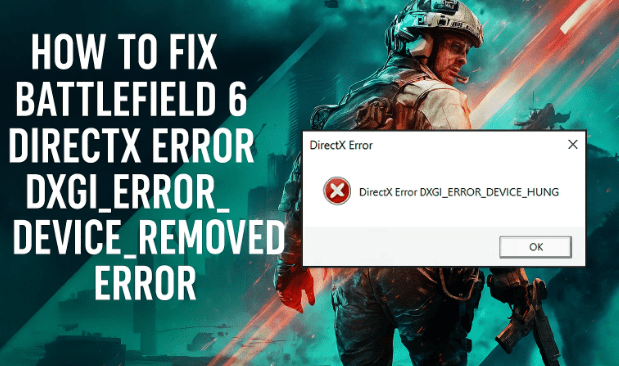
1. Why the Battlefield 6 DirectX Error Happens
DirectX errors usually mean the game and GPU are out of sync. Common triggers include:
- Outdated or corrupted graphics drivers
- Incorrect DirectX version settings (DX11 vs DX12)
- Game cache corruption
- Overclocking or unstable GPU power delivery
- Background overlays or performance tools interfering with rendering
Understanding these root causes helps you apply the right fix rather than random trial and error.
2. Switch From PAX to NATO Loadout
Let’s begin with a simple in-game tweak that surprisingly works for many players.
Steps
- Launch Battlefield 6.
- Go to Loadouts from the main menu.
- Check if the faction is set to PAX Per Matter.
- Switch it to NATO.
- Save and relaunch the match.
This forces the game to reload certain rendering profiles linked to the faction skins and assets, occasionally clearing hidden cache mismatches that trigger DirectX errors.
3. Change Soldier Class (Engineer ↔ Assault)
If switching factions doesn’t help, change the player class.
Sometimes class-specific loadouts get bugged after patches.
- Go to Loadouts → Classes.
- If you’re using Engineer, switch to Assault — or vice versa.
- Apply and relaunch the game.
4. Change Your Main Weapon
Another odd but proven fix is swapping your primary weapon type.
Try switching from an Assault Rifle to an SMG or LMG.
This refreshes the cached weapon data that sometimes corrupts and crashes the engine.
5. Turn Off Screen Space AO & GI
Now we’ll tweak the graphics settings.







- In-game, click the ⚙ Settings icon → Graphics → Graphics Quality.
- Scroll down to Screen Space AO and Screen Space GI.
- Turn both Off.
- Apply changes and restart the game.
These features enhance lighting realism but can overload GPUs with memory-leak bugs, especially on older cards.
6. Try Borderless or Windowed Mode
Switching display mode can help when DirectX has trouble acquiring the display surface.
- Open Settings → Display Options.
- Change Display Mode to Borderless Windowed.
- Apply and relaunch the game.
If already on borderless, test Full Screen or Windowed instead.
7. Cap the Frame Rate (FPS)
Unlimited FPS can cause GPU driver timeouts.
Set a reasonable cap:
- Go to Graphics → Advanced Options.
- Locate Frame Rate Limiter.
- Set it to 60 FPS or 120 FPS depending on your monitor.
8. Lower Overall Graphics Quality
Ultra presets look great but stress even high-end GPUs.
Try these settings:
- Graphics → Graphics Quality → Medium or Low
- Test performance after applying.
Lower settings reduce memory usage and often stabilize DirectX.
9. Enable DX12 in the Config File
If you’re still getting the error, we’ll manually enable DirectX 12.
Steps
- Open File Explorer.
- Navigate to:
Documents → Battlefield 6 → Settings - Open the PROSAVE_profile file with Notepad.
- Find the line:
GstRender.Dx12Enabled 0 - Change
0to1, save the file, and close Notepad. - Relaunch the game.
If it was already 1, try setting it to 0 to force DirectX 11.
10. Rename or Reset Battlefield 6 Settings Folder
Sometimes the entire configuration folder becomes corrupted.
- Navigate to your Documents folder.
- Locate the Battlefield 6 directory.
- Copy it as a backup.
- Rename the original (e.g.,
Battlefield 6 _old). - Relaunch the game — it will create fresh config files.
Note that this resets in-game settings and progress stored locally, but cloud saves remain intact.
11. Use Launch Options in Steam or EA App
We can force a specific DirectX mode at launch.
Steam
- Right-click Battlefield 6 → Properties.
- In Launch Options, enter:
-d3d11 - Test the game. If it fails, try:
-dx11or-dx12
EA App
- Click Manage → View Properties → Advanced Launch Options.
- Add the same commands.
- Save and test each one.
12. Enable Debug Mode in NVIDIA Control Panel
- Right-click the desktop → NVIDIA Control Panel.
- Go to Help → Debug Mode.
- Check the box to enable it.
- Restart the game.
Debug Mode disables custom GPU factory overclocks, which often resolves DXGI crashes.
13. Adjust PCIe Gen Setting in BIOS
If your motherboard supports PCI Express Gen 4, forcing it instead of Auto can help.
How to Access BIOS
- Press Windows + I → Windows Update → Advanced Options → Recovery.
- Under Advanced Startup, click Restart Now.
- Choose Troubleshoot → Advanced Options → UEFI Firmware Settings.
Inside BIOS, locate the PCIe Configuration setting and set GEN 4 manually.
Save and exit.
(If instability occurs, revert to Auto.)
14. Disable Integrated GPU Temporarily
Dual-GPU laptops sometimes route rendering incorrectly.
- Press Windows + X → Device Manager.
- Expand Display Adapters.
- Right-click the Integrated GPU (e.g., Intel HD Graphics).
- Choose Disable Device.
- Launch Battlefield 6.
Re-enable it afterward for normal use.
15. Experiment With Power Modes
- Search Control Panel → Hardware and Sound → Power Options.
- Try Power Saver, Balanced, and High Performance profiles.
- Launch the game after each change to see which works best.
Different GPUs behave differently under each mode due to power-draw balancing.
16. Toggle Hardware-Accelerated GPU Scheduling
- Type Graphics Settings in Windows Search.
- Click Change Default Graphics Settings.
- Toggle Hardware-Accelerated GPU Scheduling on or off.
- Restart your PC and test again.
17. Turn Off “Smooth Motion” in NVIDIA App
- Open the NVIDIA App (or GeForce Experience).
- Navigate to Graphics → Global Settings.
- Turn Smooth Motion off globally and again for Battlefield 6 under Program Settings.
- Relaunch the game.
18. Clean-Install Your Graphics Driver
A clean driver install removes corrupt remnants of old versions.
For NVIDIA Cards
- Visit the official NVIDIA driver page.
- Select your GPU model and OS → Find → Download.
- Run the
.exe→ Accept → Custom Installation → Check Perform a clean installation. - Complete setup and restart your PC.
For AMD Cards
Go to AMD Drivers & Support, choose your GPU, and install the latest Adrenalin Edition driver.
19. Run Battlefield 6 on Dedicated GPU
Ensure the game always uses your powerful GPU instead of integrated graphics.
- Type Graphics Settings in Search.
- Click Browse → Add Desktop App.
- Navigate to your Battlefield 6 installation folder.
- Add the
.exefile. - Click Options → High Performance → Save**.
20. Disable or Enable HDR
- Go to Windows Settings → System → Display → HDR.
- Toggle HDR off → test → then on → test again.
Some GPUs mismanage HDR color profiles, so switching modes can reinitialize DirectX properly.
21. Disable Overclocking & Overlay Apps
Overclocking utilities such as MSI Afterburner or RivaTuner may cause instability.
- Reset GPU to default clocks.
- Close all overlay apps: Discord Overlay, NVIDIA Overlay, Steam Overlay (disable in each app’s settings).
- Relaunch Battlefield 6.
If you undervolted your GPU, revert to default voltages too.
22. Clear NVIDIA Cache & DirectX Shader Cache
Delete NVIDIA Cache
- Open File Explorer → C:\Users<username>\AppData\Local\NVIDIA.
- Delete GLCache and DXCache folders.
Clear DirectX Shader Cache
- Type Disk Cleanup in Search → Open.
- Select drive C:.
- Check DirectX Shader Cache (and others you wish).
- Click OK → Delete Files.
Restart your PC before testing again.
23. Update Windows and BIOS
Keeping both Windows and BIOS updated is crucial for compatibility.
Update Windows
- Settings → Windows Update → Check for updates
- Install all available updates and reboot.
Update BIOS
Visit your PC manufacturer’s official website:
Download the latest BIOS for your model, follow on-screen instructions, and ensure your laptop is plugged in during the process.
24. Verify or Repair Game Files
Corrupted installation files are a frequent culprit.
EA App
- Open the EA App.
- Go to Battlefield 6 → Manage → Repair.
Steam
- Right-click Battlefield 6 → Properties → Installed Files.
- Click Verify Integrity of Game Files.
25. Frequently Asked Questions
Q 1: Should I use DX11 or DX12 for Battlefield 6?
Start with DX12 for better performance, but if you experience stability issues, revert to DX11 using the launch-option method.
Q 2: What if my GPU keeps crashing despite all these fixes?
Check your GPU temperature. Anything consistently above 85 °C may trigger protection shutdowns. Clean fans and ensure proper airflow.
Q 3: Can reinstalling Windows help?
Only as a last resort. Usually updating drivers, clearing caches, or verifying files resolves the issue.
Q 4: Is overclocking safe after applying these fixes?
Mild overclocks are fine once stability is confirmed, but keep power limits conservative.
26. Final Thoughts
DirectX errors in Battlefield 6 can seem intimidating, but they’re almost always fixable through the right combination of graphics, driver, and system settings.
Start from the in-game tweaks (Steps 1 – 7) and gradually progress to deeper system-level solutions (Steps 8 – 24).
Patience pays off — after applying the right fix, you’ll enjoy stable, crash-free gameplay once again.
Disclaimer
Modifying BIOS settings, GPU drivers, and system configurations should be done carefully.
Always back up important data and avoid making changes you’re unfamiliar with.
Neither this article nor the author is responsible for hardware or software damage caused by incorrect application of the steps.
For official Battlefield support, visit the EA Help Center.
#Battlefield6 #DirectXError #GamingFix #DXGIError #NVIDIA #AMD #WindowsGaming #Troubleshooting #PCGames #BattlefieldGuide







