If your Windows 11 laptop battery seems to be draining faster than expected, you’re not alone. Many users face battery performance issues due to unnecessary background apps, startup programs, and Windows features that quietly consume power.
In this detailed guide, we’ll walk you through six effective methods to improve battery life on your Windows 11 laptop. Whether you’re a student, a remote worker, or a casual user, following these steps can make your device last noticeably longer on a single charge.
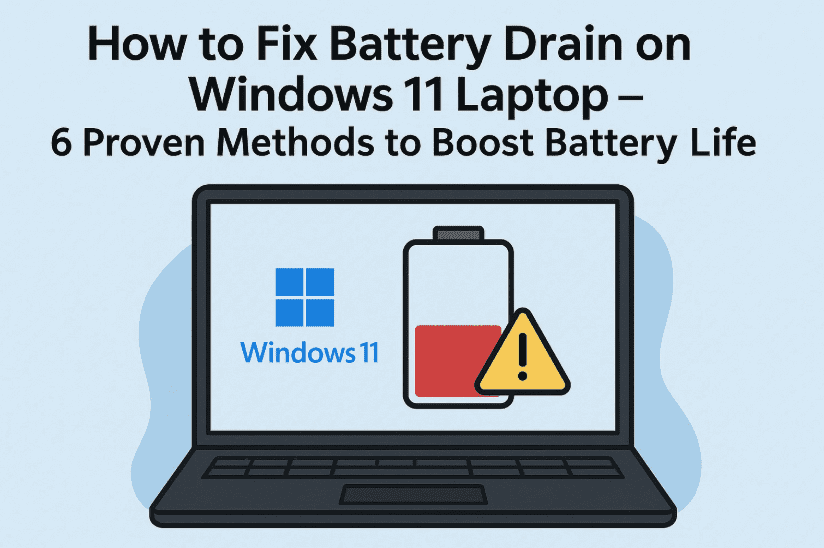
⚙️ Let’s Start with Disabling Background Apps
One of the most common culprits behind poor battery life is background apps that continue to run even when you’re not using them. Let’s tackle that first.
Step 1: Disable Background Apps
Here’s what you need to do:
- Open the Start Menu and click on Settings.
- Go to Apps > Installed Apps.
- Find the app you want to restrict.
- Click the three-dot menu beside it and select Advanced Options.
- Scroll down to Background App Permissions.
- Set “Let this app run in background” to Never.
Repeat this for all non-essential apps that don’t need to be active in the background.
This simple step can significantly cut down on passive battery drain throughout your day.
🚀 Now Let’s Optimize Startup Apps
So far we’ve done a great job minimizing app activity in the background. Now, let’s move on to controlling what runs when your system boots up.
Step 2: Manage Startup Apps
- Right-click the Taskbar and select Task Manager.
- Navigate to the Startup tab.
- Review the list of apps.
- Right-click any unnecessary app and choose Disable.
Be careful not to disable critical services like Windows Security Notification.
Disabling startup apps reduces initial battery usage and improves boot time.
🔍 Next, Let’s Tweak Windows Indexing
Search indexing is useful but can be power-hungry when running on battery. Let’s optimize it.
Step 3: Disable Search Indexing on Battery
- Open the Search Bar and type Group Policy.
- Click Edit Group Policy from the results.
- Navigate to:
- Computer Configuration > Administrative Templates > Windows Components > Search
- Find the policy: “Prevent indexing when running on battery power to conserve energy”
- Double-click it, select Enabled, then click Apply > OK.
This prevents Windows from indexing while on battery, giving your system room to breathe.





🔌 Time to Adjust Power Mode Settings
Alright, so far we’ve cleaned up the background mess. Now let’s tweak Windows’ built-in power settings to further reduce battery consumption.
Step 4: Use Best Power Efficiency Mode
- Go to Start > Settings.
- Navigate to System > Power & Battery.
- Look for Power Mode.
- Set:
- Plugged in → Best Performance
- On Battery → Best Power Efficiency
Best Power Efficiency dynamically adjusts performance to reduce energy usage when not plugged in.
This is particularly useful for long meetings, flights, or remote work sessions.
🛑 Now Disable Windows Search Service Temporarily
Here’s a more advanced step, useful if you need to squeeze every drop of battery out of your machine.
Step 5: Disable Windows Search Service
- Press Windows + S, type Services, and hit Enter.
- Inside the Services window, press W to jump to Windows-related services.
- Find Windows Search, double-click it.
- Click Stop to end the service immediately.
- Change Startup Type to Disabled.
- Click Apply > OK.
⚠️ Disclaimer: Disabling this service may slow down search within Windows File Explorer. You can always re-enable it later if needed.
This change can reduce constant background indexing and improve battery life during heavy multitasking or travel.
🤔 Frequently Asked Questions
Q: Will disabling background apps affect app notifications?
A: Yes, some apps like Mail or Skype may not notify you if background permission is disabled. Only restrict apps you rarely use.
Q: Can I re-enable search indexing later?
A: Absolutely. Just reverse the steps in the Services panel or Group Policy Editor.
Q: Is this safe for all laptops or only specific brands?
A: These steps are safe and work across all Windows 11 laptops — including Dell, HP, Lenovo, ASUS, Acer, and Surface devices.
🎯 Final Thoughts
So far, we’ve made solid progress:
- Cut down on background apps
- Stopped unnecessary startup tasks
- Disabled energy-hungry search features
- Switched to a power-efficient profile
By combining all these small optimizations, you should notice a significant improvement in battery performance. Whether you’re working on the go or simply want your battery to last through the day, these tweaks are essential.
🧩 Tags & Hashtags
Tags: windows 11 battery optimization, battery drain fix windows laptop, improve battery life windows, disable background apps windows, turn off indexing, windows search service, best power mode settings
Hashtags:
#Windows11 #BatteryLife #LaptopTips #WindowsOptimization #PowerEfficiency #DisableSearchIndexing #TechTips #WindowsTweaks #SaveBattery








