Running into the frustrating issue of apps not opening on your Windows 11 PC? You’re not alone. Whether it’s Microsoft Store apps, system apps, or third-party tools, unresponsive applications can really disrupt your productivity.
The good news? This issue is often caused by simple glitches, cache errors, or corrupt system files—and it can usually be resolved without reinstalling Windows.
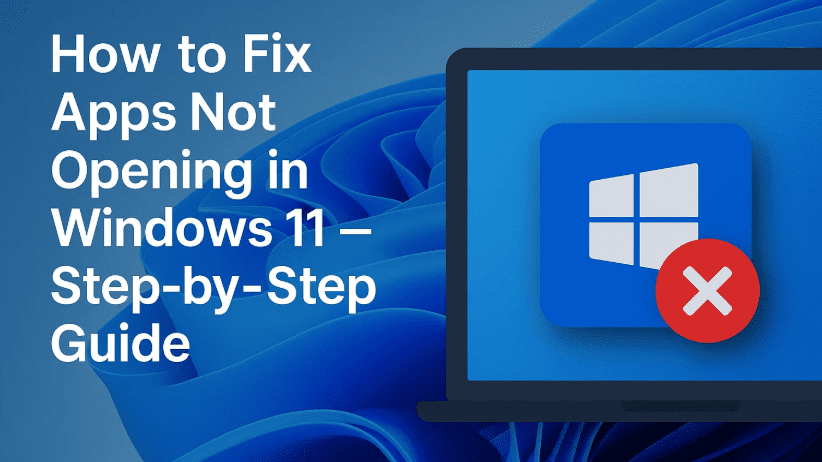
In this article, we’ll guide you through four effective methods to fix the “apps not opening” issue in Windows 11. All solutions are beginner-friendly, and no advanced technical skills are required.
🔧 Method 1: Restart Your PC (The Simplest Fix)
Let’s start with the easiest solution.
✅ Steps:
- Click on the Windows icon on your taskbar.
- Select the Power icon.
- Click Restart.
📝 Why this works: A restart can clear temporary system glitches, memory cache issues, and background conflicts that may be stopping apps from launching.
🔄 Method 2: Clear Microsoft Store Cache
If apps downloaded from the Microsoft Store aren’t opening, the Store’s cache might be corrupted.
✅ Steps:
- Click on Search in the taskbar and type:
wsreset - Click Open or press Enter.
- A blank command window will appear for a few seconds — let it finish.
- The Microsoft Store will reopen automatically after the reset completes.
📝 This method clears temporary cache files for Microsoft Store, often solving issues related to app installation and opening.
🧪 Method 3: Re-register All Apps Using PowerShell
If the problem affects multiple system apps, re-registering all Microsoft Store apps might help.
✅ Steps:
- Click Search and type
PowerShell. - Right-click on Windows PowerShell and choose Run as administrator.
- Click Yes when prompted by UAC.
- Paste the following command and press Enter:
Get-AppxPackage -AllUsers| Foreach {Add-AppxPackage -DisableDevelopmentMode -Register "$($_.InstallLocation)\AppXManifest.xml"}
- Wait for the command to complete (may take a few minutes).
- Restart your PC.
⚠️ Note: This command re-registers all built-in apps, including Settings, Photos, Microsoft Store, Calculator, etc.
🛠️ Method 4: Scan & Repair Corrupted System Files
Sometimes, Windows apps won’t open due to missing or corrupted system files.
✅ Steps:
- Click Search, type
cmd, and right-click on Command Prompt. - Choose Run as administrator and confirm with Yes.
- Now, type the following commands one by one and press Enter after each:
sfc /scannow
Wait for the process to finish (takes ~10-15 minutes). Then run:

DISM /Online /Cleanup-Image /RestoreHealth
- Once completed, restart your PC.
📝 These tools (SFC and DISM) scan and automatically repair corrupted system files that may be causing app launch failures.
❓ Frequently Asked Questions (FAQs)
Q1: Why won’t my apps open even after a restart?
Answer: It could be due to a corrupted app, cache errors, or system file damage. Try methods 2 through 4 for deeper repair.
Q2: Is it safe to use PowerShell or Command Prompt as administrator?
Answer: Yes, if you’re following trusted instructions. These tools are designed for system maintenance and repair.
Q3: Will I lose data if I re-register apps?
Answer: No, re-registering apps only restores system components. Your personal data and installed apps remain unaffected.
Q4: Can I use these fixes on Windows 10?
Answer: Yes, these methods also apply to Windows 10 for similar app launch issues.
📝 Final Thoughts
The “apps not opening” issue in Windows 11 can be frustrating, but with the right set of tools, you can fix it in a matter of minutes. Whether it’s a simple restart, clearing cache, or repairing the system via PowerShell and SFC, these methods have helped thousands of users.
💡 Pro Tip: After fixing the issue, make sure to keep your system updated and avoid force-stopping apps to prevent future launch problems.
If you’ve tried all the steps above and the issue still persists, consider checking for third-party antivirus conflicts or performing a Windows repair install.
🔗 Useful Links
- 👉 How to Fix “Microsoft Store Blocked by Administrator” in Windows 11
- 👉 “Operating System Not Found” Error Without Reinstalling Windows
- 👉 How to Remove or Reset a Forgotten Windows Password: 3 Effective Methods
🏷️ Tags
Windows 11, apps not opening, Microsoft Store fix, PowerShell commands, SFC scan, DISM repair, system troubleshooting, app issues, Windows maintenance
🔖 Hashtags
#Windows11 #AppFix #MicrosoftStore #PowerShell #WindowsTroubleshooting #SFCScan #DISMRepair #WindowsTips #SystemFixes #TechHelp







