If you’re encountering the frustrating “Application Made Too Many Requests” error on your Windows 11 or 10 PC, don’t worry—this issue can usually be resolved with a few simple troubleshooting steps.
This error often occurs due to incorrect system time settings, corrupted Windows Store cache, or issues with update files. Below, we’ll walk you through three effective methods to fix this problem.
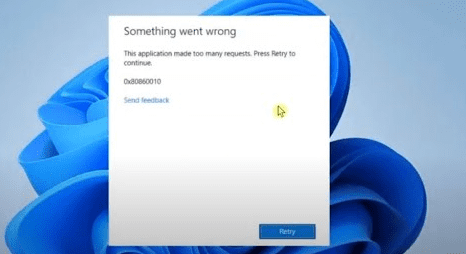
Method 1: Sync Date and Time Automatically
An incorrect system date or time can trigger this error. Here’s how to fix it:
- Open Settings (
Win + I). - Go to Time & Language > Date & Time.
- Enable “Set time automatically” and “Set time zone automatically”.
- Restart your PC and check if the issue persists.
Method 2: Reset Windows Store Cache
Corrupted Windows Store cache can cause this error. Resetting it may help:
- Press
Win + Rto open the Run dialog. - Type
WSReset.exeand press Enter. - Wait for the process to complete (a blank Command Prompt window will appear and close automatically).
- Restart your PC and check if the problem is resolved.
Method 3: Clear SoftwareDistribution Downloads
Corrupted update files can also trigger this error. Clearing the download cache may help:
- Press
Win + R, typecmd, and pressCtrl + Shift + Enterto open Command Prompt as Administrator. - Run the following commands one by one:
   net stop wuauserv
   net stop cryptSvc
   net stop bits
   net stop msiserver
   ren C:\Windows\SoftwareDistribution SoftwareDistribution.old
   net start wuauserv
   net start cryptSvc
   net start bits
net start msiserver- Restart your PC and check for updates again.
Additional Troubleshooting Tips
- Run Windows Update Troubleshooter (Settings > Update & Security > Troubleshoot).
- Check for pending Windows updates and install them.
- Disable VPN or Proxy temporarily, as they may interfere with network requests.
Final Thoughts
The “Application Made Too Many Requests” error is usually caused by incorrect system settings or corrupted caches. By following the methods above, you should be able to resolve the issue quickly.
For more Windows troubleshooting guides, visit:
🔗 Microsoft Support
Tags:
Windows 11 Error, Windows 10 Fix, Too Many Requests Error, Windows Troubleshooting
Hashtags:
#Windows11 #Windows10 #TechFix #PCTroubleshooting #WindowsError
Disclaimer: Modifying system files can affect your PC’s stability. Always back up important data before making changes. If the issue persists, consider seeking professional IT support.