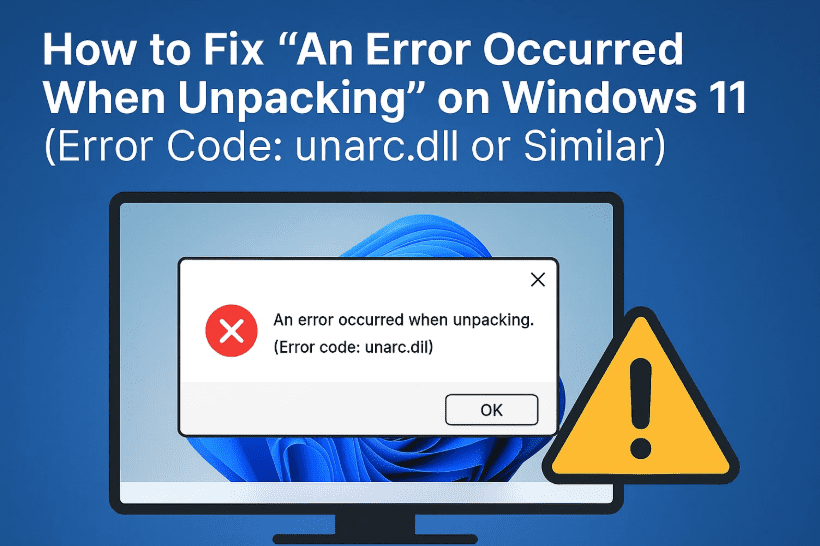
Have you ever tried to install a game or software on your Windows 11 PC only to be met with a frustrating error that says:
“An error occurred when unpacking. Unarc.dll returned an error code.”
You’re not alone—and don’t worry, this is totally fixable. Whether you’re dealing with a faulty unarc.dll, a memory management misconfiguration, or corrupt system files, this guide will walk you through every step to resolve it.
Let’s dive in step by step—and remember, take your time with each part. By the end of this article, your game or app should install smoothly.
🧠 Why This Error Happens
Before we jump into the solutions, here are a few common causes:
- Improper virtual memory configuration
- Corrupted system files
- Damaged or missing
.dllfiles likeunarc.dll - Lack of disk space on the drive
- Conflicts from temporary cache files
- Faulty installation media or repacks
✅ Step 1: Adjust Virtual Memory Settings
Sometimes, Windows doesn’t allocate enough virtual memory (paging file) which leads to unpacking errors during game installations.
Let’s tweak your system’s virtual memory settings:
- Press Windows + R to open the Run dialog.
- Type
sysdm.cpland press Enter. - In the System Properties window, go to the Advanced tab.
- Under Performance, click Settings.
- Go to the Advanced tab in the new window.
- Click the Change button under Virtual Memory.
Now configure the values:
- Uncheck “Automatically manage paging file size for all drives.”
- Select your C: drive (or where the game is being installed).
- Choose Custom size:
- Initial size (MB):
400 - Maximum size (MB):
3400
- Initial size (MB):
- Click Set, then click OK on all the windows.
- Restart your PC.
💡 Tip: Ensure you have at least 30–40 GB of free space on the target drive for smooth installation.
🔍 Step 2: Use SFC and DISM to Fix System File Corruption
If the error persists, your system files may be corrupt or misconfigured. Thankfully, Windows provides built-in tools to fix this.
Run System File Checker (SFC)
- Open Command Prompt as Administrator (search cmd, right-click > Run as administrator).
- Type the command:
sfc /scannow - Press Enter and wait for it to complete.
Run DISM (Deployment Image Servicing and Management)
After the SFC scan finishes:
- In the same Command Prompt window, type:
DISM /Online /Cleanup-Image /RestoreHealth - Press Enter and let it finish (may take several minutes).
- Restart your computer once it’s done.
These two tools together can fix corrupted system files and restore missing Windows components—often the cause behind unpacking errors.
🔧 Step 3: Re-register the Faulty unarc.dll File
If the error code points to unarc.dll, the file might not be properly registered in your system.


Here’s how to re-register it manually:
- Open Command Prompt as Administrator.
- Type:
regsvr32 isdone.dll - Press Enter.
Then re-register the one that’s failing:
- Press the up arrow to re-use the previous command.
- Replace
isdone.dllwith:regsvr32 unarc.dll - Press Enter.
You should see a success message. If you don’t have these files, you can download them from a reliable source like:
👉 https://www.dll-files.com/
⚠️ Disclaimer: Only download DLL files from official or trusted sources to avoid malware.
🧹 Step 4: Clean Temporary and Cache Files
Corrupt temp and cache files can interrupt installations. Here’s how to clean everything out:
Delete Temp Files
- Press Windows + R, type
%temp%, and press Enter. - Select all files (Ctrl + A) and delete (Shift + Delete).
Delete Temp (System Level)
- Press Windows + R, type
temp, and press Enter. - Again, select all and delete.
Clear Prefetch Files
- Press Windows + R, type
prefetch, and press Enter. - Delete everything.
Use Disk Cleanup
- Press Windows + R, type
cleanmgr, and hit Enter. - Select your main system drive (usually C:).
- Check all the boxes (Temporary files, Thumbnails, etc.).
- Click OK, then confirm deletion.
Restart your PC again once you’ve done all this. Your system is now cleaned and optimized for fresh installations.
❓ Frequently Asked Questions (FAQs)
Q1: What is unarc.dll?
A: It’s a dynamic link library (DLL) used by unpacking tools (like InnoSetup or InstallShield) to decompress game archives. If it’s missing or corrupt, installations fail.
Q2: Can I just replace the unarc.dll file?
A: You can, but make sure you register it using regsvr32, and only use trusted sources to download DLLs.
Q3: Why is 30–40 GB free space required?
A: During installation, unpacked files and temporary data can double the size of the game. If there’s insufficient space, it fails mid-process.
Q4: What if the problem happens with only one game?
A: Try downloading the installer again. A corrupted archive or incomplete download can trigger this error. If it’s a repack, consider downloading a verified version.
📌 Tags & Hashtags
Tags: unpacking error fix, unarc.dll error, isdone.dll problem, fix game install error, windows 11 install issue, regsvr32, virtual memory configuration, sfc dism repair
Hashtags:
#Windows11 #GameInstallError #UnarcDLL #DLLFix #SFCScan #DISMRepair #DLLError #FixPC #WindowsTips
⚠️ Disclaimer
This article is for educational purposes. Modifying system files and downloading DLLs from third-party sources can pose security risks. Always verify your sources and take a system backup if possible.
By now, your installation issues related to unpacking errors like unarc.dll should be resolved. These steps not only fix the immediate problem but also improve your PC’s overall performance and stability.
For more helpful tutorials and system guides, keep visiting dtptips.com – your go-to resource for tech tips and troubleshooting!
Stay safe and happy installing! 🎮💻








