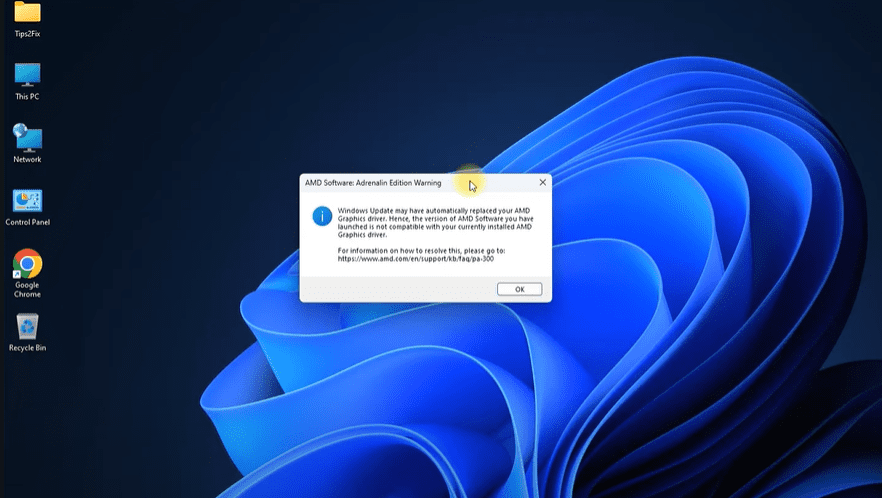
Have you received a warning from AMD Adrenalin Software stating that your current graphics driver is incompatible or not functioning properly? This often happens after Windows Update automatically installs or replaces GPU drivers, even when you already have the correct driver installed—especially for AMD or NVIDIA graphics cards.
This article walks you through a quick fix to restore your AMD Adrenalin drivers and also shows you how to prevent Windows 11 from automatically updating any drivers in the future. These steps work for both AMD and NVIDIA GPUs, and also apply to Windows 10.
🛠️ The Problem
You may see a warning like:
“AMD Software: Adrenalin Edition Warning”
And after a recent Windows update, your AMD Adrenalin software might stop working altogether, despite having the correct version installed—such as Adrenalin Pro Edition 23.4.2. This happens because Windows installs its own “Advanced Micro Devices – Display” driver, which replaces the working version.
✅ Quick Fix: Roll Back the GPU Driver
Here’s how to quickly restore your AMD Adrenalin driver:
Step 1: Open Device Manager
- Right-click on This PC or My Computer
- Choose Show more options > Manage
- In the new window, click Device Manager
Step 2: Roll Back the Display Driver
- Expand Display adapters
- Right-click your AMD GPU (e.g., Radeon Pro)
- Select Properties
- Go to the Driver tab
- Click Roll Back Driver
This will revert the driver to the previously working version. Now, try opening AMD Adrenalin Software again—it should work as expected.
⚠️ If the Roll Back Driver button is grayed out, you’ll need to manually reinstall the official driver from AMD’s website.
🔒 Prevent Windows from Automatically Updating GPU Drivers
Once you’ve fixed your GPU driver, it’s a good idea to stop Windows from automatically replacing it again. Here are three methods to do that.
Method 1: Use Windows Settings
- Open Settings > Windows Update
- Click Advanced options
- Scroll to Optional updates
- Under Driver updates, uncheck or avoid installing GPU drivers
Method 2: Disable Driver Updates via System Settings
- Open Settings > System
- Scroll down and click About
- Click Advanced system settings
- Under the Hardware tab, click Device Installation Settings
- Choose No (your device might not work as expected)
- Click Save Changes
This prevents Windows from downloading manufacturer-provided drivers automatically.
Method 3: Use the Registry Editor
- Press
Win + R, typeregedit, and hit Enter - Navigate to:
HKEY_LOCAL_MACHINE\SOFTWARE\Microsoft\Windows\CurrentVersion\DriverSearching - Find the key: SearchOrderConfig
- Double-click it and set the value to:
0to disable driver updates1to enable them
- Click OK and close the registry
💡 To make this easier, you can create two
.regfiles—one to disable and one to re-enable driver updates—by exporting and editing the key above.











Method 4: Use Group Policy Editor (Advanced Users)
🧠 Works only on Windows 11 Pro or Enterprise editions.
- Open Start, type Group Policy, and select Edit Group Policy
- Navigate to:
Computer Configuration > Administrative Templates > Windows Components > Windows Update - Find and double-click:
- “Do not include drivers with Windows Updates”
- Set it to Enabled
- Click Apply and OK
Now, Windows will no longer fetch driver updates through its update system.
📝 Conclusion
Whether you’re using AMD or NVIDIA graphics, Windows updates can interfere with driver installations and cause issues with software like AMD Adrenalin. By rolling back the driver and preventing Windows from auto-updating them, you can keep your system running smoothly.
You now have multiple options—quick rollback, blocking future driver updates through settings, registry, or group policy—to maintain full control over your drivers.
Tags:
amd driver fix, windows 11 amd issue, adrenalin software not working, rollback amd driver, disable windows driver update, nvidia driver problem, registry tweak windows 11, group policy driver update, gpu update issue, windows 11 tips
Hashtags:
#AMD #Adrenalin #Windows11 #DriverFix #GPUUpdate #RegistryEditor #GroupPolicy #TechSupport #NVIDIA #TipsToFix








