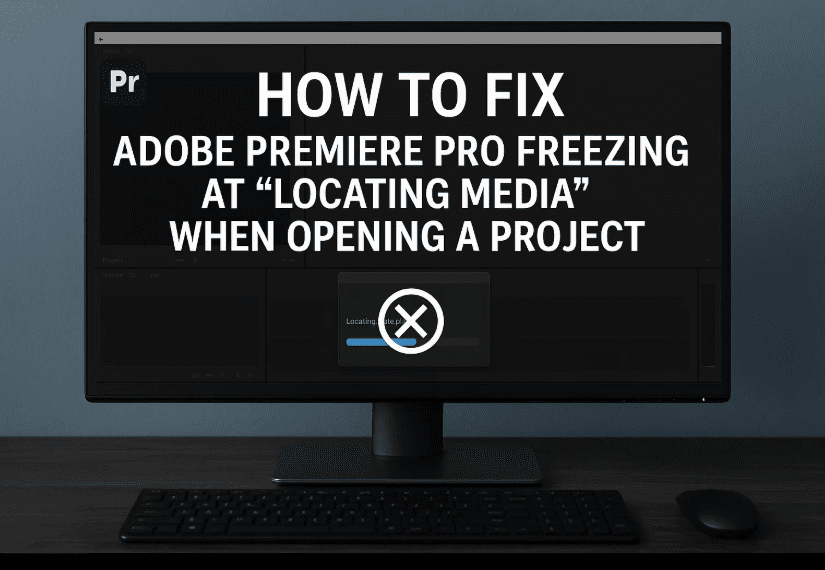
If you’ve landed on this article, chances are you’re frustrated with Adobe Premiere Pro freezing on the “Locating Media” screen when trying to open a saved project. Don’t worry—you’re not alone. This is a common issue among video editors, and the good news is: it can be fixed!
In this guide, I’ll walk you through a few step-by-step methods to solve the freezing issue in Adobe Premiere Pro. We’ll also cover how to find which files are causing the problem, and what you can do to avoid it in the future.
🔍 What Causes Premiere Pro to Freeze on “Locating Media”?
Let’s first understand the root of the problem. When you open a saved Premiere Pro project and it gets stuck on “Locating Media”, it’s typically due to one or more of the following:
- Corrupted files in the project.
- Missing files that were moved or renamed.
- Third-party graphics, effects, or preset files that are no longer in their original location.
- In some cases, outdated or buggy versions of Premiere Pro itself.
When Premiere can’t resolve the file paths or load certain resources, it ends up freezing and becomes unresponsive.
🛠️ Step-by-Step: Fix the Premiere Pro Freeze at Locating Media
Let’s move on to the first practical fix. This one is quick and works in most cases.
✅ Step 1: Force Close Premiere Pro (if it’s frozen)
- When the project freezes, click Cancel on the Locating Media window.
- If Premiere becomes unresponsive:
- Right-click on the taskbar, then select Task Manager.
- Under the Processes tab, find Adobe Premiere Pro, click on it, then press End Task.
- This is the only way to force-close the app when it’s stuck.
✅ Step 2: Open a New Session and Reload the Project
Now let’s reopen Premiere Pro and try a workaround that skips the freezing part.
- Launch Adobe Premiere Pro from scratch (do not click on the recent project thumbnail).
- Click on File > Open Project.
- Browse to your old project and select it.
- Click Open.
👉 In most cases, the project will load without freezing this time.
Once it opens properly:
- Save the project immediately using
File > SaveorCtrl + S. - Close Premiere Pro, then try reopening the project normally to ensure everything works fine.
💡 Why this works: Opening the project via a clean session skips certain cache routines that cause the bug when loaded from the recent file list.
🧪 Extra Step: Identify Problematic Files Using a New Test Project
If you’re still curious—or cautious—and want to identify which files were causing the freeze, here’s how to do that.
So far, so good? Let’s move to the next step.









🧩 Step 3: Create a Test Project and Import the Problematic One
This method helps you isolate which files in the project are broken or missing.
- Open Premiere Pro and click on New Project.
- Name it something like “Test Project” and save it to your desktop.
- Once the new project opens, go to File > Import.
- Select your original project that caused the freezing and click Open.
- Premiere will now attempt to load all elements of the old project.
👉 This time, it will show you a list of all media and assets used in the project.
- Any file without a checkmark is likely missing or corrupt.
- These could be:
- Third-party graphics or titles
- Downloaded presets
- Audio or video files moved to a different folder
- Stock media that is no longer accessible
🧹 Step 4: Fix, Locate, or Replace Missing Files
Once you’ve identified the problematic files:
- Click “Locate” to manually guide Premiere to the new location of those files.
- If files are corrupted or you no longer need them:
- You can delete them from the project.
- Or replace them with backups or new assets.
After cleaning things up:
- Save your newly fixed project.
- Open it again to ensure it runs smoothly.
❓ Frequently Asked Questions
Q1: What if none of these steps work?
A: Try updating Adobe Premiere Pro to the latest version. Some freezing bugs are resolved in newer builds. Also, clearing the cache (Edit > Preferences > Media Cache) may help.
Q2: Can plugins cause this issue?
A: Yes, third-party plugins, presets, and LUTs can cause freezes if they’ve been moved or corrupted. Make sure your plugin folders are intact.
Q3: Does this affect all versions of Premiere Pro?
A: This bug is more common in recent 2022–2024 versions but may appear in any build. Adobe has acknowledged similar issues in user forums.
✅ Final Thoughts
So far, we’ve gone through a simple and effective process to fix the annoying Premiere Pro freezing at Locating Media issue. Whether it was a corrupted asset or a broken file link, these steps should help get your project back on track.
Make sure you always:
- Keep backups of your project files.
- Use external drives with consistent paths.
- Avoid deleting or renaming files outside Premiere once they’ve been imported.
If you’ve found another fix that works for you, feel free to share it in the comments section below to help others in the editing community.
Until next time, keep editing and stay creative! 🎬
🔗 Useful Resources
📌 Tags & Hashtags
Tags: adobe premiere pro fix, locating media freeze, project not opening, premiere crashes, video editing issues, adobe bug fix, missing media premiere, corrupted files, video editor help
Hashtags:
#PremierePro #AdobeFix #VideoEditingTips #LocatingMediaFreeze #PremiereCrashFix #TechBasedIn #EditingWorkflow #AdobePremiereBug
⚠️ Disclaimer:
This article is intended to guide users facing issues with Adobe Premiere Pro freezing during project loading. Always ensure you back up your projects before making changes. Third-party plugins and media files should be used from trusted sources to avoid file corruption and crashes.







