We’ve all been there — you start up your Windows 11 computer expecting smooth performance, but instead, it crawls. Programs take forever to open, the system freezes at random, and even simple tasks feel frustratingly slow.
If you’re nodding along, don’t worry. Windows 11, while modern and powerful, can slow down over time due to unnecessary startup programs, background processes, temporary files, or corrupted system files. Fortunately, Microsoft has built several tools right into Windows that can help you restore speed without needing third-party software.

In this guide, we’ll go through practical steps to speed up your Windows 11 PC, one by one. Think of this as your ultimate troubleshooting checklist. And don’t worry — I’ll explain every method in detail, add helpful context, and share personal notes along the way.
Step 1: Disable Unwanted Startup Apps
One of the most common reasons Windows PCs feel sluggish is that too many programs launch at startup. Every time you power on your computer, dozens of background applications might be running without you realizing it.
Here’s how to fix it:
- Click Start and open Settings.
- From the sidebar, go to Apps → Startup apps.
- You’ll see a list of applications that automatically run when Windows starts.
- Simply toggle Off the apps you don’t need at startup.
👉 Example: Apps like Spotify, Microsoft Teams, or Adobe Creative Cloud may run in the background even if you rarely use them. Disabling them won’t uninstall the program — it will just stop them from slowing down boot-up time.
💡 Human tip: I usually keep only essentials like antivirus or cloud sync (e.g., OneDrive) turned on. Everything else can be launched manually when needed.
Step 2: Adjust Visual Effects for Best Performance
Windows 11 looks beautiful with animations, shadows, and visual effects — but all those pretty extras can drain system resources, especially on older PCs.
Let’s strip it down for speed:
- Press Windows + R to open the Run dialog.
- Type
sysdm.cpland hit Enter. - Go to the Advanced tab.
- Under Performance, click Settings.
- Select Adjust for best performance.
- Click Apply → OK.
This option disables unnecessary animations and focuses your system on raw performance.
👉 If you still want a balance of looks and speed, choose Custom and keep only “Smooth edges of screen fonts” checked.


Step 3: Clear Temporary Files (Temp, %Temp%, Prefetch)
Over time, Windows accumulates a ton of temporary files. While they’re harmless, too many of them can hog disk space and slow down your PC.
Here’s the cleanup routine I recommend:
- Press Windows + R, type
temp, hit Enter → Delete all files inside.- Skip files that refuse to delete (those are currently in use).
- Again, press Windows + R, type
%temp%, hit Enter → Delete all. - Finally, press Windows + R, type
prefetch, hit Enter → Delete all files.
⚠️ Don’t panic — these are safe to remove. They’re only cache and leftover files Windows no longer needs.
💡 Personal note: I like doing this cleanup monthly. It not only speeds up my computer but also frees gigabytes of disk space over time.
Step 4: End Background Processes Using Task Manager
Even after disabling startup apps, some programs keep sneaking into the background. They use memory and CPU, making your system crawl.
To stop them:
- Press Ctrl + Shift + Esc to open Task Manager.
- Under the Processes tab, look for apps you’re not using.
- Right-click and select End Task.
👉 Example: Microsoft Edge or Chrome might keep running in the background even when closed. Ending them manually frees up memory.
⚠️ Be careful: Don’t end Windows system processes you don’t recognize. Stick to apps you installed yourself.
Step 5: Run Disk Cleanup
Windows has a built-in tool called Disk Cleanup that removes unnecessary files like log files, thumbnails, and old update leftovers.
Steps:
- Press Start, type Disk Cleanup, and open it.
- Select your C: drive (the Windows installation drive).
- Click Clean up system files.
- Select C: drive again → Click OK.
- Check all items (Temporary files, Delivery Optimization, Recycle Bin, etc.).
- Click OK → Delete files.
💡 This step is especially useful if your C drive is almost full. A full system drive is one of the fastest ways to kill PC performance.
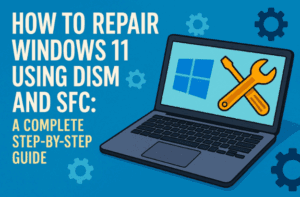
Step 6: Repair Corrupted Files with System File Checker
Sometimes the real culprit is corrupted Windows system files. This can happen after failed updates, sudden shutdowns, or malware. Luckily, Windows has a tool called System File Checker (SFC).
Here’s how to use it:
- Search for Command Prompt in Start.
- Right-click → Run as administrator.
- Type:
sfc /scannow - Hit Enter and wait (this may take 10–20 minutes).
What it does: SFC scans your entire system for corrupted files and automatically repairs them.
👉 If SFC doesn’t fix everything, you can also try the DISM tool:
DISM /Online /Cleanup-Image /RestoreHealth
This command connects to Microsoft servers and replaces corrupted files with fresh ones.
Step 7: Restart and Re-Test Performance
After applying all the above fixes, restart your PC and test its performance. You should notice:
- Faster boot times
- Reduced lag when opening programs
- More available RAM
- Fewer crashes or freezes
Common Questions and Answers
Let’s cover some frequently asked questions you might have while troubleshooting:
❓ Q1: Will deleting temp files remove my personal data?
Answer: No. Temp files are safe to delete. They are only system cache and leftover files from apps.
❓ Q2: My PC is still slow after doing everything. What next?
Answer: Consider upgrading your hardware:
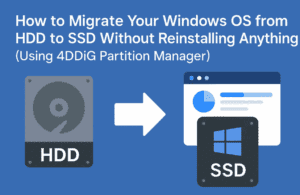
- Switch to an SSD if you’re still on HDD.
- Add more RAM (8 GB minimum for smooth Windows 11).
- Update GPU drivers for better graphics performance.
❓ Q3: Is it safe to disable all startup apps?
Answer: Not all. Keep antivirus, Windows Security, and cloud backup apps (like OneDrive or Dropbox) enabled. Disable only non-essential apps.
❓ Q4: Should I use third-party PC cleaners?
Answer: Usually, no. Windows’ built-in tools (Disk Cleanup, SFC, DISM) are enough. Third-party tools often duplicate these functions and sometimes cause more harm than good.
Bonus: Extra Tips for Long-Term Windows 11 Performance
So far, we’ve handled troubleshooting. But to keep your PC running fast in the long term, here are a few maintenance habits I recommend:
- Update regularly: Install Windows updates and driver updates to avoid bugs.
- Defragment (HDD only): If you’re using an HDD, run “Defragment and Optimize Drives” monthly. (Skip this if you have an SSD).
- Disable background apps: In Settings → Privacy & Security → Background apps.
- Keep C: drive free: Avoid filling your system drive more than 80%.
- Scan for malware: Use Windows Defender or a trusted antivirus.
Conclusion
And there you have it — a complete troubleshooting guide to fix a slow Windows 11 PC.
We walked through disabling startup apps, adjusting performance settings, cleaning temporary files, stopping background processes, running Disk Cleanup, and repairing corrupted files. Each of these steps individually helps, but when combined, they can bring your PC back to life.
The beauty of these methods? You don’t need extra software. Everything is built into Windows, and once you get familiar with these tools, you’ll feel more in control of your computer’s health.
Remember, slowness is not always caused by Windows itself. Sometimes hardware upgrades (like an SSD or more RAM) are the ultimate solution. But before spending money, always try these free built-in fixes first.
Disclaimer
⚠️ This article is intended for educational purposes. Some steps involve modifying system settings and deleting files. Always back up your important data before making changes. If you’re not confident, consult a professional technician.
Tags & Hashtags
Tags: Windows 11 troubleshooting, speed up Windows, fix slow PC, Windows performance, disk cleanup, system file checker, task manager, temp files
Hashtags: #Windows11 #PCPerformance #TechTips #Troubleshooting #FixSlowPC #WindowsGuide








