Apple’s macOS Recovery Mode is a built-in utility designed to help users troubleshoot and repair their system. Whether you need to reinstall macOS, restore from a backup, or manage your disk, Recovery Mode is the go-to solution. But what happens when your Mac refuses to boot into Recovery Mode? Don’t worry — this article walks you through five effective methods to resolve this issue and even includes a powerful solution for recovering lost files.

📌 What Is Recovery Mode?
Recovery Mode is a system recovery utility built into every Mac that provides tools for reinstalling macOS, restoring from Time Machine backups, accessing Disk Utility, and more. It can be activated during startup and is a vital part of macOS troubleshooting.
✅ Method 1: Reset the SMC (System Management Controller)
Resetting the SMC can solve a range of power-related issues that might prevent your Mac from booting into Recovery Mode.
Steps:
- Shut down your Mac completely.
- Unplug the power cord:
- For laptops: Unplug the adapter.
- For desktops: Unplug from the wall outlet.
- Hold down the Shift + Control + Option + Power keys simultaneously for 10 seconds.
- Release all keys and reconnect the power supply.
- Turn on your Mac and try accessing Recovery Mode again.
✅ Method 2: Boot into Safe Mode
Safe Mode starts your Mac with minimal drivers and software, which can help you troubleshoot the issue.
Steps:
- Restart your Mac.
- Immediately press and hold the Shift key when you hear the startup chime.
- Release the Shift key once the Apple logo and a progress bar appear.
- After booting into Safe Mode, restart your Mac normally and try entering Recovery Mode again.
✅ Method 3: Use a Time Machine Backup
If your Mac won’t boot into Recovery Mode but you have a Time Machine backup, you can restore your system to a previous stable state.
Steps:
- Restart your Mac.
- For Intel Macs: Hold Command + R during startup.
For Apple Silicon Macs: Hold the power button until startup options appear. - Select the Options tab and follow the on-screen instructions.
- Choose Restore from Time Machine and select a recent backup to restore.
✅ Method 4: Create a Bootable macOS Installer
If Recovery Mode isn’t accessible, creating a bootable installer lets you reinstall macOS manually.
What You’ll Need:
- A USB drive with at least 16 GB of storage.
- The macOS installer, downloadable from the Mac App Store.
Steps:
- Download the macOS installer from the App Store.
- Use a tool like DiskMaker X to create the bootable drive.
- Restart your Mac and hold the Option key.
- Select the USB installer and follow the prompts to reinstall macOS.
✅ Method 5: Use Internet Recovery
If everything else fails, Internet Recovery loads recovery tools directly from Apple’s servers.
Steps:
- Restart your Mac.
- For Intel Macs: Hold Command + Option + R.
For Apple Silicon Macs: Hold the power button until you see startup options. - Follow the on-screen instructions to reinstall macOS from the internet.
🔄 Bonus: Recover Lost Files Using Wondershare Recoverit
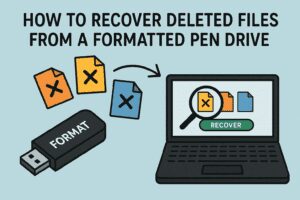
If your data is at risk during troubleshooting, don’t worry. Wondershare Recoverit is a trusted data recovery software that supports recovery of documents, photos, videos, and more from your Mac.
How to Use Wondershare Recoverit:
- Download and install the software from the official website.
- Launch Recoverit and select the location where files were lost.
- Let it scan the drive. This may take a few minutes.
- Once the scan is complete, preview the found files.
- Select the ones you want to recover and save them to a safe location.
⚠️ Disclaimer
Data recovery is not always guaranteed and depends on the state of the storage drive. For best results, avoid using the affected drive before attempting recovery.
✅ Final Thoughts
If your Mac refuses to boot into Recovery Mode, don’t panic. From simple resets to creating a bootable installer or using Time Machine backups, each method offers a practical solution. And if you’re concerned about lost files, Wondershare Recoverit provides a solid safety net.
Keep these techniques in your troubleshooting toolkit and bring your Mac back to life quickly and safely.









🔖 Tags:
mac not booting, recovery mode not working, mac troubleshooting, bootable macOS installer, SMC reset mac, Time Machine backup, internet recovery mac, Wondershare Recoverit, macOS recovery
🔗 Hashtags:
#MacRecovery #MacTroubleshooting #MacTips #RecoverLostData #WondershareRecoverit #MacOSHelp #AppleSupport #BootableInstaller #TimeMachineBackup








