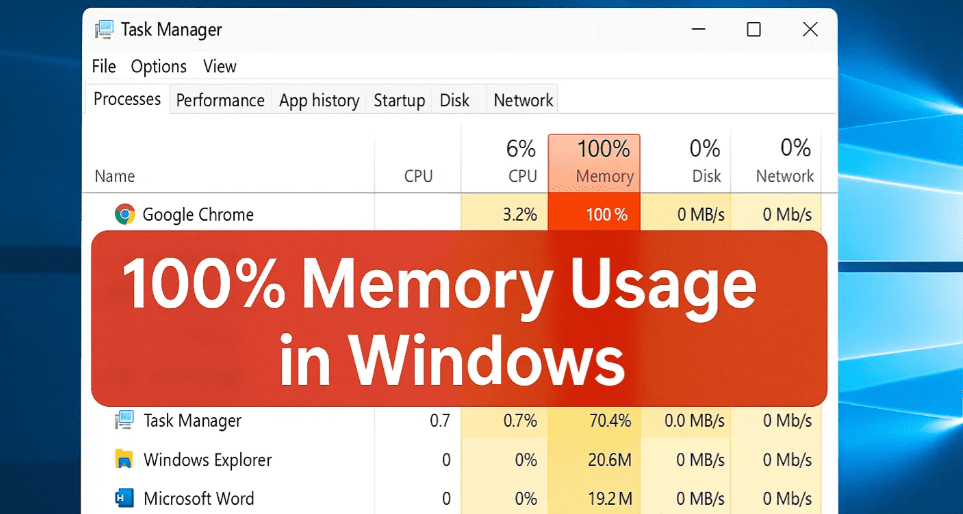
If your Task Manager is showing 100% memory usage, your PC may slow down significantly, affecting performance. High memory usage can occur due to unnecessary background processes, startup apps, or system misconfigurations. In this guide, we’ll walk you through 7 effective methods to reduce memory usage and optimize your system.
Method 1: Use a Memory Optimization Tool
One of the quickest ways to free up RAM is by using a memory optimizer tool.
- Download and install a reliable memory optimizer (e.g., wise-memory-optimizer).
- Open the software and click on the “Optimize” button.
- The tool will automatically clear unnecessary memory usage, reducing RAM consumption.
⚠️ Disclaimer: Always download optimization tools from trusted sources to avoid malware.
Method 2: Disable Unnecessary Background Services
Some Windows services consume excessive memory. Disabling them can help:
- Press Win + R, type
services.msc, and hit Enter. - Locate and disable the following services:
- Background Intelligent Transfer Service
- SysMain (Superfetch)
- Windows Search
- Right-click each service, go to Properties, set Startup type to Disabled, and click Stop if running.
Method 3: Clear Page File at Shutdown (Registry Edit)
Windows stores temporary data in a page file. Clearing it can help:
- Press Win + R, type
regedit, and hit Enter. - Navigate to:
HKEY_LOCAL_MACHINE\SYSTEM\CurrentControlSet\Control\Session Manager\Memory Management- Double-click “ClearPageFileAtShutdown” and set its value to 1.
- Click OK and restart your PC.
⚠️ Caution: Editing the registry incorrectly can cause system issues. Proceed carefully.
Method 4: Disable Background Apps
Many apps run in the background unnecessarily:
- Go to Settings > Privacy > Background Apps.
- Turn off all unnecessary apps.
Method 5: Disable Startup Programs
Unwanted startup apps increase memory load:
- Open Task Manager (Ctrl + Shift + Esc) and go to the Startup tab.
- Disable unnecessary programs (except critical ones like Microsoft Defender or driver-related apps).
Method 6: Adjust Windows for Best Performance
Optimize visual effects to reduce RAM usage:
- Right-click This PC > Properties > Advanced system settings.
- Under Performance, click Settings and select “Adjust for best performance”.
- Click Apply > OK.
Method 7: Clean Temporary & Junk Files
Accumulated junk files slow down your system:
- Press Win + R, type:
temp→ Delete all files.%temp%→ Delete all files.prefetch→ Delete all files.
- Run Disk Cleanup (
cleanmgr) and delete unnecessary system files.
Final Step: Optimize Processor Settings
Ensure Windows uses maximum CPU resources:








- Press Win + R, type
msconfig, and hit Enter. - Go to Boot > Advanced options.
- Check “Number of processors” and select the highest available.
- Click OK, restart your PC.
Conclusion
By following these steps, you can significantly reduce memory usage and improve system performance. Always restart your PC after applying changes for best results.
Tags:
Windows Optimization, Fix High Memory Usage, PC Performance, RAM Optimization, Windows Tips
#TechGuide #SpeedUpPC #MemoryManagement #WindowsTricks #OptimizeWindows







