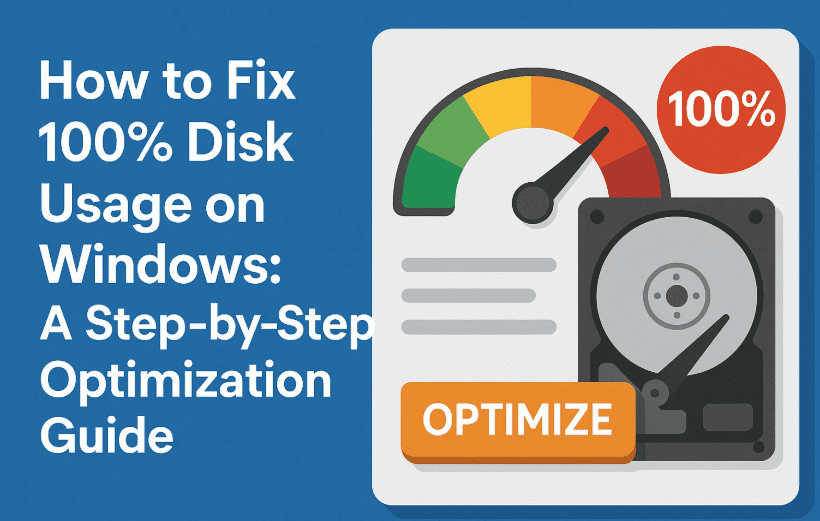
If you’re experiencing a laggy Windows system, where the disk usage is constantly at 100% in Task Manager — don’t panic. This issue is surprisingly common, especially on older systems or even some SSD-based laptops with Windows 10 or 11. The good news? You can fix it without reinstalling Windows or replacing your hard drive.
In this detailed guide, we’ll go step by step to clean, optimize, and stabilize your Windows system. These steps are beginner-friendly and will give you noticeable speed improvements and reduce disk overload.
⚠️ Disclaimer:
Some of the tweaks involve disabling background services and system features. These are generally safe for home users but should not be done on shared, managed, or enterprise systems. Always back up important data before making major changes to system settings.
🚀 Step 1: Clean and Optimize Your Main Drive
Let’s start with the easiest and most powerful fix — disk cleanup and defragmentation.
So far, so good! Now let’s give your drive a proper tune-up.
How to Clean and Optimize:
- Open ‘This PC’
- Click on the search bar, type
This PC, and open it. - Right-click on your C: drive (the one with the Windows icon), and select Properties.
- Click on the search bar, type
- Turn Off Scheduled Optimization
- Go to the Tools tab and click on Optimize under the “Optimize and defragment drive” section.
- Click Change settings.
- Uncheck Run on a schedule (recommended) and press OK.
This stops Windows from automatically defragmenting in the background.
- Manually Analyze and Optimize
- Select the C: drive again and click Analyze.
- Wait for the scan to complete.
- Click Optimize.
This ensures optimization happens only when you want it.
- Run Disk Cleanup
- Go back to the General tab in Properties and click Disk Cleanup.
- Check all boxes in the list (safe to delete).
- Then click Clean up system files and repeat — this adds deeper cleanup options like Windows Update leftovers.
🔧 Step 2: Update Disk-Related Drivers
Even if you use an SSD, outdated drivers can seriously slow things down. Let’s make sure you’re running the latest ones.
You’re doing great! Now let’s handle the drivers — a step many users skip.
Here’s how:
- Open Device Manager
- Search for
Device Managerin the Start menu and open it.
- Search for
- Update IDE ATA/ATAPI Controllers
- Expand IDE ATA/ATAPI Controllers.
- Right-click each item and select Update driver.
- Choose Search automatically for drivers.
- Click the link for Search for updated drivers on Windows Update.
- Update Storage Controllers
- Scroll down and expand Storage Controllers.
- Repeat the same process: right-click > Update driver > Search automatically.
🧯 Step 3: Disable Background Services
Now it’s time to tame Windows’ hidden background services that love to hog resources.
Let’s dig a little deeper and turn off some unnecessary background services that hurt performance.
Disable These Services:
- Open Services
- Search for
Servicesand open it.
- Search for
- Disable the Following One-by-One:
- Connected User Experiences and Telemetry
- SysMain (formerly Superfetch)
- Windows Search
- Right-click > Properties
- Set Startup type to Disabled
- Click Apply and OK
- Stop Windows Search via Command Prompt
- If Windows Search is running and won’t stop:
- Open Command Prompt as Administrator
- Type:
net.exe stop "Windows Search" - Hit Enter. You should see: “Windows Search was stopped successfully.”
- If Windows Search is running and won’t stop:
- Refresh Services
- Go back to the Services window and refresh. Windows Search should now be disabled.
🔕 Step 4: Disable Unnecessary Notifications
Those little popup alerts from apps? They’re not just annoying — they also consume background resources.
We’re almost there! Now let’s declutter those background notification tasks.




How to Disable:
- Open Settings.
- Go to System > Notifications.
- Either:
- Turn off individual app notifications, or
- Toggle off “Get notifications from apps and other senders” at the top.
🧹 Step 5: Run CHKDSK to Fix Drive Errors
Your disk might be overloaded due to bad sectors or file system errors. Let’s check and fix that now.
Ready for a quick maintenance scan? This step can fix deep-seated disk issues.
How to Run CHKDSK:
- Open Command Prompt as Administrator.
- Type the following command and press Enter:
chkdsk /f /r - When prompted to run on next restart, type
Yand press Enter. - Restart your PC.
- Windows will scan and fix any disk issues before booting up.
This may take some time depending on your disk size — be patient.
🛡️ Step 6: Scan for Malware & Threats
Finally, let’s make sure a hidden virus isn’t the culprit behind your high disk usage.
Just one last essential step — let’s make sure nothing malicious is slowing things down.
Use Windows Security:
- Open Windows Security from the search bar.
- Go to Virus & Threat Protection.
- Click Check for updates under Protection Updates.
- Then click Scan options and choose:
- Quick Scan (fast, checks key locations)
- Full Scan (slower but thorough — recommended for best results)
❓ FAQ Section
Q1. Is it safe to disable Windows Search and SysMain?
Yes, for most users. These services are known to cause 100% disk usage on some systems. Disabling them can significantly improve performance, especially on HDD-based PCs.
Q2. Will CHKDSK delete my files?
No, CHKDSK scans and fixes file system errors and bad sectors. It doesn’t delete personal files.
Q3. How often should I run Disk Cleanup and Optimization?
Once a month is a good frequency for regular cleanup, especially if you install and uninstall apps often.
Q4. Can I re-enable the services later?
Absolutely. Just go back to the Services window and set the Startup Type to Automatic for any service you disabled.
✅ Final Thoughts
If you’ve followed all the steps above, your system should now feel a lot snappier — and that pesky 100% disk usage issue should be gone. These tweaks aren’t just quick fixes; they’re part of a smart, long-term strategy for maintaining your PC’s health and speed.
So next time your PC feels like it’s dragging its feet, you know exactly what to do!
🏷️ Tags:
windows disk usage fix, 100% disk usage, speed up windows, windows 11 performance, windows 10 optimization, ssd lag fix, background services, chkdsk, update drivers, disk cleanup, disable telemetry
📢 Hashtags:
#WindowsTips #100PercentDiskUsage #PCOptimization #SpeedUpWindows #DiskCleanup #Windows11Fix #SSDPerformance #DisableServices #TechFixes #PCMaintenance








