If you have ever lost or misplaced your Windows product key, you might wonder if there’s a way to recover it directly from your system. Fortunately, Windows stores your license key within the system itself, and you can easily retrieve it using the Registry Editor. In this article, we’ll walk you through the exact steps to locate your Windows product key manually without the need for any third-party software.
Step-by-Step Guide to Find Your Windows Product Key
Follow these simple steps carefully:
Step 1: Open the Registry Editor
- Click on the Search box on your Windows taskbar.
- Type Registry Editor.
- Click on the Registry Editor app from the search results to open it.
Tip: You may be asked for administrative permission when opening Registry Editor. Make sure to allow it.
Step 2: Navigate Through the Registry
Once the Registry Editor is open, you will see a list of folders on the left-hand side. Now follow this path:
- First, find and click the small arrow next to HKEY_LOCAL_MACHINE to expand it.
- Inside, locate and expand the SOFTWARE folder.
- Scroll down and find Microsoft, then expand it.
- After expanding Microsoft, scroll further to find Windows NT and expand it as well.
- Inside Windows NT, click to expand CurrentVersion.
Step 3: Locate Software Protection Platform
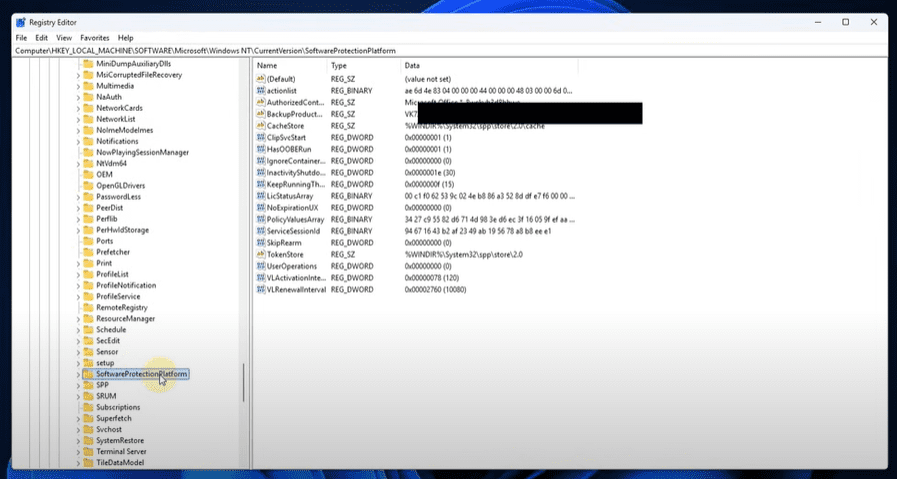
Within the CurrentVersion folder, scroll carefully and find SoftwareProtectionPlatform.
- Click on SoftwareProtectionPlatform.
- On the right-hand side, you will see several entries.
Step 4: Find Your Product Key
Look for an entry called BackupProductKeyDefault.
- Next to it, in the Data column, you will find your Windows product key displayed clearly.
- This is the key that was used to activate your Windows installation.
It’s that simple! By following these steps, you can quickly recover your Windows product key without any external tools.
Important Notes
- Backup Your Key: Once you find your product key, it’s a good idea to save it in a secure location for future use.
- Genuine Activation: Ensure you are using your product key only for genuine Windows installations to avoid any license issues.
- Handle Registry with Care: While Registry Editor is powerful, accidental changes can cause system issues. Make sure you are following only the steps mentioned.
Now you have a clear method to find your Windows product key right from your computer itself. If you ever plan to reinstall Windows or migrate to a new device, having your product key handy can save you a lot of trouble!
Tags: Windows 10, Windows 11, Find Windows Product Key, Windows License Key, Registry Editor, Recover Windows Key, Software Protection Platform, Windows Activation, Microsoft Tips, PC Tips
Hashtags: #Windows10 #Windows11 #ProductKey #LicenseKey #WindowsTips #RegistryEditor #Microsoft #PCTips #TechGuide #SoftwareProtectionPlatform