In today’s hyper-connected world, privacy matters more than ever—even on professional networks like LinkedIn. By default, LinkedIn shows your Active Status to others when you’re online. This feature allows your connections (or even all LinkedIn members) to see when you’re active, much like Facebook Messenger or WhatsApp.
But what if you want to go incognito and browse silently? Or maybe you’re a recruiter and don’t want candidates knowing you’re currently online?
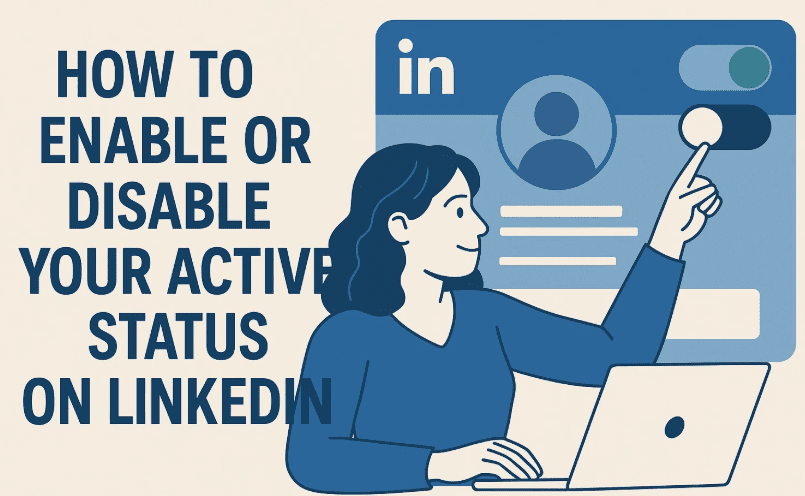
In this blog post, you’ll learn exactly how to enable or disable your active status on LinkedIn using a desktop browser, step-by-step.
🔍 What Is LinkedIn Active Status?
LinkedIn’s Active Status feature lets others see a green dot or circle next to your profile photo when you are online:
- 🟢 Solid Green Dot = Actively online via desktop or mobile
- 🟢 Hollow Green Circle = Recently active on LinkedIn mobile
Depending on your visibility settings, this status is visible to:
- All LinkedIn members
- Your connections only
- No one (if you turn it off)
💻 Step-by-Step: Enable or Disable Active Status on LinkedIn
Here’s how to quickly change your visibility preferences:
✅ Step 1: Open LinkedIn in Your Browser
Go to www.linkedin.com and log in using your credentials.
✅ Step 2: Access the “Me” Menu
At the top right of the LinkedIn homepage, you’ll see your profile icon labeled Me.
- Click on the Me dropdown.
- Select Settings & Privacy from the list.
✅ Step 3: Navigate to Visibility Settings
Once you’re inside the settings dashboard:
- On the left-hand menu, click Visibility.
- Scroll down the central panel until you find the “Visibility of your LinkedIn activity” section.
✅ Step 4: Click on “Manage Active Status”
You’ll see an option labeled Manage active status — click it to open visibility controls.
✅ Step 5: Choose Who Can See Your Active Status
You’ll now see three privacy options:





- No one – Hides your online presence from everyone.
- Your connections only – Only people you’re connected with can see you’re online.
- All LinkedIn members – Everyone on LinkedIn can see your online status.
Simply select the option that suits your privacy preferences. The changes are saved automatically.
👁️ Why You Might Want to Turn Off Active Status
There are several reasons professionals choose to disable their LinkedIn active status:
- 🔒 Privacy: You prefer to browse without being seen.
- 🕒 Focus: Avoids real-time distractions or interruptions.
- 🤫 Job Hunting Confidentiality: You don’t want your employer or coworkers to know you’re active on LinkedIn frequently.
- 🧠 Peace of Mind: It just feels better when you’re in control of your visibility.
❓ Frequently Asked Questions (FAQs)
Q1: Will LinkedIn notify anyone when I change my active status?
No, LinkedIn does not send a notification when you toggle your active status.
Q2: Can I turn off Active Status from the mobile app too?
Yes, the process is similar in the LinkedIn mobile app under Settings > Visibility > Manage Active Status.
Q3: Does disabling Active Status affect my ability to message others?
No, you can still send and receive messages just as before. Your contacts simply won’t see your green “online” indicator.
Q4: Will it affect job opportunities?
Not at all. Recruiters can still message you. This is purely a privacy setting and doesn’t affect your discoverability or reach.
📝 Final Thoughts
Whether you’re a job seeker, recruiter, or just someone who prefers a more private online experience, managing your LinkedIn active status is a simple yet powerful way to take control of your digital presence.
Take a few seconds today to adjust your settings—and browse LinkedIn the way you want to.
🔗 Official Link
👉 Visit LinkedIn Settings & Privacy
🏷️ Tags
LinkedIn, LinkedIn settings, active status, LinkedIn privacy, LinkedIn tutorial, how to hide online status, LinkedIn profile tips, disable green dot, job search privacy
🔖 Hashtags
#LinkedInTips #PrivacySettings #LinkedInTutorial #ProfessionalNetworking #LinkedInGuide #OnlinePrivacy #JobSearchTips #LinkedInProfile
Disclaimer:
This guide is based on LinkedIn’s desktop interface as of July 2025. UI/UX elements and setting placements may change in future updates. Always check LinkedIn’s official help center for the most current instructions.








