If you’re using the Thorium web browser on your desktop and wondering how to manage pop-ups and redirects — either to block annoying ads or to allow important login or payment pages — you’re in the right place.
Thorium is a Chromium-based browser, and while it offers speed and customization, managing site behavior like pop-ups and redirects is essential for both usability and security.
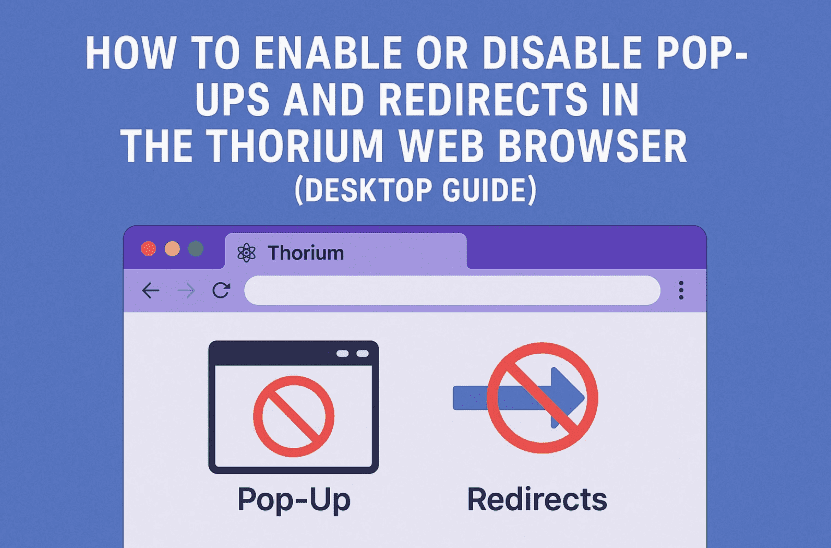
In this step-by-step guide, we’ll show you how to enable or disable pop-ups and redirects in Thorium, including how to customize this behavior for specific websites.
✅ Tip: This tutorial applies to Thorium running on desktop PCs — Windows, Linux, or macOS.
🧭 Why Control Pop-Ups and Redirects?
Before we jump in, let’s talk about why you might want to toggle these settings:
- Disable pop-ups to avoid intrusive ads or spammy behavior
- Enable pop-ups for legitimate use cases like login windows, file uploads, banking, and payment gateways
- Customize permissions for specific websites (e.g., allow Gmail but block shady domains)
🔧 Let’s Start: Accessing the Thorium Browser Settings
The first step is opening the Thorium browser and accessing the settings. Here’s how:
- Launch Thorium on your desktop.
- Click on the three-bar hamburger menu located in the upper right-hand corner of the window.
- From the dropdown menu, select Settings.
So far so good? Great, now let’s get into the privacy controls.
🔐 Navigate to Privacy and Site Settings
Now we’ll enter the area where browser behavior like pop-ups, cookies, and other site permissions are managed.
- On the left pane, click on Privacy & Security.
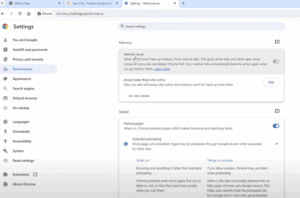
- In the center of the screen, scroll down and click on Site Settings.
This section gives you granular control over how websites interact with your browser — including access to camera, notifications, and of course, pop-ups.
🚫 How to Enable or Disable Pop-Ups & Redirects
This is the heart of our tutorial. Whether you want to block all pop-ups or allow them on trusted sites, this is where you do it.
- Scroll down to the Content section inside Site Settings.
- Click on Pop-ups and redirects.
You will now see two major configuration areas:






✅ Default Behavior:
- Sites can send pop-ups and use redirects – Enable this to allow pop-ups globally.
- Don’t allow sites to send pop-ups or use redirects – Enable this to block all pop-ups globally.
Choose the setting that suits your needs by toggling it on or off.
🎯 Customize Site Behavior (Optional):
Below the default toggle, you’ll see a list of allowed or blocked sites.
- To remove a website’s custom setting, click the three-dot menu next to it and select Remove.
- To add a custom rule, you can click “Add” and enter a specific domain.
This way, you can block most pop-ups while still allowing them for services you trust.
🧪 Example Use Case
Let’s say you want to block pop-ups globally but still allow Gmail to open new tabs for attachments or login.
- Set the Default Behavior to block pop-ups.
- Then add
https://mail.google.comto the allowed list.
You now get a balanced experience — secure but functional.
❓ Frequently Asked Questions
Q: Will blocking redirects affect login pages?
Yes, some login systems rely on redirects. Always test after changing settings, and use custom rules for known safe sites.
Q: Is this setting synced with other Chromium browsers like Chrome or Brave?
No, Thorium handles its settings independently. You’ll need to adjust pop-up settings separately.
Q: Does Thorium have an extension for managing pop-ups?
Yes, you can add extensions from the Chrome Web Store for advanced pop-up and redirect control, but for most users, built-in settings are sufficient.
🏷️ Tags:
Thorium browser, pop-up settings, browser settings, disable redirects, Thorium settings guide, desktop browser tips, site behavior management
📢 Hashtags:
#ThoriumBrowser #Popups #BrowserTips #Redirects #WebSecurity #ChromiumBased #BrowserGuide #DesktopBrowser #SiteSettings #TechTutorial
⚠️ Disclaimer: The steps outlined are accurate as of the latest Thorium version at the time of writing. Browser layouts may slightly differ in future versions. Always verify from the official Thorium Browser GitHub or documentation for the latest instructions.
So that’s how you manage pop-ups and redirects in the Thorium web browser — whether you’re enabling them for productivity or disabling them for peace of mind. Make sure to share this article with anyone frustrated by unwanted pop-ups or struggling to enable pop-ups for their favorite web app.






