Tired of annoying pop-ups or surprise redirects while browsing with Microsoft Edge? Or perhaps a website you trust is being blocked from displaying essential pop-up content? Whether you’re trying to secure your browsing or allow specific site features, managing pop-ups and redirects in Microsoft Edge is quick and easy—once you know where to look.
In this detailed step-by-step guide, we’ll walk you through how to enable or disable pop-ups and redirects in Microsoft Edge on your Windows desktop. Let’s dive in!
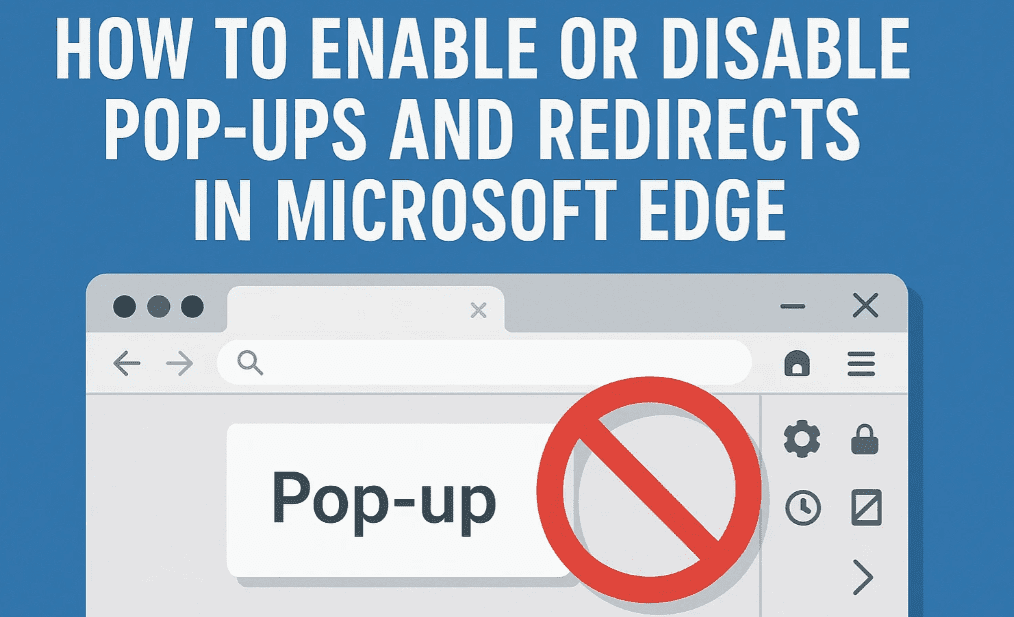
🧭 Why Control Pop-Ups and Redirects?
- Enable pop-ups for trusted websites (e.g., payment gateways, secure forms)
- Block pop-ups to prevent ads, malicious redirects, and phishing attempts
Edge allows full control, including global settings and site-specific permissions.
🖥️ Step-by-Step: Managing Pop-Ups and Redirects in Microsoft Edge
✅ Step 1: Open Microsoft Edge Settings
- Launch Microsoft Edge.
- Click the three-dot menu (⋯) in the upper-right corner of the browser.
- From the dropdown menu, select Settings.
✅ Step 2: Navigate to Privacy Settings
- In the left sidebar, click on “Privacy, search, and services.”
- Scroll down in the central pane and locate “Site permissions.”
- Click on Site permissions to access all site-related controls.
✅ Step 3: Find and Click on “Pop-Ups and Redirects”
- Within Site Permissions, click on “All Permissions.”
- Scroll down and select “Pop-ups and redirects.”
This opens the control center for managing how Edge handles pop-ups.
✅ Step 4: Enable or Disable Pop-Ups
At the top of the page, you’ll find the default behavior toggle:
- ON (Blocked): Blocks all pop-ups and redirects by default. (Recommended for security)
- OFF (Allowed): Allows all pop-ups and redirects.
Simply toggle this switch based on your preference.
🛠️ Customize Site Behavior
Under the Customized behaviors section:
- Add a Site to Allow: Click the “Add” button next to “Allow” and enter the website URL (e.g.,
https://securebank.com) to allow pop-ups for specific trusted sites. - Block Specific Sites: Do the same under “Block” if you want to forcefully prevent pop-ups on a specific website.
You can also remove entries at any time using the trash icon.
⚠️ Still Getting Pop-Ups After Blocking?
If pop-ups still appear even after enabling the block setting, consider these causes:
- ✅ Malware or Adware on your system
- ✅ Browser extensions overriding settings
- ✅ Redirect scripts embedded in poorly-coded websites
To resolve:
- Run a malware scan using tools like Microsoft Defender or Malwarebytes
- Disable or remove suspicious extensions in Edge via:
edge://extensions/
🙋 FAQ: Microsoft Edge Pop-Up Settings
Q: Can I allow pop-ups for only one website?
Yes. Just add that website under the “Allow” section in Site Permissions > Pop-ups and Redirects.






Q: Are pop-ups always harmful?
Not always. Some websites (e.g., banks or PDF previewers) use pop-ups legitimately. That’s why Edge allows per-site exceptions.
Q: Can I do this on Microsoft Edge mobile?
This guide focuses on desktop settings. Mobile browsers have limited controls and may vary by device.
🏷️ Tags
microsoft edge tutorial, block popups edge, enable redirects edge, edge privacy settings, site permissions edge, microsoft edge guide, web browser settings 2025, stop redirects edge
📣 Hashtags
#MicrosoftEdge #BrowserSettings #PopUpBlocker #WebPrivacy #EdgeBrowser #DesktopGuide #Windows10 #Windows11 #StopPopUps #RedirectControl








