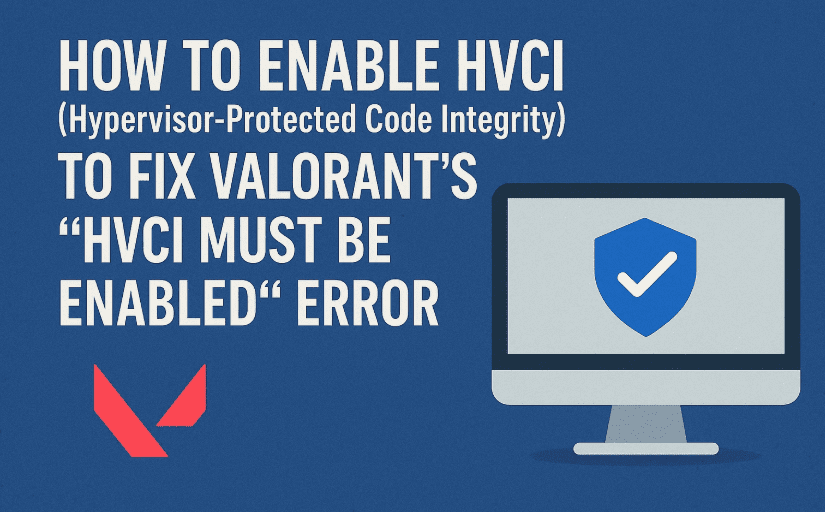
If you’re a Valorant player on Windows, you may have run into an annoying error that prevents the game from launching — a pop-up telling you that HVCI needs to be enabled. This message can be confusing if you’ve never heard of HVCI before.
HVCI stands for Hypervisor-Protected Code Integrity, also known as Memory Integrity in Windows Security settings. It’s a security feature that uses hardware virtualization to ensure that only trusted code can run in the Windows kernel. Valorant, like some other modern competitive games, requires HVCI to be enabled as part of its anti-cheat and system integrity measures.
In this detailed guide, we’ll walk through:
- What HVCI does and why Valorant needs it.
- How to check if it’s already enabled.
- How to turn it on via Windows Security settings.
- How to enable it using the Group Policy Editor if necessary.
- What to do if you encounter issues during setup.
By the end, you should be able to launch Valorant without seeing that dreaded HVCI warning.
Step 1: Check HVCI (Virtualization) Status
Before we change anything, let’s first check whether HVCI is already enabled. Sometimes it’s turned on by default, and you may simply need to restart your system.
Here’s how to check:
- Click the Start menu and type:
runPress Enter. - In the Run dialog box, type:
msinfo32Press Enter again. - The System Information window will open.
- Scroll down in the main panel until you see lines related to Virtualization-based security and Hypervisor has been enabled in firmware.
- If Virtualization-based security says Running or Yes, and the hypervisor is enabled, HVCI is active.
- If it says Not enabled or No, you’ll need to turn it on.
Why this matters:
Checking first helps avoid unnecessary changes and lets you know if the issue is just a system restart away from being fixed.
Step 2: Enable Core Isolation – Memory Integrity
One of the easiest ways to turn on HVCI is through Windows Security’s Core Isolation settings.
Here’s how:
- Open the Start menu and type:
device securityClick Device Security from the results. - Under the Core isolation section, click Core isolation details.
- You’ll see a toggle for Memory integrity:
- If it’s Off, switch it On.
- If it’s already On, try toggling it Off, restarting, then toggling it On again. This can refresh the configuration.
- Restart your computer after making the change.
Why this works:
Memory integrity is essentially HVCI, just labeled differently in the Windows Security interface. Turning it on from here enables the underlying feature Valorant requires.
Step 3: Use the Group Policy Editor (If Step 2 Didn’t Work)
If the Memory Integrity toggle doesn’t enable HVCI properly, we can enforce it through the Group Policy Editor.








Important: Group Policy Editor is available in Windows Pro, Enterprise, and Education editions. If you’re on Windows Home, you’ll need to enable it manually or use registry edits (we’ll cover a safe registry alternative later).
Steps:
- Open the Start menu and type:
gpedit.mscPress Enter. - In the Local Group Policy Editor:
- Navigate to:
Computer Configuration → Administrative Templates → System → Device Guard
- Navigate to:
- Double-click Turn On Virtualization-Based Security.
- Set it to Enabled.
- Click Apply, then OK.
- Restart your PC.
Why this works:
Group Policy changes enforce Windows settings at a system level, ensuring HVCI is enabled even if the Windows Security toggle isn’t working due to a glitch.
Step 4: Verify HVCI Is Enabled
After restarting, it’s a good idea to check whether the changes took effect.
- Repeat Step 1 using
msinfo32and confirm:- Virtualization-based security is running.
- Hypervisor is enabled in firmware.
If everything is correct, you can now try launching Valorant.
Step 5: Launch Valorant and Test
Now comes the moment of truth — open Valorant. If you followed the steps correctly, the “HVCI must be enabled” error should no longer appear.
If the error still pops up, read on for troubleshooting.
Troubleshooting: If HVCI Still Won’t Enable
Sometimes enabling HVCI can fail or cause performance issues. Here’s what to check:
A. BIOS Virtualization Settings
HVCI relies on hardware virtualization (Intel VT-x or AMD-V).
- Restart your PC and enter the BIOS/UEFI (usually by pressing Del, F2, or Esc during boot).
- Look for virtualization settings under CPU Configuration or Advanced settings.
- Ensure Intel Virtualization Technology or AMD-V is enabled.
- Save and exit.
B. Driver Incompatibility
Some older drivers conflict with Memory Integrity.
- In Core isolation details, Windows may list incompatible drivers.
- Update those drivers from the manufacturer’s website or remove them if they’re unnecessary.
C. Windows Home Edition Limitation
If you can’t access Group Policy Editor on Windows Home, you can use the registry method:
- Press Windows + R, type:
regeditand press Enter. - Navigate to:
HKEY_LOCAL_MACHINE\SYSTEM\CurrentControlSet\Control\DeviceGuard - Create or edit the DWORD value
EnableVirtualizationBasedSecurityand set it to1. - Restart your PC.
Q&A: Common Questions About HVCI and Valorant
Q1: Will enabling HVCI slow down my PC?
In most modern systems, the performance impact is minimal. On older systems, you might notice a slight drop in performance for certain tasks.
Q2: Why does Valorant require HVCI?
It’s part of Riot’s anti-cheat measures. HVCI helps prevent malicious code from injecting into the Windows kernel.
Q3: Can I disable HVCI after playing Valorant?
Technically yes, but you’ll encounter the same error when launching Valorant again.
Q4: Does enabling HVCI work with both Intel and AMD CPUs?
Yes — as long as virtualization is supported and enabled in your BIOS.
Disclaimer
Enabling HVCI involves modifying security settings that affect how your system runs. While it’s a built-in Windows feature and safe to use, incompatible drivers or outdated hardware may cause issues. Always back up important files before making system-level changes.
Official References
- Microsoft Docs: Enable Virtualization-Based Security
- Valorant Support: Vanguard and Security Requirements
Conclusion
The “HVCI must be enabled” error in Valorant can be frustrating, but it’s fixable with a few careful steps. By checking your system’s virtualization status, enabling Memory Integrity, using the Group Policy Editor, and ensuring your BIOS is set up correctly, you can get back to your matches without disruption.
With HVCI active, you’ll not only meet Valorant’s anti-cheat requirements but also benefit from improved system security overall.
Tags: valorant hvci fix, enable hvci windows, valorant memory integrity error, virtualization based security valorant, enable core isolation, fix vanguard hvci error
Hashtags: #Valorant #HVCI #GamingFix #WindowsSecurity #VanguardError #ValorantTips #PCGaming







