Windows 11 continues to evolve, and one of the most useful features introduced in recent updates is the ability to end tasks directly from the taskbar. This small addition can significantly improve workflow and help quickly close unresponsive apps — without opening Task Manager.
In this article, you’ll learn how to enable or disable the End Task option directly from your taskbar using Windows Settings and Registry Editor.
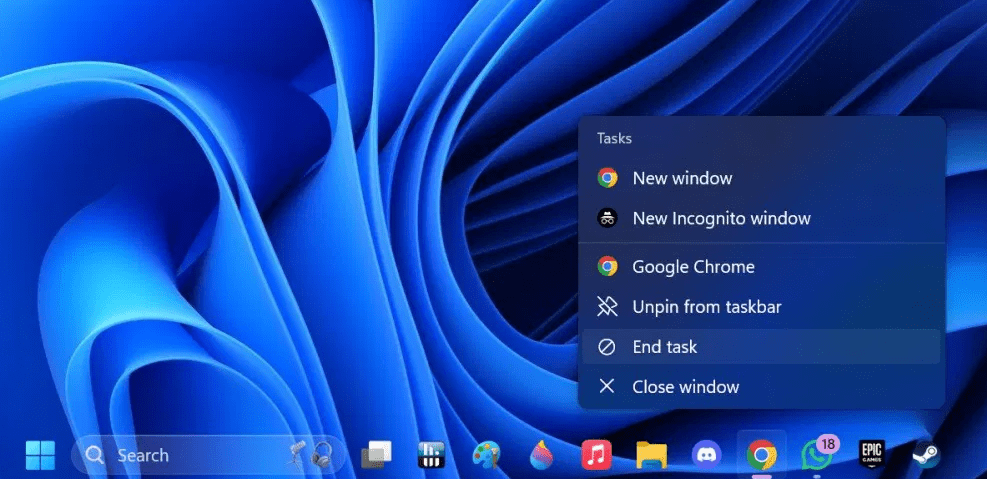
🆕 What is the “End Task” Feature on the Taskbar?
The new feature allows users to:
- Right-click any open app on the taskbar.
- Choose “End Task” from the context menu.
- Immediately close a frozen or unresponsive application.
This eliminates the need to open Task Manager, locate the process, and manually kill it.
📋 Prerequisite
Ensure your Windows 11 is fully updated, as this feature was introduced in the Windows 11 22H2 update and enhanced in further builds.
✅ Method 1: Enable “End Task” via Windows Settings
🔹 Steps:
- Right-click the Start button and select Settings.
- Go to System.
- Scroll down and click on For Developers.
- Under the End Task section, toggle “Enable End Task in the taskbar” to On.
That’s it! Now when you right-click an app on the taskbar, you’ll see the End Task option.
🛠️ Method 2: Enable via Registry Editor (Advanced)
If you prefer editing the Windows Registry or the setting isn’t available in your UI, follow these steps:
🔸 Steps:
- Press Win + R, type
regedit, and press Enter. - Navigate to the following path:
HKEY_CURRENT_USER\Software\Microsoft\Windows\CurrentVersion\Explorer\Advanced - Right-click on
Advanced> choose New > Key. - Name the new key:
TaskbarDeveloperSettings - Inside this new key, right-click, choose New > DWORD (32-bit) Value.
- Name the new value:
TaskbarEndTask - Double-click the entry and set the value data:
1= Enabled0= Disabled
- Click OK and Restart Explorer or your PC for the changes to take effect.
Now, when you right-click a running application on your taskbar, you should see End Task enabled.
🚨 Additional Tip: Customizing Your Taskbar
If your taskbar looks different (e.g., aligned at the top or made smaller), you might be using a third-party utility like StartAllBack.
🔗 StartAllBack Official Website
However, this customization tool is not required to enable the End Task feature — just ensure your Windows is updated.




⚠️ Disclaimer:
Editing the Windows Registry can cause system instability if done incorrectly. Always back up the registry or create a restore point before making changes.
📌 Tags:
windows 11, end task, taskbar shortcuts, taskbar settings, windows registry, taskbar right-click options, kill apps fast, windows performance tips, developer settings, windows 11 features
📢 Hashtags:
#Windows11 #TaskbarTips #EndTask #WindowsRegistry #TechTutorial #PCPerformance #MicrosoftUpdate #QuickFix #WindowsTips #ProductivityBoost
By following either method, you can enable a fast and effective way to deal with unresponsive applications directly from your Windows 11 taskbar. This quality-of-life update truly enhances day-to-day productivity.








