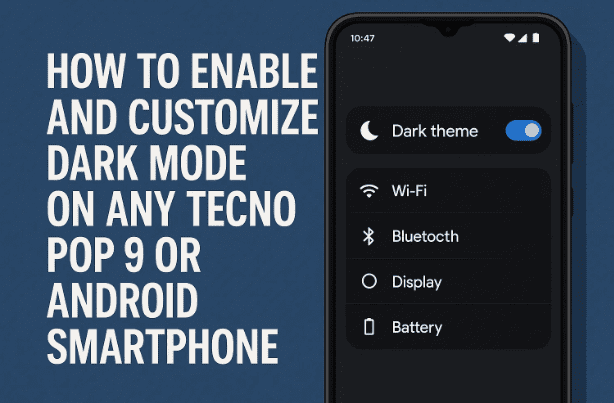
Dark Mode isn’t just a trendy look — it’s a practical feature that helps reduce eye strain, saves battery life, and makes your screen easier to view at night. Whether you’re using a TN Pop 9, an entry-level Android smartphone, or any other Android device, enabling Dark Mode takes only a few minutes once you know where to look.
In this article, we’ll walk you step-by-step through turning on Dark Mode, setting it to automatic schedule (like sunset to sunrise), and customizing it to match your preferences. We’ll also cover why Dark Mode matters and answer common questions you might have.
So, let’s get started.
1. What Is Dark Mode and Why Should You Use It?
Before we jump into the settings, let’s take a moment to understand what Dark Mode really does.
Dark Mode changes your phone’s display theme from the usual bright (light) background to darker shades — usually black or dark gray. It’s designed to be easier on your eyes, especially in low-light environments such as nighttime or indoors.
Here are a few reasons why you should consider enabling it:
- Reduces Eye Strain: Prolonged exposure to bright screens can cause visual fatigue. Dark Mode helps prevent that by minimizing glare.
- Saves Battery Life: On OLED and AMOLED screens, darker pixels consume less power. That means longer battery backup.
- Looks Stylish: Let’s admit it — Dark Mode just looks sleek. Many users prefer it purely for aesthetics.
- Improves Focus: A darker background makes text and icons stand out, helping you concentrate better.
Now that we’ve covered the basics, let’s move to the next step — actually enabling it on your TN Pop 9 (or any similar Android smartphone).
2. Step-by-Step: How to Turn On Dark Mode on TN Pop 9
Every Android phone offers slightly different interfaces, but the overall process remains similar. On your TN Pop 9, the option is neatly tucked inside the Display and Brightness settings.
Let’s go through each step carefully:
Step 1: Open the Settings App
- From your home screen, tap on the Settings icon (⚙️).
- This opens the main system settings menu.
Step 2: Scroll and Tap on “Display & Brightness”
- In the list of settings, find Display & Brightness.
- Tap on it to open the screen that controls your display preferences.
Step 3: Find the “Dark Theme” Option
- Here you’ll see options like Brightness Level, Font Size, Screen Timeout, and Dark Theme.
- Tap on Dark Theme to toggle it on.
Once you activate it, your phone’s interface — including menus, notifications, and system apps — instantly switches to a darker look.
You’ll notice that icons, backgrounds, and text adjust accordingly. Congratulations — you’re now using Dark Mode!








3. What Happens When You Enable Dark Mode?
Once Dark Mode is turned on, your entire phone interface changes. Here’s what you’ll notice:
- System Menus like Settings, Quick Panel, and Notifications turn dark gray or black.
- Supported Apps (like Google Chrome, WhatsApp, Instagram, YouTube, and Gmail) automatically adapt to Dark Mode.
- Wallpaper and Contrast may adjust slightly for better readability.
The change isn’t just visual — it’s functional. Your screen emits less blue light, helping your eyes relax, especially during nighttime browsing or reading sessions.
So far, so good. But there’s more you can do — you can automate Dark Mode to turn on and off by itself.
4. Using the Automatic Schedule: Sunset to Sunrise Mode
If you don’t want to manually switch between Dark Mode and Light Mode every day, Android provides a handy automatic scheduling option.
This feature makes your phone intelligent enough to turn Dark Mode on at sunset and off at sunrise — based on your location and local time.
Let’s see how to set it up.
Step 1: Tap on “Schedule” Under Dark Theme Settings
- Go back to Settings > Display & Brightness > Dark Theme.
- Underneath the toggle, you’ll see Schedule. Tap on it.
Step 2: Choose “Sunset to Sunrise”
- You’ll see multiple options:
- None (Off) – Keeps the mode manual.
- Sunset to Sunrise – Automatically enables Dark Mode in the evening and disables it in the morning.
- Custom Schedule – Lets you pick your own start and end times.
Select Sunset to Sunrise for automatic adjustment.
Your phone will use GPS and local time data to calculate sunset and sunrise for your region. Once set, you don’t have to worry about toggling Dark Mode again — it’ll happen automatically every day.
5. Setting a Custom Schedule (Manual Timing)
Some users prefer to define their own time range — for instance, turning on Dark Mode at 9 PM instead of sunset, or turning it off at 8 AM.
If you’re one of them, Android allows Custom Scheduling.
Here’s how to set it:
- Go to Settings > Display & Brightness > Dark Theme.
- Tap on Schedule.
- Choose Turn on from… to… option.
- Set your Start Time (for enabling Dark Mode).
- Set your End Time (for returning to Light Mode).
That’s it! Your phone will follow your custom routine daily.
6. Bedtime Mode Integration (Optional)
Another interesting feature related to display comfort is Bedtime Mode — part of Android’s Digital Wellbeing tools.
Bedtime Mode is designed to help you disconnect from your phone before sleeping. When activated, it can automatically:
- Dim the screen brightness.
- Enable Dark Mode.
- Turn on Do Not Disturb (DND).
If you already use Bedtime Mode, Dark Mode will automatically sync with it. This means your phone will enter Dark Mode during bedtime hours without any extra steps.
How to Check It:
- Go to Settings > Digital Wellbeing & Parental Controls.
- Select Bedtime Mode.
- Choose when it starts and ends.
- Ensure the Dark Theme option is turned on.
Now your phone will look and feel more relaxing whenever bedtime approaches.
7. Turning Off Dark Mode (If You Change Your Mind)
Not everyone prefers a dark interface all the time — some people find it harder to read, especially in bright daylight.
If you ever wish to revert to the Light Mode:
- Go to Settings > Display & Brightness > Dark Theme.
- Toggle it Off.
Alternatively, you can also use the Quick Settings panel (the dropdown from the top of your screen).
There’s usually a “Dark Theme” shortcut tile there — tap it anytime to instantly switch modes.
8. Shortcuts for Easier Access
Let’s say you frequently switch between Light and Dark modes — Android gives you a faster way to do it.
Here’s how:
Method 1: Use Quick Settings
- Swipe down twice from the top of your screen to open the full Quick Settings menu.
- Look for the Dark Theme button (it may look like a half-moon icon).
- Tap it to toggle Dark Mode on or off instantly.
Method 2: Use Google Assistant
You can also say:
“Hey Google, turn on Dark Mode.”
or
“Hey Google, turn off Dark Mode.”
Google Assistant will handle it for you automatically.
This is especially useful when your hands are busy or you want to avoid navigating menus.
9. Recommended Setting: Sunset to Sunrise
So far, we’ve learned several methods — but if you’re wondering which is best, here’s the recommendation:
✅ Use “Sunset to Sunrise” mode.
It offers the perfect balance — Dark Mode automatically activates when your environment gets dim and switches back in the morning without you doing anything.
It also works great with Bedtime Mode, syncing naturally with your body’s circadian rhythm and improving nighttime comfort.
10. Tips for the Best Dark Mode Experience
Let’s move to the next step and explore some bonus suggestions to enhance your experience:
- Use a dark wallpaper – It complements the theme and saves additional battery on OLED displays.
- Adjust brightness manually at night – Even in Dark Mode, high brightness can cause strain.
- Pair it with blue light filters – If your phone offers a “Night Light” or “Eye Comfort Shield,” turn it on alongside Dark Mode for extra protection.
- Use system-wide themes (if available) – Some Android skins like ColorOS, MIUI, or OneUI let you apply dark themes to third-party apps too.
- Keep software updated – New Android versions often improve color balancing and dark theme compatibility across apps.
11. Troubleshooting: If Dark Mode Doesn’t Work Properly
Sometimes users notice that even after enabling Dark Mode, certain apps stay light-themed. Here’s what you can do:
- Check if the app supports Dark Mode: Not all apps do. Open the app’s own settings to see if there’s a theme option.
- Restart your phone: A quick reboot can help apply changes system-wide.
- Update your apps: Older versions of apps might not detect system themes.
- Force Dark Mode (Advanced):
- Go to Settings > Developer Options.
- Enable Override force-dark.
- This forces unsupported apps to follow the dark theme — though colors might look odd in some cases.
12. Frequently Asked Questions (FAQ)
Q1. Does Dark Mode really save battery?
Yes — especially on phones with OLED or AMOLED screens, since black pixels are effectively “off,” consuming less power.
Q2. Is Dark Mode better for the eyes?
It helps reduce glare and strain in low light, but during the day or bright environments, Light Mode may still be more readable. Use whichever feels comfortable for your eyes.
Q3. Will Dark Mode affect image quality?
No. Dark Mode only changes UI backgrounds and system colors — photos and videos display normally.
Q4. Can I enable Dark Mode for only specific apps?
Yes. Apps like Chrome, YouTube, and Gmail have independent Dark Mode toggles under their own settings if you prefer per-app control.
Q5. Is there a way to automate Dark Mode based on Bedtime Mode only?
Yes. If you have Bedtime Mode configured, Dark Mode can automatically activate during that period — you don’t need a separate schedule.
13. Conclusion – Make Your Phone Easier on the Eyes
We’ve done a good job walking through every detail — from manually enabling Dark Mode to setting it automatically, syncing it with Bedtime Mode, and understanding its benefits.
To recap:
- You can enable it via Settings > Display & Brightness > Dark Theme.
- Schedule it automatically using Sunset to Sunrise for hands-free operation.
- Customize timings if you want finer control.
- Access it easily through Quick Settings or Google Assistant.
With these tips, your TN Pop 9 (or any Android phone) will look more elegant, run longer on a single charge, and feel far more comfortable to use at night.
Disclaimer:
Features and menu names may slightly vary depending on your Android version or manufacturer skin (such as ColorOS, MIUI, OxygenOS, or OneUI). The steps provided here are verified on stock Android 12 and similar versions.
Tags: TN Pop 9, Android dark mode, smartphone settings, display brightness, sunset to sunrise, Bedtime mode, Android tips, phone customization
Hashtags: #AndroidTips #DarkMode #SmartphoneGuide #DisplaySettings #TNPop9 #BatterySaving #AndroidCustomization








