Editing photos on a PC or laptop might seem intimidating at first, but with the right tools and methods, it becomes an enjoyable and creative process. In this article, we’ll walk you through two highly effective methods to edit your photos like a pro, even if you’re just starting out.
Whether you’re looking to touch up your selfies, remove blemishes, adjust lighting, or create striking visual effects, this guide has you covered. Let’s dive in!
Method 1: Editing Photos Using PhotoScape X
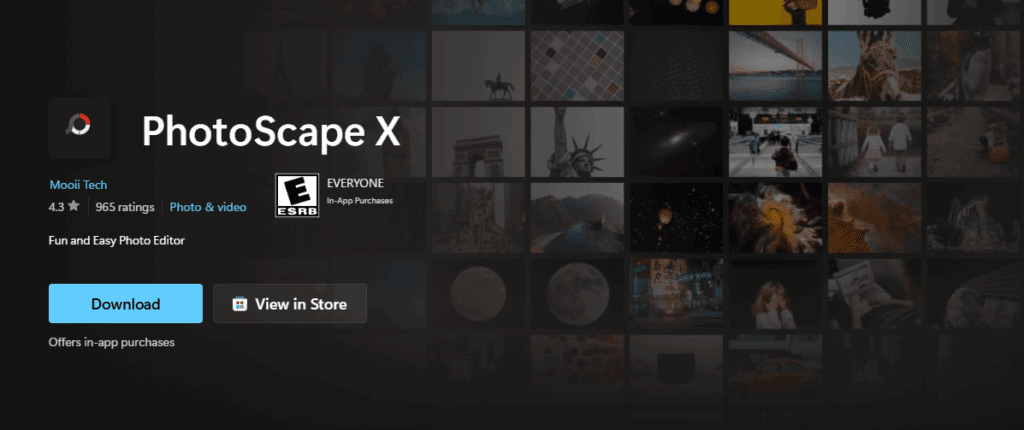
Step 1: Install PhotoScape X
First, you need to download and install a free photo editing software called PhotoScape X on your PC or laptop. Once installed, open the application.
Step 2: Open the Editor Section
After launching PhotoScape X, navigate to the “Editor” section. Here, you can browse your computer files and select the photo you want to edit.
Step 3: Basic Editing Tools
Once your photo is loaded, you can start making adjustments:
- Auto-Adjust: Quickly improve brightness, contrast, and color balance.
- Manual Adjustments: Go to the “Colors” tab to fine-tune highlights, shadows, brightness, contrast, and color temperature.
- Remove Blemishes: Use the “Spot Healing Brush” to remove pimples or unwanted marks from the face effortlessly.
- Smooth Skin: Use the “Mixer Brush” tool to smooth out skin tones for a polished look. Adjust the brush strength for more natural results.
Step 4: Advanced Features
- Highlights and Shadows: Correct overexposed or underexposed areas.
- Whites and Blacks Adjustments: Perfect for enhancing the dynamic range.
- Effects and Filters: Apply retro, urban, or cinematic filters to change the mood of your photos.
- Vignetting: Add a soft dark border around your photo for a professional touch.
PhotoScape X is a beginner-friendly yet powerful tool, perfect for basic to intermediate photo editing.
Method 2: Editing Photos Using the GIMP Software (Advanced Method)
Step 1: Install GIMP
GIMP (GNU Image Manipulation Program) is a free and open-source image editor that’s perfect for advanced photo editing. Download and install it on your PC.
Step 2: Load Your Image
Open GIMP and drag your image into the workspace.
Step 3: Understanding Layers and Tools
GIMP uses a layer-based system similar to professional software like Photoshop. You can:
- Work on different parts of an image without affecting others.
- Use a wide variety of tools for precise editing, such as selection tools, brushes, clone tools, and healing tools.
Step 4: Advanced Adjustments








- Color Correction: GIMP offers extensive options like curves, levels, color balance, and hue-saturation adjustments.
- Spot Removal: Remove spots or blemishes using the “Heal” or “Clone” tools.
- Smooth Skin: Use blur tools and selective smoothing to enhance portraits.
- Color Grading: Apply beautiful color tones to your photos for a cinematic feel using GIMP’s powerful curves and color grading tools.
Pro Tip: Color grading at a professional level can be tricky for beginners. If you’re looking for mobile-friendly color grading, apps like Adobe Lightroom Mobile are highly recommended for finer control over tones and moods.
Bonus: Quick Online Editing Using OpenAI Photo Editor via Pixels.com
If you prefer an even simpler method without downloading software, you can use online photo editing platforms such as OpenAI Photo Editor through Pixels.com:
- Upload your photo.
- Adjust brightness, contrast, shadows, and highlights with easy-to-use sliders.
- Remove backgrounds, apply blur effects, and add creative filters with minimal effort.
This method is ideal for quick edits and for users who are new to photo editing.
Final Thoughts
Learning photo editing on your PC or laptop is a valuable skill that opens up endless creative possibilities. Whether you are a beginner using PhotoScape X, or moving to advanced editing with GIMP, consistency and practice are key.
Start simple, experiment with different tools, and gradually progress to more sophisticated techniques like color grading and layer-based editing. Eventually, you’ll be able to transform ordinary photos into professional-quality images!
Tags:
photo editing, beginner photo editing, how to edit photos on PC, PhotoScape X tutorial, GIMP tutorial, free photo editing software, photo retouching, color grading, online photo editing, open source photo editor
Hashtags:
#PhotoEditing #BeginnerGuide #PCEditing #PhotoScapeX #GIMP #ColorGrading #PhotoRetouching #EditingSoftware #CreativeEditing #PhotographyTips








