If you’re a Linux user, you’ve likely encountered the challenge of needing a Windows application that doesn’t have a native Linux version. Fortunately, there’s a simple and efficient solution — PlayOnLinux. This tool allows you to install and run many Windows applications seamlessly on your Linux system without needing to install a full Windows operating system.
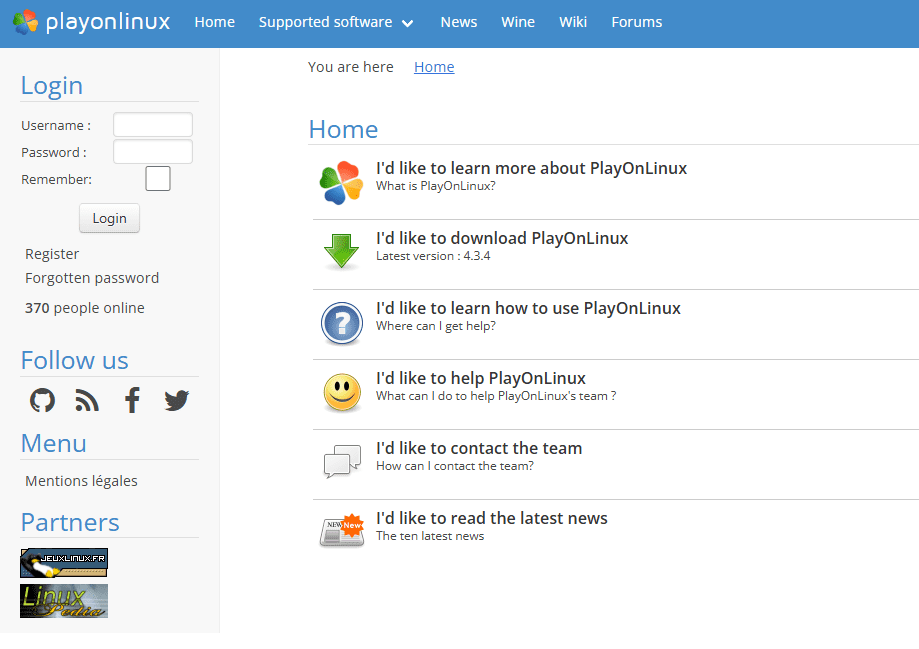
In this article, we’ll walk you through how to set up and use PlayOnLinux step-by-step.
What is PlayOnLinux?
PlayOnLinux is a free and user-friendly software that acts as a graphical front-end for Wine, the compatibility layer that enables Windows applications to run on Linux. It simplifies Wine’s setup and configuration, making it much easier for everyday users to install and run Windows apps.
Step 1: Installing PlayOnLinux
There are several ways to install PlayOnLinux, depending on your Linux distribution.
Option 1: Install Using Your Package Manager (Recommended)
PlayOnLinux is available in most Linux distribution repositories. Here’s how to install it:
- For Ubuntu or Debian-based distributions, open the terminal and run:
sudo apt updatesudo apt install playonlinux - For Fedora users:
sudo dnf install playonlinux - For Arch-based distributions (like Manjaro):
sudo pacman -S playonlinux
Option 2: Install via Flatpak (Universal Method)
If you prefer a universal and distribution-independent approach:
flatpak install flathub org.phoenicis.playonlinux
This method ensures you get a consistent experience across all Linux distributions.
Option 3: Download the Latest .deb File
Advanced users may choose to download the .deb package directly from the official PlayOnLinux website. This gives you the most up-to-date version, though it requires manual installation and dependency handling.
Step 2: Enabling 32-bit Support (If Needed)
Some older Windows applications require 32-bit support, especially on 64-bit Linux systems. You can enable this with the following commands (for Debian-based systems):
sudo dpkg --add-architecture i386
sudo apt update
sudo apt install wine32
Step 3: Launching PlayOnLinux
Once installed, open PlayOnLinux from your applications menu. You’ll see a simple interface with options to:
- Install a program
- Configure
- Manage virtual drives
Click “Install a program” to begin installing supported Windows applications.









Step 4: Installing a Windows Application
PlayOnLinux includes a built-in list of supported applications. To install:
- Click “Install a program”
- Browse or search for the application (e.g., Notepad++)
- Select the app and click “Install”
- Follow the on-screen instructions, just like you would in Windows
The application will be installed in a separate virtual drive, isolated from your Linux system.
Step 5: Running a Non-Listed Application
If your app isn’t in the official list, you can still install it manually:
- Click “Install a non-listed program” at the bottom-left.
- Choose “Install a program in a new virtual drive” and follow the prompts.
- Select the
.exeinstaller for your Windows application. - Complete the installation process as you would on a Windows PC.
For applications that don’t require installation (portable apps), simply select the .exe file, and it should run directly.
Step 6: Running and Managing Installed Applications
After installation:
- The app will appear in the main PlayOnLinux window.
- Select it and click “Run” to start the application.
- If it doesn’t work perfectly, you can configure compatibility settings such as Wine version, libraries, and environment variables through the Configure menu.
Conclusion
With PlayOnLinux, running Windows applications on Linux is easier than ever. Whether you’re using Ubuntu, Fedora, Arch, or any other Linux distro, you can install and manage your favorite Windows apps without leaving your Linux environment.
If you found this article helpful, be sure to bookmark it for future reference. Have questions or need help with a specific app? Drop a comment below!
Tags:
playonlinux, run windows apps on linux, wine linux, linux software, ubuntu tips, linux tips and tricks, linux apps, install notepad++ linux, wine frontend, linux compatibility, playonlinux tutorial
Hashtags:
#linux #ubuntu #playonlinux #wine #linuxapps #linuxguide #opensoftware #notepadplusplus #runwindowsapps #linuxhelp #linuxsupport








