If you are facing issues with your Windows PC where the sound quality is not up to the mark or the Realtek High Definition Audio Manager is missing, this guide will solve your problem completely. Follow the step-by-step methods described below to correctly install or update the Realtek Audio Driver on your Windows 10 or Windows 11 PC.
Method 1: Update Windows to Install Realtek Audio Driver Automatically
The first and easiest method is to simply update your Windows operating system. When you update Windows, it often automatically installs the latest drivers, including the Realtek High Definition Audio Driver.
Here’s what you need to do:
- Open the Settings app.
- Navigate to Update & Security > Windows Update.
- Click Check for updates.
- If there are updates available, download and install them.
After completing the Windows update, restart your computer. In many cases, the Realtek Audio Driver will automatically be installed during this process. If the driver is still not installed, you can move on to the next method.
Method 2: Manually Download Realtek Audio Driver from the Manufacturer’s Website
If updating Windows doesn’t work, the next best option is to manually download the Realtek Audio Driver from your PC or motherboard manufacturer’s official website. Here’s how:
- Find Your System Information:
- Press
Windows + Sand search for System Information. - Open it and note down two important details: System Manufacturer and System Model.
- Press
- Search for Your Driver:
- Open any web browser.
- In the search bar, type:
"Manufacturer Name Model Number drivers"
For example, if your manufacturer is Gigabyte and your model is B650M Gaming WiFi, you would search:"Gigabyte B650M Gaming WiFi drivers"
- Download the Driver:
- Visit the official website from the search results.
- Navigate to the Support or Drivers section.
- Look for the latest Realtek High Definition Audio Driver.
- Download the driver suitable for your operating system (Windows 10/11, 64-bit).
- Install the Driver:
- Once downloaded (usually as a ZIP or EXE file), extract if necessary and run the setup file.
- Follow the on-screen instructions to complete the installation.
This method ensures you get the official, up-to-date drivers customized for your specific motherboard or laptop.
Method 3: Use a Trusted Driver Updater Tool (Optional)
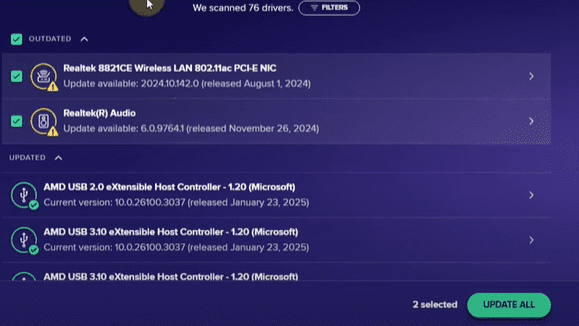
If you are unsure about manually searching for drivers, you can use a trusted tool like Avast Driver Updater. This tool scans your system for outdated or missing drivers and helps you update them easily.
Here’s how you can use it:
- Open your browser and search for Avast Driver Updater.
- Visit the official Avast website and download the installer.
- Install the program following the normal installation steps.
- Open Avast Driver Updater and click on Scan Drivers.
- It will show a list of outdated or missing drivers, including audio drivers.
- If you see an outdated or missing Realtek High Definition Audio Driver, select it and click Update Selected.
The tool will automatically download and install the latest drivers for you.
Note: Always prefer downloading drivers manually from the official website if possible, as third-party tools might not always provide the latest manufacturer-specific updates.
Conclusion
By following these three methods, you can easily resolve any issues related to missing or poor-quality audio on your Windows 10/11 PC. Updating Windows, manually downloading from the manufacturer’s website, or using a driver updater tool — all are effective ways to install the Realtek High Definition Audio Driver correctly.











With the proper driver installed, you’ll regain full control of your audio settings through the Realtek High Definition Audio Manager, enabling you to customize your sound experience the way you like it.
Tags: Realtek Audio Driver, Windows 11 Sound Problem, Install Realtek Driver, Update Realtek Driver, Audio Manager Windows, Fix Audio Driver Issue, Realtek High Definition Audio, Driver Update Windows, PC Audio Setup, Windows 10 Drivers
Hashtags: #RealtekAudio #Windows11 #AudioDriver #FixSoundIssue #RealtekDriver #PCSetup #Windows10 #UpdateDrivers #SoundDriver #TechGuide








