If you’re looking to install or update your Intel graphics drivers — whether it’s Intel UHD Graphics or Intel Iris Xe Graphics — this article will walk you through three simple methods to get it done. Updating your graphics driver ensures better performance, enhanced visuals, and overall smoother functioning of your PC or laptop.
Let’s dive into the step-by-step guide!
Method 1: Manual Installation via Device Specifications
- Open ‘This PC’
- First, go to ‘This PC’ on your computer.
- Access System Properties
- Right-click anywhere and select Properties.
- A new window will open where you can see your system specifications like RAM, Processor, etc.
- Copy Processor Details
- Locate the Processor information and copy the exact name (for example, “Intel Core i5-1135G7”).
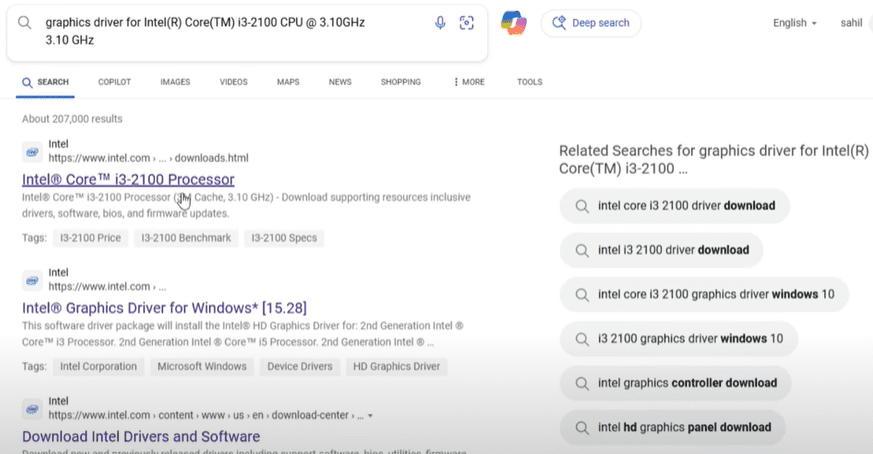
- Search for the Graphics Driver
- Open your browser.
- In the search bar, type:
Graphics Driver for[paste your copied processor name].
- Download from Official Source
- Look for the official Intel website link (usually www.intel.com) in the search results.
- Click on it, check for the latest update, and hit the Download button.
- Install the Driver
- Once downloaded, open the installer and follow the normal installation process.
- This method ensures that you are getting the driver most compatible with your system.
Method 2: Using Automatic Driver Update Tools
- Open Your Browser
- Again, launch your preferred web browser.
- Search for AVG Driver Updater
- Type “AVG Driver Updater Download” in the search bar.
- Visit the official AVG site and download the software.
- Scan for Missing Drivers
- Install and open the AVG Driver Updater.
- Click on Scan Drivers. The tool will list all the drivers that need updates, including your graphics driver.
- Install the Graphics Driver
- Find the Graphics Driver in the list.
- Select it and click Update Selected.
- The software will automatically download and install the appropriate graphics driver for you without much manual effort.
This method is very convenient if you don’t want to go through manual searching and installation.
Method 3: Update via Windows Update Settings
- Go to Personalization Settings
- Right-click on your desktop and click on Personalize.
- Navigate to Windows Update
- Inside the settings, find and click on Windows Update.
- Check for Updates
- Click on Check for Updates.
- Windows will start looking for system updates, including missing drivers like the graphics driver.
- Install Available Updates
- If your PC is missing a graphics driver, it will show up during this process.
- Install all updates, and your graphics driver will be automatically installed as part of the system updates.
This is an effortless method if you prefer not installing third-party tools or searching manually.
Final Thoughts
By following any of these three methods, you can easily install or update your Intel Graphics Drivers on your Windows 11 PC or laptop. Keeping your graphics drivers updated is crucial for the best display performance, smooth gaming, and optimal multimedia experiences.
If you face any issues during the installation process or have any doubts, feel free to ask in the comments section below. Also, don’t forget to stay connected for more helpful tutorials like this one!
Happy computing!
Tags: Intel Graphics Driver, Intel UHD Graphics Driver, Intel Iris Xe Graphics Driver, Graphics Driver Installation, Windows 11, Laptop Drivers, PC Drivers, Update Graphics Driver, Windows Update, AVG Driver Updater
Hashtags: #IntelGraphics #GraphicsDriver #Windows11 #IntelUHD #IntelIrisXe #DriverUpdate #WindowsUpdate #PCDrivers #LaptopDrivers #TechGuide