Dual booting Linux alongside Windows opens the door to powerful customization and productivity. If you’re interested in trying the sleek and modern XOS (Axos) Linux distro with Sleek Desktop based on Hyprland, this guide will walk you through how to install XOS alongside Windows 11—without losing your data. We’ll also show you how to remove it later if needed.
So grab a coffee ☕, and let’s go through every step with proper explanations, commands, links, and safety tips. No shortcuts taken here!
🛠️ Requirements Before You Begin
Let’s set up the foundation first. Make sure you have the following:
- ✅ A PC or laptop running Windows 10 or Windows 11
- ✅ A minimum of 50 GB free space on your internal drive (SSD or HDD)
- ✅ A USB flash drive with 8GB or more (to create the XOS bootable installer)
- ✅ Backup of important files to the cloud or external hard drive
- ✅ UEFI-based system (this guide is for UEFI only, not Legacy BIOS)
🔗 Download Required Tools:
- XOS (Axos) ISO: https://www.axos-project.com/
- Balena Etcher (for USB flashing): https://etcher.balena.io/
☂️ Step 1: Create a System Restore Point in Windows
Before making any system changes, let’s create a safety net.
Here’s how:
- Press
Windowskey and search for “Create a restore point” - Open the System Properties window.
- Select your main system drive (usually C:) and click “Create”
- Name it something like “Before XOS install”
- Click Create again and wait for confirmation.
This allows you to restore Windows to a working state in case anything goes wrong.
🔐 Step 2: Disable BitLocker (If Using Windows 11 Pro)
BitLocker encryption can interfere with Linux installations.
- If you are using Windows 11 Home, you can skip this step.
- On Windows 11 Pro:
- Open Control Panel > BitLocker Drive Encryption
- Click Turn off BitLocker
- Wait for it to decrypt completely before proceeding.
💾 Step 3: Create Free Space for XOS
We’re going to shrink your Windows partition to make space for XOS.
Steps:
- Right-click the Start Menu and select Terminal (Admin)
- Type:
diskmgmtand press Enter - In Disk Management, locate your main partition (C:, D:, etc.)
- Right-click it and choose Shrink Volume
- Enter the space to shrink in MB:
- For 50 GB → enter
51200 - For 100 GB → enter
102400
- For 50 GB → enter
- Click Shrink
- You will now see Unallocated Space next to your partition
📝 In this example, we’ll assume you created 200 GB of free space.
💻 Step 4: Download and Flash XOS ISO to USB
Now, let’s prepare the installation media.
Flash XOS using Balena Etcher:
- Download the correct XOS version from https://www.axos-project.com/
- Use NVIDIA Edition only if you have an Nvidia GPU.
- Otherwise, choose Standard 64-bit ISO
- Download and install Balena Etcher: https://etcher.balena.io/
- Plug in your 8GB+ USB drive
- Open Etcher → Select XOS ISO → Select USB → Click Flash
- Wait until flashing completes.
🔧 Step 5: Modify BIOS Settings
Now let’s prepare your system to boot from USB.

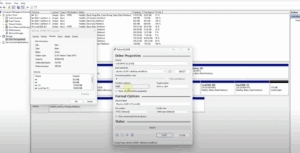




Reboot and enter BIOS:
- Press
F2,F9,F10, orEscduring boot (varies by manufacturer) - In BIOS:
- Enable USB Boot
- Set USB drive as the primary boot device
- Disable Secure Boot
- Save and exit
Your PC will now boot into XOS live environment.
🌐 Step 6: Connect to Wi-Fi in XOS Live Session
To proceed with partitioning and installation, connect to Wi-Fi:
- Click the Wi-Fi icon in the top-right corner
- Enable Wi-Fi
- Click Refresh and choose your network
- Enter password and connect
🧩 Step 7: Create Partitions for XOS (Using Terminal)
Let’s dive into some terminal work. Don’t worry—we’ll explain each step clearly.
Open Terminal:
- Press
Super + Enter(Super = Windows key) - Type the following to list disks:
lsblk
You’ll see drives like:
nvme0n1→ Your internal SSD with Windowssda→ Your bootable USB
Ignore loop devices.
Start Partitioning:
Replace nvme0n1 with your actual drive name:
cfdisk /dev/nvme0n1
Use arrow keys to navigate:
- Select Free Space
- Create:
- EFI partition: 1 GB (Type: EFI System)
- Root partition: Remaining space (Type: Linux filesystem)
- Write changes
- Exit
💽 Step 8: Format Partitions
Still in terminal, format the partitions:
mkfs.fat -F32 /dev/nvme0n1p5   # Format EFI partition
mkfs.ext4 /dev/nvme0n1p6       # Format root partition
(Replace p5 and p6 with your actual partition numbers)
🧙 Step 9: Install XOS
Close terminal and search for XOS Installer.
Follow the GUI installer:
- Set language, keyboard, and time zone
- Create user account
- Choose Sleek Desktop (based on Hyprland) – recommended for modern look
- Choose Kernel and optional packages (Nvidia drivers, apps)
- Select the drive → Switch to Manual Partitioning
- Assign mount points:
/dev/nvme0n1p5→ Mount point:/boot/efi(FAT32)/dev/nvme0n1p6→ Mount point:/(ext4)
Click Next to install.
Once installation completes → Reboot and remove USB
⚙️ Step 10: Fix Grub Boot Menu (If Windows 11 Doesn’t Show)
If XOS boots but Windows is missing from the GRUB menu:
In XOS:
sudo su
lsblk  # Identify Windows EFI partition (e.g., /dev/nvme0n1p1)
mkdir /mnt/windows
mount /dev/nvme0n1p1 /mnt/windows
Then run:
os-prober
nano /etc/default/grub
- Set
GRUB_DISABLE_OS_PROBER=false - Increase
GRUB_TIMEOUT=30if needed
Save with Ctrl+O, exit with Ctrl+X.
Now update grub:
update-grub
Reboot, and now you’ll see Windows 11 and XOS in GRUB menu.
🧼 BONUS: How to Uninstall XOS and Remove Dual Boot
If you want to remove XOS and return to just Windows:
In Windows 11:
- Open Disk Management
- Delete the XOS root and boot/efi partitions
- For the EFI partition that won’t delete:
- Open Command Prompt as Administrator
- Type:
diskpart list disk select disk 0 list partition select partition X # Replace X with XOS EFI partition number delete partition override
Now merge free space back to Windows partition (optional).
Your system will boot into Windows directly.
❓FAQs
Q1: Will this erase my Windows data?
Not if done correctly. Still, always backup first.
Q2: Does XOS work on AMD processors?
Yes. Select the standard ISO during download.
Q3: Can I install it on an external SSD?
You can, but bootloader issues may arise. Internal SSD is safer.
Q4: What desktop is best for beginners?
Choose Sleek (Hyprland-based) for visuals or Plasma for full features.
🛑 Disclaimer
This guide is provided for educational purposes only. Dual booting involves system-level changes. Proceed with caution and always back up your data before attempting any OS-level modifications.
🏁 Final Thoughts
Dual booting Windows 11 and XOS gives you the best of both worlds—Windows compatibility and Linux power. With this detailed guide, you can now safely set up XOS with GRUB boot manager, or remove it whenever needed.
Take your time through each step, and don’t hesitate to ask for help if stuck.
✅ Tags:
xos, axos, linux dual boot, windows 11, dual boot guide, bootloader, uefi, grub, windows efi, linux install, xos linux, hyprland, sleek desktop
✅ Hashtags:
#XOS #LinuxDualBoot #Windows11 #ArchLinux #GrubBootloader #UEFIBoot #TechGuide #LinuxTips #XOSInstall








