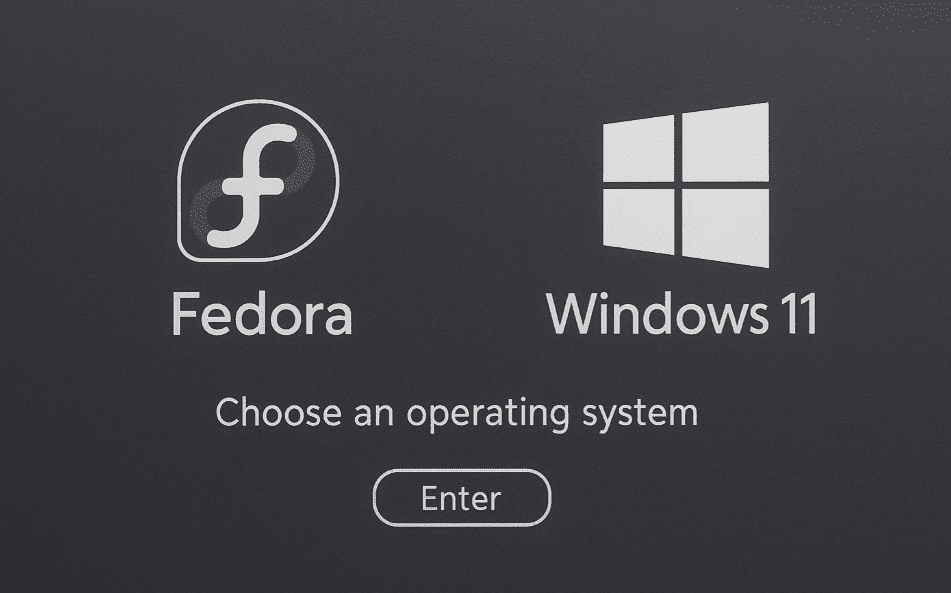
Dual booting Fedora Linux with Windows 11 is a fantastic option for users who want to use both operating systems on a single computer. Whether you’re learning Linux, exploring its capabilities, or need Windows for certain tasks, this guide will walk you through every step of setting up a dual-boot system using Fedora 40 and Windows 11.
🔔 Disclaimer: Dual booting requires partitioning your hard drive and modifying your system’s boot setup. Please back up all important files before proceeding. Although this guide minimizes risk, data loss can occur.
✅ Step 1: Prepare Windows 11 for Dual Boot
Before installing Fedora, you must ensure that your Windows 11 installation is up to date:
- Open the Start Menu, type Update, and go to Windows Update Settings.
- Click Check for updates and install any available updates.
- Restart your PC if required.
✅ Step 2: Download Fedora Media Writer
To create a Fedora bootable USB, use Fedora Media Writer, the official tool by the Fedora Project.
🔗 Download Fedora Media Writer
Once installed:
- Open Fedora Media Writer.
- Choose Download Automatically.
- Select Fedora Workstation under official editions.
- Optionally, explore alternatives like KDE Plasma, Silverblue, or Sway.
- Click Next, and ensure you are downloading Fedora 40 (latest stable release).
- Wait for the ISO to download.
✅ Step 3: Create a Fedora Bootable USB
- Insert a USB drive (8GB or larger). Warning: This drive will be erased.
- Select your USB drive in Fedora Media Writer.
- Click Write to Disk and wait for the process to complete.
- Once done, click Finish and safely remove the USB if needed.
✅ Step 4: Boot into Fedora Live Environment
- Reboot your system.
- Press your system’s boot key (usually F12, F10, Esc, or F2) during boot.
- Select the USB drive from the boot menu.
- Fedora will boot into Live Mode, allowing you to try the OS before installing.
✅ Step 5: Check Hardware Compatibility
Before installing Fedora, test key hardware:
- Display scaling: Adjust in Settings > Displays (set scaling to 200% if needed).
- Wi-Fi: Connect to your wireless network to verify connectivity.
- Sound: Open a web browser, visit a site like YouTube, and test audio playback.
- External displays: Plug in additional monitors to check compatibility.
✅ Step 6: Start Fedora Installation
- From the Live Mode desktop, click Install Fedora.
- Choose your language and keyboard layout.
- Click Continue to move to the installation summary.
✅ Step 7: Partition the Disk for Dual Boot
In the Installation Destination section:
- Fedora will detect that Windows is occupying the full disk.
- Click Done (don’t make changes manually).
- Fedora will prompt to Reclaim Space — click it.
- Select the Windows partition and drag to shrink it, leaving space for Fedora (recommend at least 30–40 GB).
- Click Reclaim Space to confirm.
- Go back to the summary and select Time & Date, then set your time zone.
Once all settings are configured, click Begin Installation.
✅ Step 8: Complete Fedora Installation
- Fedora will now install alongside Windows.
- Once done, click Finish Installation.
- Remove the USB drive and restart your computer.
✅ Step 9: Test Dual Boot Setup
- On restart, your PC should display a boot menu with Fedora and Windows.
- Select Windows to confirm it still works.
- Reboot again and let Fedora boot by default.
✅ Step 10: Fedora Post-Installation Setup
- Complete the welcome setup: enter your username and password.
- Choose whether to enable third-party repositories (recommended for apps like Chrome).
- Adjust display scaling if needed under Settings > Displays.
- Open Software Center (GNOME Software) from the Activities menu.
- Go to the Updates section and install all available updates.
- Click Restart and Install Updates when prompted.
🎉 You Did It!
You now have a fully functional dual-boot setup with Fedora Linux 40 and Windows 11! Fedora is updated, tested, and ready for daily use.
🛠 Tools & Software Mentioned
- Fedora Media Writer – https://getfedora.org
📌 Tags
dual boot, Fedora 40, Windows 11, Linux installation, Fedora dual boot, Fedora Media Writer, Fedora setup, boot menu configuration, Fedora live mode, Fedora workstation, GNOME Software, Fedora updates, Linux for beginners




🔖 Hashtags
#DualBoot #FedoraLinux #Windows11 #LinuxInstallation #Fedora40 #FedoraSetup #LinuxForBeginners #FedoraWorkstation #BootMenu #LinuxUpdates #OpenSource #FedoraMediaWriter
If you found this guide helpful, consider sharing it with others exploring the world of Linux. Enjoy your journey with Fedora!








