Get ready to experience the latest features and updates of Windows 11 25H2 before its official release!
In this article, we’ll guide you step-by-step on how to download the Windows 11 25H2 Insider Preview ISO file and start exploring the newest version of Windows right now.
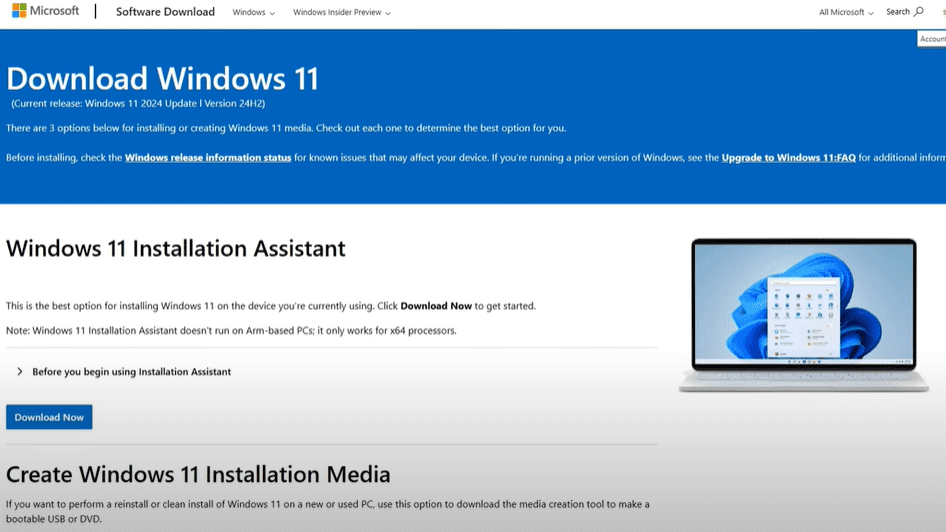
Why Download Windows 11 25H2 Early?
Windows 11 24H2 was officially launched in 2024. Now, the 25H2 version is on its way, expected to be released later in 2025. However, if you want to experience it before everyone else, you can download the Insider Preview version right now.
Even though it is still under testing and may contain some bugs, you will get early access to all the upcoming features and improvements.
Steps to Download Windows 11 25H2 Insider Preview ISO
Follow these steps carefully to download and install the latest Windows 11 25H2 Insider Preview:
1. Open Your Browser
First, open any web browser on your PC.
2. Search for WS1 Download
In the search bar, type WS1 Download.
Look for the official Microsoft website link that mentions “WS1 Insider Preview” and click on it.
3. Visit Microsoft’s Insider Preview Download Page
You will be redirected to the Microsoft Insider Preview page. Make sure you are signed in with your Microsoft account.
If you are not logged in, please log in first to access the download options.
4. Select Edition
Scroll down a little until you find the section labeled Select Edition.
Click on the dropdown menu, and you will see a list of available Windows 11 editions and builds.
Here, you will find all the latest available builds, including:
- Windows 11 Insider Preview Dev Channel builds (like Build 26100 for 24H2)
- Windows 11 Release Preview builds
- Windows 11 Canary Channel builds
The build you need to look for is Build 27774 (or later), listed under Canary Channel. This is the Windows 11 25H2 version.
Important:
Be sure to download the Build 27774 version or newer, as this specifically relates to the 25H2 update.
Older builds might belong to the 24H2 update or earlier.
5. Download the ISO File
After selecting the correct edition (Build 27774), choose the language and then download the ISO file.
The ISO file is what you will use to create a bootable USB drive or for direct installation.








Installing Windows 11 25H2 Insider Preview
Once you have downloaded the ISO file, you have two main options:
Option 1: Create a Bootable USB Drive
- Use a tool like Rufus to create a bootable USB drive.
- Boot your PC from the USB and proceed with the manual installation.
Option 2: Join the Windows Insider Program (Alternative Method)
If you prefer not to create a bootable USB, you can join the Windows Insider Program directly from your current Windows system:
- Go to Settings > Update & Security > Windows Insider Program.
- Click on Get Started.
- Link your Microsoft account.
- Choose the Dev Channel or Canary Channel to get early access builds.
- Restart your PC as instructed.
- After restarting, simply check for updates. The system will download and install the latest Insider Preview version based on your chosen channel.
Important Tips Before You Proceed
- Canary Channel:
This channel gets updates the earliest, but these builds might have more bugs and stability issues. - Dev Channel:
Offers a slightly more stable experience than Canary, but still targeted for advanced users and developers. - Beta Channel or Release Preview Channel:
If you prefer a more stable experience with fewer bugs, wait for the Beta or Release Preview builds.
Note: If you want to avoid frequent bugs and errors but still enjoy new features, it is better to join the Beta or Release Preview channels.
You might be intrested in these too!
- Windows 11 24H2 Introduces ‘Quick Machine Recovery’: A New Automatic Repair Feature to Prevent Boot Failures
- Ultimate Manual Optimization Guide for Windows 11 24H2 (No Tools Required)
- Fix Windows 11 24H2 Update Failure Caused by Voicemeeter Driver Error
- How to Install Windows 11 24H2 on Unsupported Hardware (2024 Guide)
- Windows 11 24H2 Update KB5044384: Bug Fixes & How to Install
Final Thoughts
Exploring Windows 11 25H2 through the Insider Preview program is a great way to experience the latest features early.
However, make sure you are prepared for potential bugs and issues since it is not the final stable release.
Always backup your important data before installing Insider Preview builds.
Stay ahead of the curve and enjoy everything new Windows has to offer!
Tags: Windows 11, Windows 11 25H2, Windows Insider Preview, Windows Update, Windows 11 ISO, How to Download Windows ISO, WS1 Download, Microsoft Insider Program, Windows 11 Beta, Windows 11 Features
Hashtags: #Windows11 #WindowsUpdate #Windows11ISO #Windows11Features #InsiderPreview #WindowsInsider #TechGuide #Microsoft #WindowsTips








