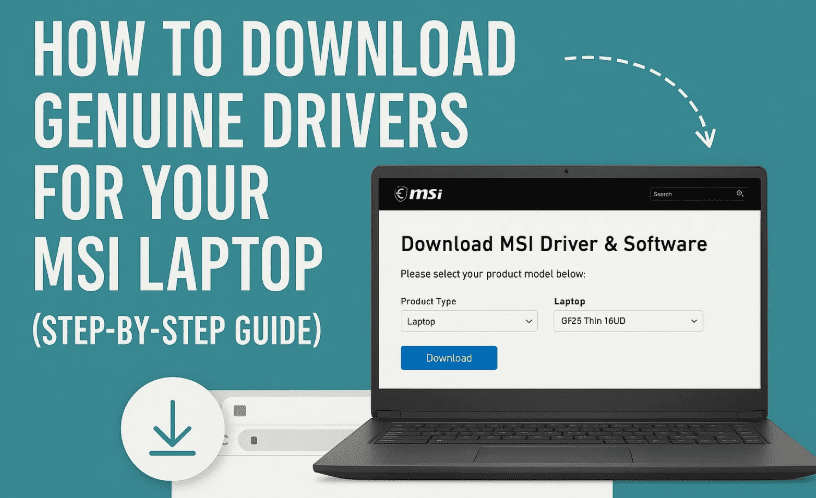
If you’re using an MSI laptop and facing issues like missing drivers for Wi-Fi, Bluetooth, graphics, or audio — this guide is just what you need. It’s important to download drivers from official sources only to ensure stability, performance, and security. Here’s a detailed step-by-step guide to help you download the genuine drivers for your MSI laptop directly from the official MSI website.
🧭 Why You Need Genuine Drivers for MSI Laptops
Drivers are essential pieces of software that help your operating system communicate with the laptop’s hardware like the touchpad, speakers, graphics card, or Wi-Fi adapter. Missing or outdated drivers can cause:
- No sound or distorted audio
- Laggy or broken touchpad gestures
- Unstable Wi-Fi connection
- Poor graphics performance or crashes
That’s why it’s always recommended to get your drivers from MSI’s official website and not from third-party driver downloaders.
🛠️ Step-by-Step Guide to Download Official MSI Drivers
✅ Step 1: Open Your Preferred Web Browser
It doesn’t matter whether you’re using Google Chrome, Mozilla Firefox, or Microsoft Edge — open your preferred browser.
✅ Step 2: Search for MSI Drivers
In the search bar, type:
MSI drivers
Hit Enter and look for the official MSI website. The link should be:
⚠️ Always ensure you’re visiting the official site to avoid malicious downloads.
✅ Step 3: Navigate to the Downloads Section
Once you’re on the MSI homepage:
- Look for the “Downloads” section (usually in the top menu).
- Click on it, and you’ll be redirected to the Find Your Product page.
✅ Step 4: Identify Your MSI Product
You’ll now see a search panel labeled Find Your Product.
- Click the dropdown and select your product type:
- Laptop
- Desktop
- Monitor
- Graphics Card
- Select the product category, such as:
- Titan GT Series
- Stealth Series
- Modern Series
- Then choose your exact product model.
Example: If your laptop is from the Titan GT series, select that series and choose the exact model like GT77 HX 13V.





✅ Step 5: Click on “Search” and Select the Model Again
After searching, MSI will display the product listing again. Confirm or re-select your model to ensure accuracy. Click on your model to proceed to its support page.
✅ Step 6: Access the Driver Downloads Page
Once you’re on your laptop’s support page:
- Scroll down to the section titled “Drivers & Downloads.”
- You’ll now see a categorized list of drivers available for your model.
✅ Step 7: Choose the Required Driver(s)
Drivers are typically categorized as:
- BIOS
- Chipset
- Graphics (Intel/NVIDIA)
- Audio
- Bluetooth
- Wireless LAN (Wi-Fi)
- Touchpad
- Utilities
Click the “+” or arrow icon to expand any category, then:
- Look at the driver version and update date.
- Click the Download button next to your desired driver.
✅ Step 8: Install the Downloaded Drivers
After downloading:
- Locate the downloaded
.exeor.zipfile. - If it’s zipped, extract the folder first.
- Run the installer and follow the on-screen instructions.
- Restart your laptop after installation.
Repeat the steps for other missing drivers.
🧩 Common Issues This Fixes
- Touchpad not responding
- No Wi-Fi connection
- Bluetooth not working
- Low audio volume or no sound
- Poor display performance or missing graphics drivers
❓ Frequently Asked Questions (FAQs)
Q1: Can I use third-party tools for driver updates?
Answer: It’s strongly recommended to use MSI’s official website only. Third-party tools may install incorrect or malicious drivers.
Q2: I can’t find my laptop model on the site. What should I do?
Answer: Double-check your model number on the bottom label of your laptop or in the BIOS. Use MSI’s global search or contact their support page if the model is missing.
Q3: Are these drivers compatible with Windows 11?
Answer: Yes, if your model supports Windows 11, the driver section will have clearly labeled options for Win11 or Win10. Make sure to download the correct version.
🔗 Official Website Link
👉 Visit MSI Driver Download Page
Looking for a MSI Laptop check the below affiliate link
⚠️ Disclaimer
Downloading and installing drivers from third-party sources can harm your system. Always ensure you’re downloading directly from the official MSI website. If you’re unsure about which driver to install, consult MSI’s support or your device documentation.
📝 Final Thoughts
Keeping your drivers up to date is a vital part of maintaining the health and performance of your MSI laptop. The process may seem a bit technical, but once you’ve done it a couple of times, it becomes second nature. Whether it’s your touchpad, graphics, or audio — now you know how to handle it all from the official source.
So go ahead, give your laptop the care it deserves.
🏷️ Tags
MSI laptop, download MSI drivers, official MSI website, driver update, touchpad not working, Wi-Fi driver MSI, Windows 11 drivers, MSI graphics driver, MSI support page
🔖 Hashtags
#MSILaptop #DriverDownload #Windows11 #MSISupport #LaptopDrivers #TechTips #DownloadDrivers #MSIOfficial #TouchpadFix #WiFiIssueFix







