Introduction
VMware Workstation Pro is a powerful virtualization software that allows you to run multiple operating systems on a single Windows PC or laptop. Whether you’re a developer, IT professional, or tech enthusiast, VMware Workstation Pro helps you test software, run virtual machines, and create isolated environments without affecting your main system.
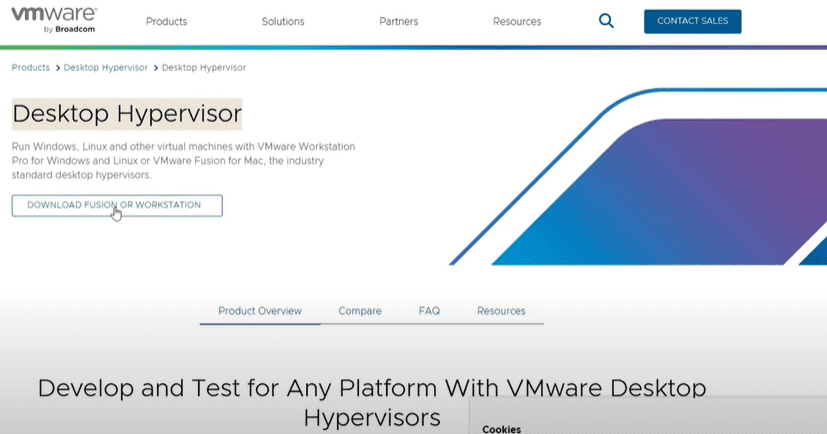
In this guide, we’ll walk you through the step-by-step process to download and install VMware Workstation Pro for free (personal use) on Windows.
Prerequisites
✔ Windows 10/11 (64-bit)
✔ Minimum 4GB RAM (8GB+ recommended)
✔ 20GB free storage
✔ Administrator access
Step-by-Step Installation Guide
Step 1: Create a VMware Account
- Go to the official VMware website.
- Click Login → Register (if you don’t have an account).
- Fill in your email, name, country, and job details.
- Verify your email via OTP and complete registration.
Step 2: Download VMware Workstation Pro
- Log in to your VMware account.
- Search for “VMware Workstation Pro” in the search bar.
- Select the latest version (e.g., VMware Workstation 17).
- Click “Download” → Accept terms & conditions.
- Choose the Windows version and start the download (~600MB).
Step 3: Install VMware Workstation Pro
- Run the downloaded .exe file as administrator.
- Follow the setup wizard:
- Click Next → Accept license agreement.
- Enable “Install VMware Hypervisor” (for better performance).
- Select “Use VMware Workstation for Personal Use” (free license).
- Click Finish to complete installation.
Step 4: Activate VMware (Optional for Trial)
- Open VMware Workstation Pro → Enter license key (if available).
- For free personal use, skip activation (limited features).
Troubleshooting Tips
🔹 Installation fails?
- Disable Windows Hyper-V (if enabled).
- Run installer as Administrator.
🔹 VMware not launching?
- Update graphics drivers.
- Enable Virtualization (VT-x) in BIOS.
🔹 Slow performance?
- Allocate more RAM/CPU to virtual machines.
- Use SSD storage for better speed.
Alternative: VMware Workstation Player (Free Version)
If you don’t need advanced features, try:
✔ VMware Workstation Player (Free for personal use).
✔ VirtualBox (Open-source alternative).
Conclusion
Now you can run multiple OS (Linux, Windows, macOS) on a single PC using VMware Workstation Pro. This is perfect for software testing, cybersecurity labs, and development environments.
🚀 Pro Tip: Use snapshots to save VM states before making changes!
Tags & Hashtags
Tags:
VMware Workstation Pro, VMware download, virtualization software, install VMware, virtual machine, Windows 10, Windows 11, VMware free license
Hashtags:







#VMware #VirtualMachine #VMwareWorkstation #TechGuide #Windows10 #Windows11 #Virtualization #ITProfessionals
📢 Got questions? Drop them in the comments! Need help with setup? Let us know!








