If you’re a gaming enthusiast eager to experience PUBG PC on your Windows laptop or desktop, you’re at the right place. In this article, we’ll walk you through the step-by-step process of downloading and installing PUBG PC safely and easily.
Whether you’re wondering about BGMI’s PC version or just trying to find a trusted method to install PUBG, everything you need to know is right here.
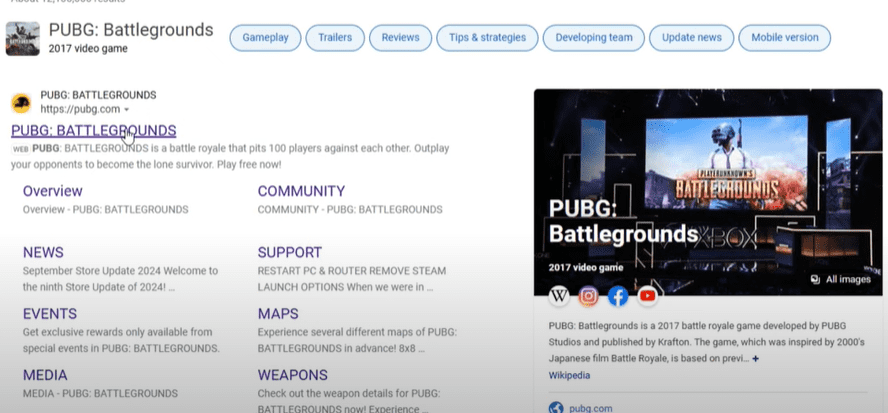
Step 1: Where to Download PUBG PC
The first step is knowing the right platform. PUBG PC can be downloaded legally via trusted platforms like:
- Steam
- Epic Games
Both of these stores offer an authentic version of PUBG PC. You can choose either one based on your preference. In this guide, we’ll explain using Steam, but the process is very similar for Epic Games too.
Step 2: Download Steam Client
To get started:
- Visit the official Steam website.
- Click on Install Steam.
- Download and install the Steam application on your Windows device.
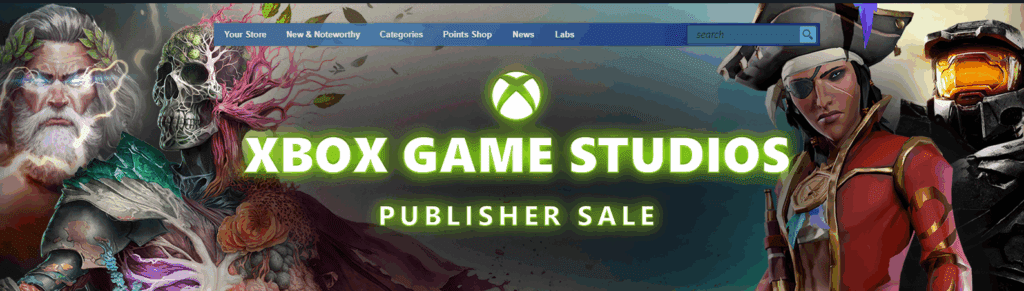
Once installed, open Steam and proceed to create an account if you don’t have one already.
Step 3: Create a Steam Account
If you are new to Steam:
- Click on Create a Free Account.
- Enter your email ID and other required details.
- Complete the verification and login into your new account.
Having a Steam account is mandatory to access and download PUBG PC and other games.
Step 4: Search for PUBG on Steam Store
Now that you’re logged in:
- Click on the Store section at the top menu.
- In the search box, type “PUBG: Battlegrounds“.
- Select the game from the search results.
Note: PUBG PC is available in both free and paid formats depending on regional offers and sales. Always check the latest pricing.
Step 5: Installing PUBG PC
Once you find PUBG in the Steam store:








- Click on Install or Add to Library.
- Choose the drive where you want to install the game.
- Click Next and agree to the terms.
Steam will now start downloading PUBG PC. The download time depends on your internet speed and system performance.
Step 6: Managing Storage (Optional)
If you want to install PUBG on a specific drive:
- During the installation, select Manage Storage.
- Choose your preferred drive (e.g., D: or E:) to install the game instead of default C: drive.
This helps optimize your PC’s performance by freeing up space on your primary drive.
Step 7: Launching PUBG PC
After the installation is complete:
- Navigate to your Library in Steam.
- Locate PUBG: Battlegrounds.
- Click on Play to launch the game.
In some cases, you may see an Update button before playing for the first time. If prompted, click Update to ensure you have the latest version installed.
Step 8: Experience PUBG PC
Once launched, PUBG PC will start loading with stunning graphics and smooth gameplay. Explore the different modes, customize your settings, and dive into the battle royale experience like never before!
Frequently Asked Questions (FAQs)
Q: Can we play PUBG PC on a laptop?
A: Yes, you can play PUBG PC on a Windows laptop provided it meets the minimum system requirements for smooth gameplay.
Q: Is there a BGMI PC version?
A: No, BGMI (Battlegrounds Mobile India) is specifically developed for mobile devices. However, PUBG PC offers a very similar experience with enhanced graphics and features.
Q: Do we need to pay for PUBG PC?
A: PUBG PC is available for free on Steam but sometimes certain features or bundles may be paid. Always check the current offers.
Conclusion
Downloading and installing PUBG PC on a Windows laptop or PC is straightforward when you follow the right steps. By using trusted platforms like Steam, you ensure a safe, virus-free gaming experience.
Keep your device updated and enjoy intense battle royale sessions without any hassle!
If you face any issues during installation or gameplay, feel free to drop your questions in the comment section below.
Happy gaming!
Tags: PUBG PC download, PUBG laptop install, BGMI PC version, Steam PUBG download, PUBG guide 2025, install PUBG Windows, PUBG PC free download
Hashtags: #PUBGPC #DownloadPUBG #InstallPUBG #BGMIonPC #SteamGames #PUBGGuide #GamingSetup #WindowsGaming #PCGames2025








