If you’re looking to install Microsoft Office on your Windows PC, you have come to the right place. In this article, we will walk you through a detailed, step-by-step guide to legally download and install Microsoft Office using official Microsoft tools. Whether you’re setting it up for personal or professional use, following these steps will ensure you have a smooth installation experience.
Let’s dive right in.
Step 1: Uninstall Existing Versions of Microsoft Office (If Any)
Before you begin, it’s important to check if there is any existing version of Microsoft Office installed on your computer.
- If yes, uninstall it completely to avoid any conflict during the new installation.
- If no, you can proceed directly to the next step.
Step 2: Open the Microsoft Office Customization Tool
- Open your browser and navigate to Microsoft Office Customization Tool.
- Once the page loads, you will see an interface asking you to select the “Architecture” of Office you want to install:
- 32-bit or 64-bit depending on your PC configuration.
- To find out your system type, right-click on This PC > Properties > and check your system information.
Select the correct architecture based on your system.
Step 3: Choose Your Microsoft Office Product
- Scroll down and you will find options to select the Office version.
- Choose Office LTSC Professional Plus 2024 (or a later version if available like 2025, 2026).
- Make sure to select the Volume License option.
Step 4: Customize the Office Apps
Next, you need to select which Office applications you want to install.
For example:
- Tick Access, PowerPoint, Word, Excel, Outlook, and Publisher.
- Uncheck apps you don’t need, such as OneDrive or OneNote if you don’t plan to use them.
Customize it according to your personal or professional needs.
Step 5: Set Language Preferences
- In the Language section, select English (United States) or your preferred language.
- Click on Next to continue.
Step 6: Configure Installation Settings
- For installation and updates, simply click Next.
- You will see an option regarding “Upgrade Options” that says, “Uninstall any MSI versions of Office.”
Make sure to uncheck this box. - Keep clicking Next until you reach the end.
- Finish by clicking Finish to complete the customization.
Step 7: Export the Configuration File
- After finishing, you will see an Export button.
- Choose the Office Open XML format.
- Accept the terms and export the configuration file — this file will have a
.xmlextension.
This file will be needed later during the installation process.
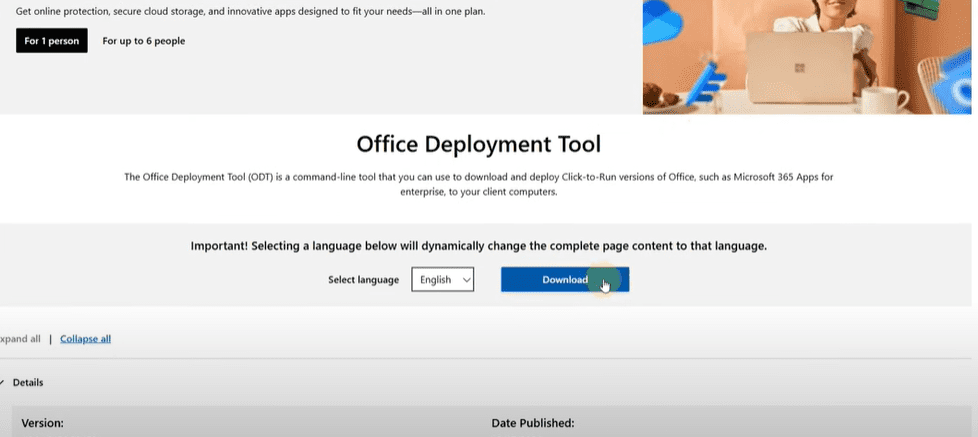
Step 8: Download the Office Deployment Tool
- Open your browser again and search for Office Deployment Tool or directly visit Microsoft Download Center.
- Download and install it.
The Office Deployment Tool will help you set up Office using the configuration file you created.
Step 9: Organize Your Files
- Create a new folder on your desktop (you can name it “Office” for convenience).
- Move both the Office Deployment Tool setup file and your XML configuration file into this new folder.
Step 10: Install Microsoft Office via Command Prompt
- Open Command Prompt as Administrator:
- Search CMD in the start menu, right-click it, and choose Run as administrator.
- Navigate to the Office folder:
- Type
cdand a space. - Then paste the path of your Office folder.
- Press Enter.
- Type
- Install Office:
- Type the following command and press Enter:
setup /configure your_configuration_filename.xmlReplaceyour_configuration_filename.xmlwith the actual name of your configuration file.
- Type the following command and press Enter:
Microsoft Office will now begin downloading and installing based on the options you selected earlier. Make sure your PC remains connected to the internet during this process.
Important Note
The Microsoft Office installed through this method will initially run as a free trial version for a limited number of days.
Once the free trial period expires, you will need to purchase a valid product key from Microsoft to activate the full version.
This method ensures a legal and genuine download and installation process directly from Microsoft’s official resources.






Conclusion
By following these easy steps, you can successfully download, install, and start using Microsoft Office on your PC without any issues.
If you face any challenges during the installation, feel free to revisit each step carefully and ensure all instructions are followed accurately.
Enjoy using your newly installed Microsoft Office Suite!
Tags:
Microsoft Office Installation, Office 2024 Setup, Office Deployment Tool, Office Customization Tool, How to Install Office, MS Office PC Guide, Free MS Office Download, Install Office on Windows, Office Setup Tutorial, Tech Guide, Step-by-Step Installation
Hashtags:
#MicrosoftOffice #Office365 #OfficeInstallation #PCSetup #TechGuide #HowToInstallOffice #FreeOfficeDownload #MSOfficeSetup #OfficeDeploymentTool #CustomizationTool








