Linux Mint is one of the most popular and user-friendly Linux distributions available today. With its sleek interface, robust features, and easy usability, it’s a fantastic choice for both beginners and experienced users. If you’re planning to install Linux Mint 2025 on your PC, follow this detailed article to get it done smoothly.
Step 1: Download the Linux Mint ISO
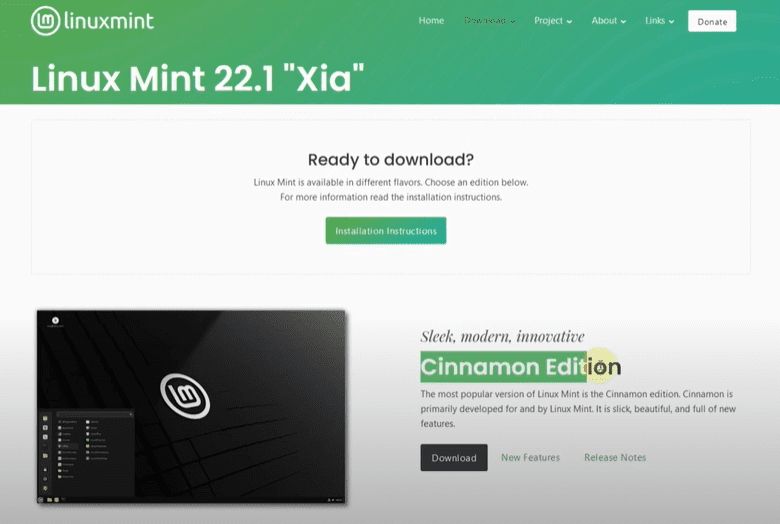
First, you need to download the Linux Mint 2025 ISO file.
- Visit the official Linux Mint website.
- Choose your nearest server (based on your country) to ensure faster download speeds.
- The ISO file size will be approximately 3 GB.
- Select the appropriate edition you want to install and start downloading.
Step 2: Download and Set Up Rufus
Next, you’ll need a tool called Rufus to create a bootable USB drive.
- Go to the official Rufus website.
- Download the latest version of Rufus.
- Once downloaded, open Rufus.
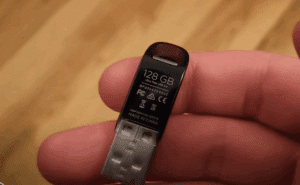
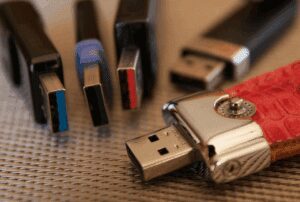
You’ll also need a USB drive with at least 8 GB of storage.
Step 3: Create a Bootable USB Drive
Now, let’s create the bootable Linux Mint USB:
- Insert your 8GB (or higher) USB drive into the PC.
- Open Rufus.
- In Rufus, under Device, select your USB drive.
- Under Boot Selection, click Select and choose the Linux Mint ISO you downloaded.
- Partition Scheme: This setting is crucial and depends on your system (either MBR or GPT).
- To determine this:
- Open the Search Box on your PC.
- Type and open Computer Management.
- Navigate to Disk Management.
- Right-click your primary disk and click Properties.
- Go to the Volumes tab and check the Partition Style (it will say either GPT or MBR).
- To determine this:
- Based on what you find, select either GPT or MBR in Rufus.
- After configuring everything, click Start.
- Choose the option Write in DD Image mode when prompted and click OK.
Rufus will now create the bootable Linux Mint USB. Wait until the process is complete.
Step 4: Boot from the USB Drive
After creating the bootable drive:
- Shut down your PC.
- Turn it back on and immediately press the Boot Menu Key (usually F12, F9, F10, Esc, or depending on your PC manufacturer).
- In the Boot Menu, select your USB drive.
Your PC will now boot from the USB and start loading Linux Mint.
Step 5: Install Linux Mint
Once Linux Mint loads:
- Click Start Linux Mint.
- Choose the option Erase disk and install Linux Mint (only if you want to remove everything on the current hard drive — make sure to backup important files first!).
- Fill in the required details like your name, PC name, username, and password.
- Continue following the prompts.
Once installation completes:
- Click Restart Now.
- When prompted, remove the USB drive and press Enter.
Congratulations! Linux Mint 2025 is now successfully installed on your PC.



You can now enjoy a smooth and powerful Linux experience!
Tags: linux mint installation, linux mint 2025, install linux on pc, bootable usb linux mint, rufus bootable usb, linux mint guide, beginner linux guide, how to install linux, linux tutorial, linux mint tutorial
Hashtags: #LinuxMint #LinuxMint2025 #LinuxInstallation #BootableUSB #Rufus #LinuxGuide #TechTutorial #InstallLinux #LinuxBeginner








