Installing drivers correctly on your Windows PC or laptop is essential for smooth performance. Drivers help your hardware components (like Wi-Fi, display, sound, etc.) communicate with your operating system. In this article, we will cover four simple methods to download and install drivers on your device.
Follow each method carefully, and by the end, you’ll have all necessary drivers installed and updated. Let’s get started!
Method 1: Using Windows Update
The easiest and most recommended method is using Windows Update. Here’s how you can do it:
- Open Settings: Click on the Start Menu and open Settings.
- Navigate to Update & Security: Click on Windows Update.
- Check for Updates: Click the Check for updates button.
- Windows will automatically download and install necessary drivers during the update process.
Tip: In most cases, Windows Update installs all essential drivers automatically, including Wi-Fi, Bluetooth, and display drivers.
Method 2: Using Device Manager
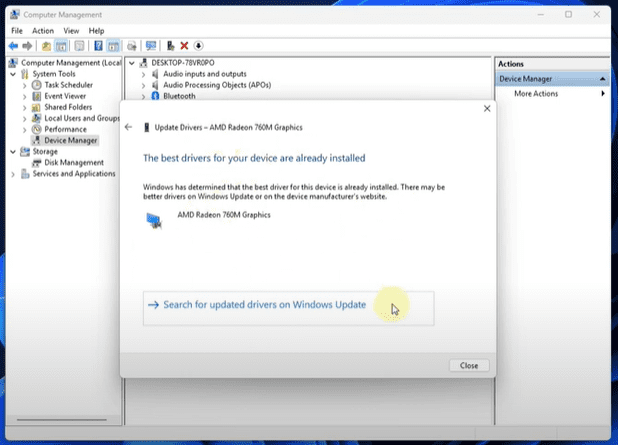
If some drivers are still missing after updating Windows, you can manually update them through Device Manager:
- Open Device Manager:
- Click on the Start Menu.
- Type Computer Management in the search box and open it.
- Click on Device Manager.
- Locate the Driver:
- Find the device category you want to update (e.g., Display Adapters for the display driver).
- Expand the category by clicking the small arrow.
- Right-click the specific device and select Update Driver.
- Search Automatically for Drivers:
- Choose Search automatically for drivers.
- Windows will find and install the best available driver online.
This method ensures that your system looks for the correct driver version and installs it without manual searching.
Method 3: Download Drivers from the Official Website
For complete reliability, you can download drivers directly from your PC or laptop manufacturer’s official website. Here’s how:
- Find Your PC or Laptop Model:
- Open the Start Menu.
- Type System Information and open it.
- Look for System Manufacturer and System Model.
- Visit the Official Website:
- Open your web browser.
- Search for your manufacturer and model name followed by the word “drivers”.
Example:Gigabyte B650M Gaming Wi-Fi drivers
- Download the Correct Drivers:
- Locate the official website in search results (always ensure it’s the official site).
- Find your specific model and download the necessary drivers (Wi-Fi, Display, Audio, etc.).
Important: Always download drivers from the manufacturer’s official website to avoid security risks.
Method 4: Using Third-Party Driver Updater Software (Optional)
If the above three methods don’t fully resolve your driver issues, you can use a trusted third-party tool like Avast Driver Updater. Here’s how:
- Download and Install:
- Open your web browser.
- Search for Avast Driver Updater and visit its official website.
- Download and install the free trial version.
- Scan Your PC:
- Open the software.
- Click on Scan Drivers.
- Install/Update Drivers:
- The tool will automatically find outdated or missing drivers.
- You can select the drivers you need and update/install them easily.
Note: Use third-party software only after trying the first three methods, and only update the drivers you actually require.
Conclusion
By following these four methods, you can easily download and install all the necessary drivers on your Windows PC or laptop.
Always start with Windows Update and Device Manager. If needed, download from the official manufacturer’s website. Use third-party driver updater tools only when other methods fail.










Following the steps in this article ensures that your PC remains up-to-date, secure, and running smoothly.
If you need help with any other topic, feel free to leave a comment below!
Tags: windows drivers, download drivers, install drivers, update drivers, laptop drivers, pc drivers, windows update, device manager, official driver download, avast driver updater
Hashtags: #windows #drivers #update #laptop #pc #technology #howto #tutorial








