If you’re a networking student or a professional, Cisco Packet Tracer is an essential tool for practicing and designing network configurations. In this article, we’ll walk you through the latest and official method to download and install Cisco Packet Tracer on your Windows 10 or Windows 11 PC or laptop in 2025.
Follow these simple, step-by-step instructions to get Cisco Packet Tracer installed smoothly on your device.
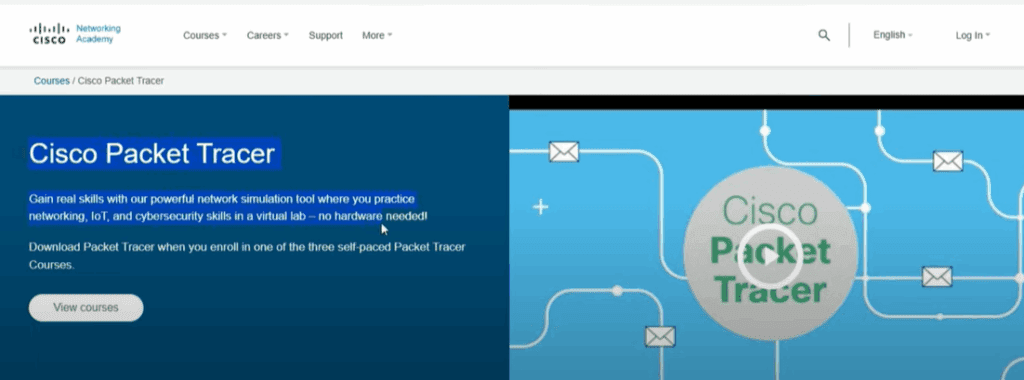
Step 1: Open Your Browser
First, open any web browser on your PC or laptop.
Step 2: Visit Cisco’s Official Website
Navigate to Cisco’s official website.
Important: Always download Cisco Packet Tracer from the official website only. Avoid third-party sources to ensure security and authenticity.
Step 3: Access Skills for All Platform
Once you’re on Cisco’s website:
- Look for Skills for All by Cisco.
- Alternatively, you can directly visit Skills for All, which is Cisco’s official learning platform.
Here, you will find various courses, including the Cisco Packet Tracer course.
Step 4: Enroll in the Cisco Packet Tracer Course
To download Cisco Packet Tracer, you need to enroll in a short course:
- Scroll down the page and locate the Cisco Packet Tracer course.
- Click on Enroll.
- It will redirect you to a login or signup page.
Step 5: Create a Cisco Account (if you don’t have one)
If you already have a Cisco account, simply log in.
If not, follow these steps:
- Click on Sign Up.
- You can sign up using your Google account or manually by entering your email and personal details.
- Accept the terms and conditions and create your account.
Step 6: Download Cisco Packet Tracer
Once enrolled and logged in:
- Scroll down to find the Download Cisco Packet Tracer link.
- Click on the link.
- You will be taken to a page where you can select your operating system.
Choose Windows (64-bit) if you are using a Windows PC/laptop.









The file size is approximately 228 MB. Allow it to download completely.
Step 7: Install Cisco Packet Tracer
After downloading:
- Locate the downloaded setup file in your system.
- Double-click the file to start the installation.
- Click Yes when prompted for permissions.
- Follow these steps:
- Click I Accept.
- Click Next.
- Select Create Desktop Shortcut (optional but recommended).
- Click Next and then Install.
The installation will begin and may take a few minutes.
Step 8: Launch and Log in to Cisco Packet Tracer
Once installed:
- Launch Cisco Packet Tracer either from the desktop shortcut or the Start Menu.
- On the first launch, the program may ask you to log in.
- Use the credentials from your Cisco account to log in.
After successful login, you can start using Cisco Packet Tracer to design and simulate networks!
Final Thoughts
By following these official steps, you can easily download and install Cisco Packet Tracer without facing any errors. Always ensure you download software from the official sources like Cisco.com or SkillsForAll.com.
Cisco Packet Tracer is a powerful simulation tool that helps you practice networking concepts and prepare for certifications like CCNA.
Start exploring and building your networking skills today!
Tags: Cisco Packet Tracer, Networking Tools, Windows 10 Installation, Windows 11 Installation, Cisco Networking, CCNA Tools, Network Simulation, IT Certification Tools, Skills for All
Hashtags:
#CiscoPacketTracer #Networking #Windows11 #Windows10 #NetworkSimulation #SkillsForAll #ITTools #NetworkEngineering #CCNA #Cisco








