If you are looking for a simple guide on how to download and install AMD graphics drivers — whether it’s for AMD Vega, AMD Radeon, or any AMD display driver — you’re in the right place! In this article, we’ll walk you through three easy methods that you can use to quickly get your AMD drivers up and running on any Windows 11 PC or laptop.
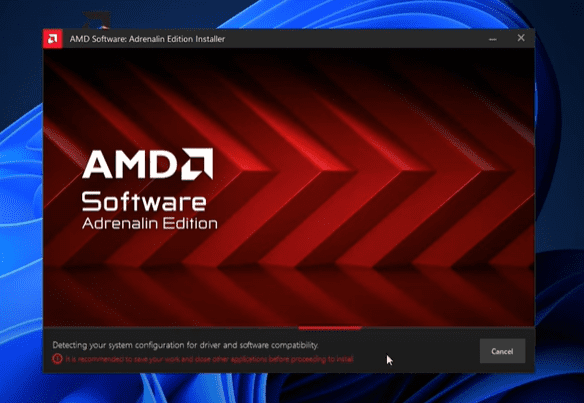
Method 1: Download AMD Graphics Driver Manually from Official Website
The first method is a manual and direct way to download the correct AMD graphics driver for your system.
Steps:
- Open “This PC”: Right-click on “This PC” on your desktop or in File Explorer, then click on Properties.
- Copy Processor Name: In the System information, you’ll find your processor details. Copy the entire processor name.
- Open Your Browser: Launch any web browser and type Graphics Driver for [paste your processor name] in the search bar.
- Find Official AMD Link: The top result will usually be from the official AMD website. Click on it.
- Select Correct Driver Version: You’ll be able to see options like Windows 11 64-bit or Windows 10 32-bit. Select the appropriate version based on your system.
- Download and Install: Download the driver, run the installer, and follow the on-screen instructions to complete the installation.
✅ This method is perfect if you know exactly what model you have and prefer getting the driver directly from AMD’s official source.
Method 2: Using AVG Driver Updater Tool
If you want a more automated solution to update or install your AMD graphics driver, you can use a driver updater tool like AVG Driver Updater.
Steps:
- Open Your Browser: Search for AVG Driver Updater.
- Download the Official Tool: Visit the official AVG website and download the free version of the Driver Updater.
- Install the Application: Open the downloaded file, agree to the terms, and install the tool.
- Scan Your PC: Launch the tool and click on Scan Drivers.
- Update the Graphics Driver: The tool will detect missing, outdated, or broken drivers — including your AMD graphics or display drivers. Select the necessary drivers and click Update Selected.
✅ This method is ideal for users who prefer an automated solution without manually searching for drivers.
Method 3: Update Graphics Driver Through Windows Update
This is the simplest way and works surprisingly well in many cases, especially if you’re not comfortable downloading drivers manually.
Steps:
- Open Settings: Press
Win + Ito open the Settings app. - Go to Windows Update: Navigate to Update & Security > Windows Update.
- Check for Updates: Click on Check for Updates.
- Install Driver Updates: If a display or graphics driver is missing or outdated, Windows Update will detect it and automatically download and install the latest version for your device.
✅ This method requires no technical knowledge and ensures you have Microsoft-verified drivers installed.
Summary
Using any of these three methods, you can easily download and install any AMD graphics or display driver — whether it’s for AMD Vega Graphics, AMD Radeon Graphics, or other AMD GPUs — on your Windows 11 PC or laptop.











Whether you prefer manual downloading, using a driver updater, or trusting Windows Update, each method is effective. Try whichever you find most convenient!
Topics Covered in This Article:
- How to download and install AMD Vega Graphics Driver for Windows 11 PC/laptop
- How to download and install AMD Display Driver for Windows 11 PC/laptop
- How to download and install AMD Radeon Graphics Driver for Windows 11 PC/laptop
- How to download AMD Radeon Software
- How to download and install AMD Software Adrenalin Edition
Tags: AMD Graphics, AMD Vega, AMD Radeon, Graphics Driver Update, Display Driver Update, Windows 11 Graphics, AMD Driver Download, Radeon Software, Vega Graphics Driver, Windows Update, AVG Driver Updater
Hashtags: #AMD #VegaGraphics #RadeonGraphics #Windows11 #GraphicsDriver #DriverUpdate #DisplayDriver #TechGuide #AMDDriverDownload #PCSetup








