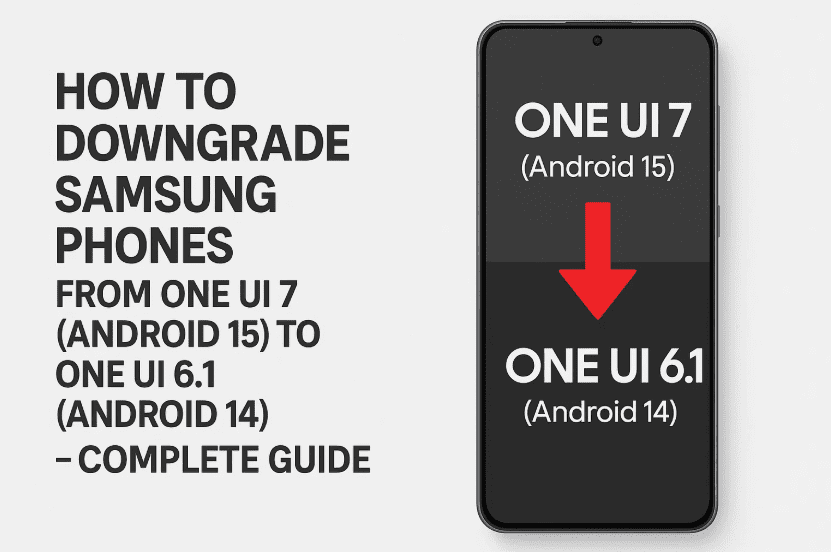
Samsung’s One UI 7 based on Android 15 is exciting, but like with many early releases, it can cause issues — battery drain, app crashes, or unexpected bugs. If you’re missing the stability of One UI 6.1, this guide is for you.
Let me walk you through the entire process of downgrading your Samsung device from One UI 7 back to One UI 6.1 using Odin — the official flashing tool for Samsung phones. This guide is safe, reliable, and works across the Galaxy S series, A series, M series, and more.
⚠️ Important Disclaimer:
This downgrade process will erase all data on your phone. Back up everything — apps, contacts, photos, and documents — before proceeding. Also, flashing firmware has inherent risks. Proceed only if you are confident and follow each step precisely.
✅ Why Downgrade to One UI 6.1?
Before we jump into the steps, here’s why many users are choosing to roll back:
- Excessive battery drain on One UI 7
- Unstable app performance and crashes
- Missing features or bugs in beta releases
- Prefer a smoother and tested One UI 6.1 experience
🔧 What You’ll Need Before Starting
Let’s gather everything we need to do this safely.
Tools Required:
- A Windows PC or laptop
- Samsung USB cable
- The latest version of Odin Tool
🔗 Download Odin Tool - Correct firmware for your device
🔗 Download from SamFW - Samsung USB Drivers
🔗 Samsung USB Drivers
Once you’ve backed up your phone and downloaded the tools above, we’re ready to begin.
🛠️ Step 1: Enable USB Debugging on Your Phone
Let’s start by preparing your phone for flashing.
- Go to Settings > About phone
- Tap Software Information
- Tap Build number 7 times until it says Developer mode enabled
- Go back to Settings, open Developer options
- Enable USB debugging
This ensures your phone will communicate with the PC correctly during flashing.
💾 Step 2: Download the Correct Firmware
This part is crucial. Let’s find and download the right firmware for your specific model.
Here’s how:
- On your PC, visit samfw.com
- Navigate to Other Tools > Check IMEI
- On your phone, go to Settings > About Phone > Copy your Serial Number
- Paste it on SamFW’s IMEI checker
- You’ll get your exact model number, region, Android version, and more
Now, check your phone’s current firmware:
- On your phone, go to Settings > Software information
- Note the build number, especially the bit value (e.g., F1 or bit 8)
🔍 Important Note: You can only flash firmware with the same bit version. If your device is on bit 8, you cannot flash bit 7 firmware.
- Scroll on SamFW to find a One UI 6.1 / Android 14 firmware that:
- Matches your region and model
- Has the same bit version
- Download the firmware (around 13 GB)
- Once downloaded, extract the ZIP file to a folder
🧰 Step 3: Flash Firmware Using Odin
Now we move to the flashing process. Take a deep breath — you’re halfway there!



- Open Odin (run
Odin3.exe) - You’ll see buttons labeled BL, AP, CP, and CSC
Load the extracted files into Odin:
- BL → Select the file starting with
BL_ - AP → Select the file starting with
AP_(this takes time to load) - CP → Select the file starting with
CP_ - CSC → Select the
CSC_file (notHOME_CSC)
📌 Use the regular CSC file to perform a clean downgrade (formats your phone)
🔄 Step 4: Enter Download Mode and Connect Your Device
Now it’s time to connect your phone and prepare it for flashing.
- Turn off your phone
- Press and hold Volume Up + Volume Down
- While holding, connect your phone to the PC using the USB cable
- On the warning screen, press Volume Up again to enter Download Mode
- Odin should now say Added! in the log window
⚡ Step 5: Start Flashing the Firmware
Once Odin detects your phone:
- Double-check all files are loaded correctly
- Click Start
- Odin will now flash the Android 14 firmware
⚠️ Do not disconnect your phone during this process
⏱️ This usually takes 5–10 minutes
Once complete, you’ll see a green PASS message and your phone will reboot.
🚀 First Boot & Setup
The first boot may take longer than usual. Don’t worry — it’s normal after flashing. Once it boots:
- Go through the usual Android setup process
- Reconnect to Wi-Fi, sign into your Google account, etc.
Now head to Settings > About Phone to verify:
- One UI version: 6.1
- Android version: 14
Congratulations — you’ve successfully downgraded!
❓ FAQs
Q: Will this work on Samsung A/M/F/S series?
Yes, as long as you download the correct firmware matching your model number and bit version.
Q: Can I use Home_CSC instead of CSC?
Only if you don’t want your data erased. But for a clean downgrade, CSC is recommended.
Q: Will this void my warranty?
Downgrading with official firmware using Odin usually doesn’t void warranty, but it’s best to check Samsung’s regional policies.
🏷️ Tags:
Samsung downgrade, One UI 7 to 6.1, Odin tool, Android 15 downgrade, Android 14 firmware, Galaxy S23 downgrade, Samsung flashing guide, Odin flashing, SamFW firmware
📢 Hashtags:
#SamsungTips #OneUI7 #Android15 #DowngradeOneUI #SamsungGalaxy #OdinTool #SamFW #Android14 #OneUI6 #FlashFirmware #GalaxyS23 #AndroidHelp
⚠️ Disclaimer: This guide is for educational purposes. Flashing firmware involves risk, including potential data loss or device issues if not followed correctly. Ensure proper backups and always use official firmware. We are not responsible for any damage or loss caused by following this tutorial.
If this guide helped bring your phone back to stability, share it with others and bookmark it for future reference. Feel free to drop your questions below — and happy flashing!








