If you’re a Windows 11 user and need to disable Microsoft Defender (Windows Defender) temporarily or permanently—for example, to install software that’s blocked or to test your system in a different security configuration—this guide is for you.
In this article, we’ll walk you through two tested methods to disable Windows Defender, one temporarily and the other permanently using Group Policy Editor. Both options are safe if done carefully and can be reversed whenever needed.
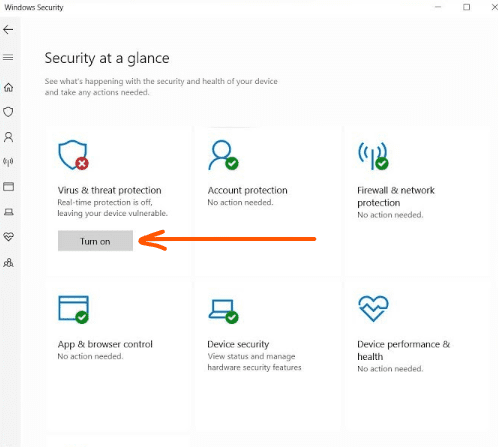
⚠️ Disclaimer: Disabling Windows Defender may expose your PC to threats. Use these methods only if you understand the risks. We recommend enabling antivirus protection as soon as your task is complete or using a reliable third-party antivirus in its place.
🔐 What Is Windows Defender?
Windows Defender is Microsoft’s built-in antivirus and malware protection software in Windows 11. It runs in the background and provides real-time protection against various threats including viruses, spyware, and ransomware.
Sometimes, however, it may block legitimate software, slow down processes, or interfere with development work. In such cases, disabling it can be useful.
🛠️ Method 1: Temporarily Disable Windows Defender (Real-Time Protection)
This is useful when you want to turn off protection for a short period—for example, to install a program or run a specific executable.
✅ Steps to Disable Real-Time Protection Temporarily
- Click on the System Tray (bottom-right corner of your taskbar).
- Open Windows Security from the Defender shield icon.
- Select “Virus & threat protection.”
- Under “Virus & threat protection settings,” click on “Manage settings.”
- Toggle off the following options:
- Real-time protection
- Cloud-delivered protection
- Automatic sample submission
- Tamper Protection (optional)
📝 You may receive a warning or prompt in the lower-right corner. You can safely ignore it—it’s just Windows reminding you that your device is unprotected.
⏳ After some time or a system reboot, Defender will automatically re-enable real-time protection. If you want a permanent solution, continue to method 2.
🔒 Method 2: Permanently Disable Windows Defender Using Group Policy
This method completely disables Windows Defender, even after restarting the PC. It’s especially useful for advanced users and system administrators.
📌 Note: This method only works on Windows 11 Pro, Enterprise, or Education editions. If you’re on Windows 11 Home, you won’t have access to Group Policy Editor.
✅ Steps to Disable Defender via Group Policy Editor
- Open the Start Menu and type
gpedit.mscin the search bar. - Select “Edit Group Policy” from the results.
- In the Group Policy Editor window, navigate to:
Computer Configuration > Administrative Templates > Windows Components > Microsoft Defender Antivirus
- On the right-hand panel, double-click “Turn off Microsoft Defender Antivirus.”
- Choose Enabled, then click Apply and OK.
🔁 Finalizing with GPUpdate
To apply the group policy change immediately:


- Go to the Start menu and type
gpupdate. - Select “Open” or press Enter.
- Wait for the process to complete.
🔄 Reboot Required
Finally, restart your PC to complete the process.
Windows Defender will now be permanently disabled until you re-enable it manually by setting the same group policy back to “Not Configured.”
❓ Frequently Asked Questions (FAQs)
Q1: Is it safe to disable Windows Defender?
Answer: Disabling Defender is safe only if you’re installing trusted software or using another antivirus. Do not keep your PC unprotected for long.
Q2: Can I re-enable Windows Defender later?
Answer: Yes. You can go back to the Group Policy Editor and set “Turn off Microsoft Defender Antivirus” to Not Configured, then restart your PC.
Q3: Does this affect Windows Firewall too?
Answer: No. These changes only disable Windows Defender Antivirus. The Windows Firewall remains active unless you disable it separately.
📝 Final Thoughts
Whether you’re testing software, working in a development environment, or just need a break from real-time scans, knowing how to disable Windows Defender can be handy. That said, never leave your system unprotected long-term—cyber threats are always lurking.
You can always re-enable Microsoft Defender or install another antivirus for ongoing protection.
🔗 Related Tools
🏷️ Tags
Windows Defender, disable antivirus, Windows 11 tutorial, group policy editor, gpedit.msc, real-time protection, Windows Security, antivirus off, Windows 11 tweaks
🔖 Hashtags
#Windows11 #WindowsDefender #Antivirus #TechTips #WindowsSecurity #GroupPolicy #DisableDefender #RealTimeProtection #PrivacySettings #MicrosoftTools
Have questions or need help re-enabling protection? Drop them in the comments or check out our other Windows 11 tutorials for more system tweaks.








