Are you frustrated with Windows 11 automatically downloading updates in the background and consuming your mobile data or slowing down your PC? You’re not alone. Many users find these automatic updates intrusive—especially when using limited or metered connections.
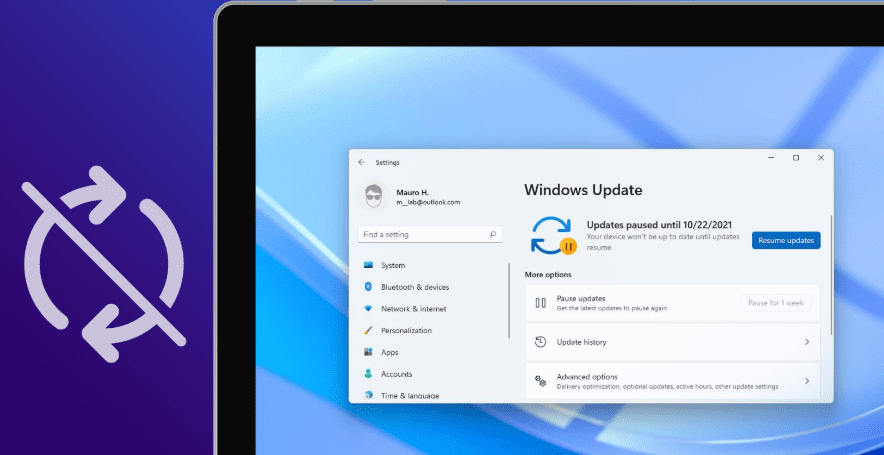
In this article, we’ll guide you through multiple proven methods to disable or pause Windows 11 updates effectively in 2025. Whether you’re on a laptop or desktop, these step-by-step solutions will help you stop unwanted updates once and for all.
Why Disable Automatic Updates?
Windows updates are essential for security and performance, but not everyone wants them enabled 24/7. Reasons to turn them off include:
- Limited data plans
- Unplanned restarts
- Performance slowdowns during background updates
- Compatibility issues with specific software
Let’s explore how to manage or disable them using various methods.
✅ Method 1: Disable Windows Update Service via Services.msc
- Press
Windows + R, typeservices.msc, and press Enter. - Scroll down and find Windows Update.
- Double-click on it to open its properties.
- Under Startup type, select Disabled.
- Click on Stop, then click Apply and OK.
This will stop the Windows Update service from running in the background.
✅ Method 2: Pause Updates via Settings
- Open Settings > Windows Update.
- Click Pause updates and choose the duration (1 to 5 weeks).
- You can extend this again once the time expires.
This temporarily halts updates without disabling anything permanently.
✅ Method 3: Configure Metered Connection
- Go to Settings > Network & Internet.
- Click on the connected network (Wi-Fi or Ethernet).
- Toggle Set as metered connection to On.
- Then go to Windows Update > Advanced options.
- Disable the setting that allows updates over metered connections.
This will block Windows from downloading updates over the current connection.
✅ Method 4: Use Group Policy Editor (For Windows 11 Pro and Enterprise)
- Press
Windows + R, typegpedit.msc, and hit Enter. - Navigate to:
Computer Configuration > Administrative Templates > Windows Components > Windows Update > Windows Update for Business - Double-click Select the target feature update version.
- Set it to Enabled.
- In the version field, enter a future version (e.g.,
28H2) that hasn’t been released yet. - Click Apply and OK.
This tricks Windows into thinking it’s already up to date, blocking new feature updates.
Also:
- Navigate to
Configure Automatic Updates, set it to Disabled, and click Apply.
✅ Method 5: Use WSUS Update Blocker Tool
For users who prefer a simple and effective tool, the Windows Update Blocker by Sordum is a great solution.
How to Use:
- Download the Windows Update Blocker from the official website.
- Extract the ZIP file.
- Run the
Wub.exefile. - Select Disable Updates and click Apply Now.
This tool is lightweight, safe (scanned with VirusTotal), and highly effective for disabling updates. You can re-enable updates using the same tool anytime.









Final Thoughts
Disabling Windows 11 updates might be necessary for some users—but remember to periodically install critical security updates manually. Each method above serves a specific purpose, so feel free to try one or more depending on your needs.
If one method doesn’t work for you, another likely will. For most users, combining Service disabling with Group Policy or the WSUS Blocker tool gives excellent results.
Let us know which method worked best for you!
Tags: windows 11, disable windows updates, windows update blocker, stop auto updates, tech tips, windows tricks, metered connection, group policy editor, wsus, tech guide, ws1 update
#Windows11 #DisableUpdates #TechGuide #WSUS #WindowsUpdateBlocker #WS1 #PCTricks #WindowsTips #StopAutoUpdates #Tech2024








