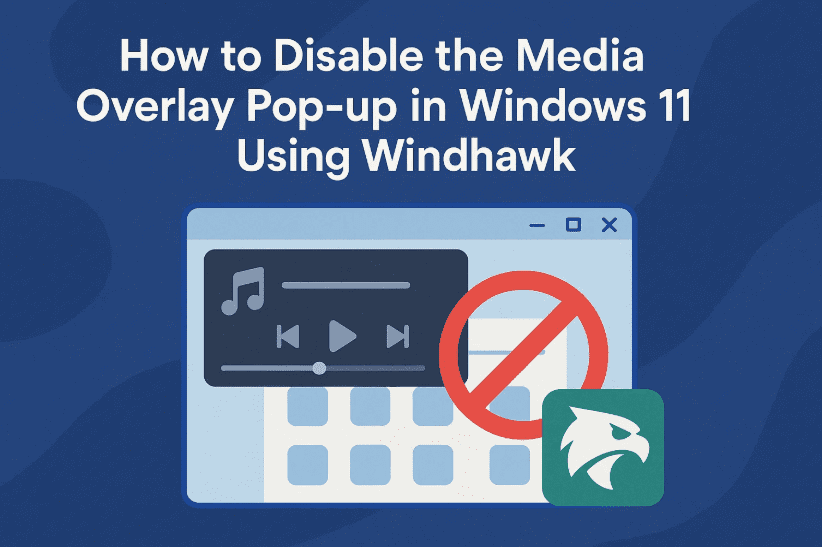
If you’re using Windows 11 and you’ve noticed that every time you play a YouTube video, Spotify track, or any audio from your browser or media app, a media overlay popup appears in the notification area — you’re not alone.
While this flyout can be useful for quick pause/play control, many users find it intrusive, especially when it overlaps other content or refuses to go away.
In this blog, we’ll walk you through how to disable the media overlay pop-up for all apps — including browsers and media players — using a powerful tool called Windhawk.
Let’s get started!
🧭 What Is the Windows Media Overlay?
Whenever you play audio or video, especially in modern apps like Google Chrome, Microsoft Edge, or even Windows Media Player, Windows 11 displays a media control flyout near your volume icon in the notification area (bottom-right).
You can’t close this overlay manually — it stays until the media stops or another app takes over.
🛠️ The Solution: Windhawk
Windhawk is a free Windows customization tool that lets you install mods to tweak system UI and functionality — including removing this annoying media overlay.
🔗 Download Windhawk here: https://windhawk.net/
✅ Why Use Windhawk?
While some Chrome or Edge-specific extensions can disable browser overlays, they don’t work for system-level apps like Spotify, VLC, or Windows Media Player. Windhawk gives you full control over your Windows system without editing the registry manually or installing multiple tools.
🛠️ Step-by-Step: Disable Media Overlay with Windhawk
Ready to remove that persistent flyout? Let’s walk through the process in detail.
🔽 Step 1: Download and Install Windhawk
- Visit https://windhawk.net/
- Click on Download
- Install the app on your PC (it’s lightweight and safe)
Once installed, open the Windhawk application.

🔍 Step 2: Find the Right Mod
Now we need to find the mod that can disable the media overlay.
- Inside Windhawk, go to the Explore tab
- In the search bar, type:
Windows 11 Notification Center Styler - Click on the result to view mod details
- Click Install
This mod not only styles your notification center, but it also gives us the option to hide media controls.
⚙️ Step 3: Configure the Mod Settings
After installing, it’s time to modify the settings to disable only the media flyout.
- Go to the Home tab in Windhawk
- Find the installed mod (Notification Center Styler)
- Click Settings
- Leave the Theme option set to None
- Add the following code snippets:
➤ In the Target box, paste:
.NotificationMedia
➤ In the Styles box, paste:
display: none;
This CSS-style tweak will tell Windows to hide the .NotificationMedia element — which is the media control box.
- Click Save Settings
- Ensure the mod is enabled
🔁 Step 4: Test It Out
Let’s see it in action:
- Play a YouTube video or song in your browser or app
- Open the Notification Center
- The media overlay should no longer appear!
You can toggle the mod off or disable Windhawk anytime if you want the overlay back.
🔄 Re-enable the Overlay Anytime
If you ever want to get the media flyout back:
- Open Windhawk
- Disable the Notification Center Styler mod
- Or just delete the styling code from settings and save
Windhawk gives you reversible control, so you’re never locked in.
❓ FAQs
Q: Does this disable other notifications?
No. This specifically hides the media overlay without affecting other notifications like emails or system alerts.
Q: Is Windhawk safe to use?
Yes. It’s an open and reputable project that allows runtime customization of Windows components. You can uninstall it any time.
Q: Can I use Windhawk for other tweaks too?
Absolutely! Windhawk offers tons of mods — UI changes, animation tweaks, and productivity boosters.
🏷️ Tags:
Windows 11 tips, disable media overlay, Windhawk, notification area customization, Windows mods, system tray popups, hide media flyout, Notification Center tweak
📢 Hashtags:
#Windows11 #Windhawk #MediaOverlay #NotificationCenter #WindowsTips #CustomizationTools #SystemTweaks #UIMods #TechGuide
⚠️ Disclaimer:
This guide is for educational and customization purposes. Modifying Windows behavior using third-party tools like Windhawk can affect system features. Always use caution and only install mods from trusted sources.
Now you’re in control! Whether you find the media overlay annoying or just want a cleaner notification center, Windhawk gives you a simple and reversible way to fine-tune your Windows experience. Let us know if you’d like tutorials on other Windhawk mods or Windows customizations!








