If you’ve ever been working on a document, browsing the web, or trying to keep a clean notification center, you’ve probably noticed an annoying little media popup that appears every time you play a video or audio — like from YouTube or Spotify — inside your browser.
This media flyout shows up near your system volume icon and often stays there until the media stops. You can pause or play from the popup, but there’s no obvious way to disable or close it — unless you know where to look.
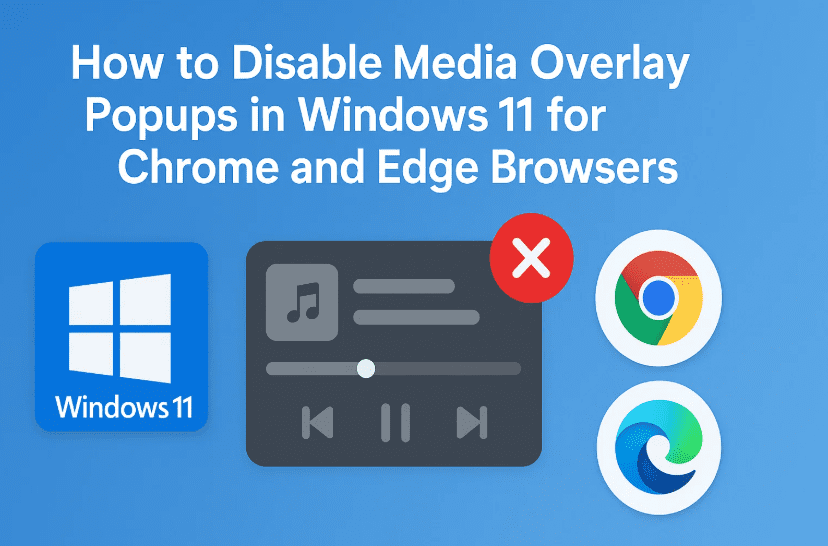
Let’s break down a quick and easy way to disable this media overlay pop-up specifically in Google Chrome and Microsoft Edge.
🎯 What Is the Windows Media Overlay?
Before jumping in, let’s understand what we’re trying to disable.
Every time you play something using HTML5 media (like YouTube), Windows 11 displays a media flyout in your notification area. It’s connected to the system volume panel and displays playback info, controls, and the title of the content.
But here’s the issue:
There’s no close button, and the popup remains even when you switch tabs — often breaking your workflow or covering other UI elements.
Let’s fix that!
🛠️ This Guide Covers
✅ How to disable media overlay pop-ups in Chrome
✅ How to disable media overlay pop-ups in Microsoft Edge
❌ This doesn’t apply to other apps like VLC or Windows Media Player (for that, use Windhawk)
✨ Step-by-Step Guide to Disable the Media Overlay
Let’s begin with the browser you use. We’ll go through both Chrome and Edge below.
🧩 Step 1: Disable Media Overlay in Google Chrome
Here’s how to disable the annoying flyout in Chrome:
- Open Google Chrome
- In the address bar, paste this and press Enter:
chrome://flags/#hardware-media-key-handling - You’ll see a setting titled Hardware Media Key Handling
- From the dropdown on the right, select Disabled
- Click Relaunch at the bottom right to restart Chrome
🎉 That’s it! Now when you play a YouTube video or Spotify web player, the Windows media flyout should not appear in the volume control area.






🧩 Step 2: Disable Media Overlay in Microsoft Edge
Edge has a similar experimental setting you can change:
- Open Microsoft Edge
- In the address bar, paste the following and press Enter:
edge://flags/#hardware-media-key-handling - Locate Hardware Media Key Handling
- Change the dropdown to Disabled
- Click Restart to relaunch Edge
So far, in most cases, this works as expected. The flyout disappears after these changes, although it might still show up in rare instances depending on system or extension behavior.
🤔 Is This a Permanent Fix?
Not guaranteed — this flag-based tweak works well for most users, but it may reset with browser updates or may not work consistently across all media types or tabs.
If you still see the flyout occasionally, consider clearing browser cache, checking for extensions that may interfere with media handling, or switching to Windhawk if system-wide control is needed.
❓ Frequently Asked Questions
Q: Does this work for Windows Media Player or Spotify app?
No. These steps only disable the flyout for web browsers. For apps, use Windhawk and install the Notification Center Styler mod.
Q: Will this affect my media keys (play/pause on keyboard)?
Yes, disabling this flag may stop media keys from controlling browser playback. It’s a trade-off between keyboard convenience and a cleaner UI.
Q: Do I need to repeat this after restarting my PC?
No, once set, the flag should remain active until your browser updates — which might reset it. You can always reapply the change.
🏷️ Tags:
Windows 11, Chrome flags, disable media flyout, notification popups, browser settings, media overlay, Edge settings
📢 Hashtags:
#Windows11 #ChromeTips #EdgeBrowser #MediaOverlay #NotificationFix #BrowserFlags #WindowsTweaks #TechTips
⚠️ Disclaimer:
Disabling experimental browser flags may affect other media-related features like hardware key support. Use with caution and monitor for browser updates that could reset your settings.
That’s it! A quick tweak to give you back control of your workspace. Whether you’re a productivity nerd or just someone who hates clutter — this is one setting worth changing. Try it and let us know if it improved your workflow!








