If you’re concerned about data privacy on your Windows 11 Copilot+ PC, one of the most pressing features to be aware of is Windows Recall. By default, Recall is designed to take snapshots of your screen and store them locally, creating a searchable history of your activity. While this may be convenient for productivity, it’s also a potential privacy risk for many users.
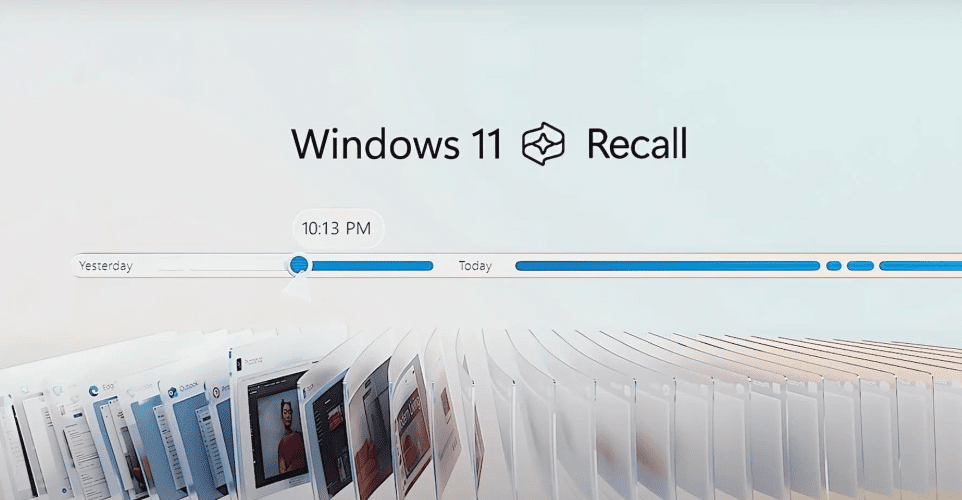
In this article, we’ll walk you step-by-step through how to disable and completely uninstall Windows Recall from your system. These instructions are tailored for devices with Windows Recall installed — particularly those powered by Snapdragon processors running Windows 11 Pro, commonly labeled as “Copilot+ PCs”.
🔐 Why Disable Windows Recall?
Windows Recall captures screenshots of your activity and stores them locally. While Microsoft emphasizes that data doesn’t leave your device, privacy-conscious users may still wish to remove this feature altogether. The good news is — Microsoft now allows you to fully disable and uninstall Recall, and this article shows you how to do it properly.
🧰 Step-by-Step Guide to Disable and Uninstall Windows Recall
Step 1: Disable Recall via Group Policy Editor
- Press
Win + Sto open the search bar and type:gpedit.msc
This opens the Group Policy Editor. - In the left-hand pane, navigate to:
User Configuration→Administrative Templates→Windows Components→Windows AI - In the right-hand pane, find and double-click on:
Turn off saving snapshots for the use of Windows Recall - In the policy settings window:
- Select Enabled
- Click Apply and then OK
- For additional security, disable other Recall-related settings (though most apply only to enterprise/education editions). You can:
- Set “Set maximum storage for snapshots” to Disabled
- Disable other Windows AI snapshot-related policies for added assurance
Step 2: Remove Copilot (Optional)
If you also wish to remove Copilot, do the following:
- In Group Policy Editor, navigate to:
Computer Configuration→Administrative Templates→Windows Components→Windows Copilot - Enable the setting: Turn off Windows Copilot
- Click Apply, then OK
This step ensures the Copilot icon doesn’t appear in the taskbar and prevents access.
Step 3: Uninstall Recall from Windows Features
- Click the Start menu and type:
Turn Windows features on or off - Open the window and locate Recall in the list.
- Uncheck the box next to Recall.
- Click OK to proceed with the uninstallation.
- Restart your PC when prompted.
✅ After restarting, Windows Recall will be removed from the system.
Step 4: Confirm Recall is Removed via Command Prompt
To double-check that Recall is fully removed:
- Press
Win + S, type cmd, right-click Command Prompt, and select Run as administrator - Run the following command to check the feature state:
dism /online /get-featureinfo /featurename:RecallIf successful, you should see:State : Disabled with payload removed - Optionally, run this command to ensure it’s permanently disabled:
dism /online /disable-feature /featurename:RecallIf it returns an error, it likely means the feature is already removed — which is exactly what you want.
✅ Final Check
Once your PC reboots:
- Go to Settings → Privacy & Security
- Confirm that Recall is no longer listed
- Any toggle or option should now be greyed out with a message like:
“Some of these settings are managed by your organization.”
This indicates that Group Policy and uninstallation steps were successful, and Recall is effectively gone from your system.
💬 Conclusion
Windows Recall might be a useful tool for some, but it’s not for everyone. If you’re concerned about data privacy and want full control over what’s logged and stored, disabling and uninstalling Recall is the safest route. Thanks to recent changes from Microsoft, users now have the ability to completely remove it — and it’s worth taking the time to ensure your system is set up the way you want.
For more information on Windows features and settings, visit the official Microsoft website: https://www.microsoft.com/windows




Tags:
windows recall, disable windows recall, uninstall windows recall, copilot plus pc, windows 11 privacy, group policy editor, disable snapshots, windows features, windows 11 tutorial, windows recall removal
Hashtags:
#Windows11 #Privacy #WindowsRecall #CopilotPC #DataSecurity #UninstallRecall #DisableRecall #GroupPolicy #MicrosoftWindows #PCSecurity








