Are you bored of the default look of your Windows 11 PC? Want to give it a fresh, modern appearance—without installing third-party software? This guide will show you how to customize your Windows 11 theme using built-in tools and high-quality wallpapers.
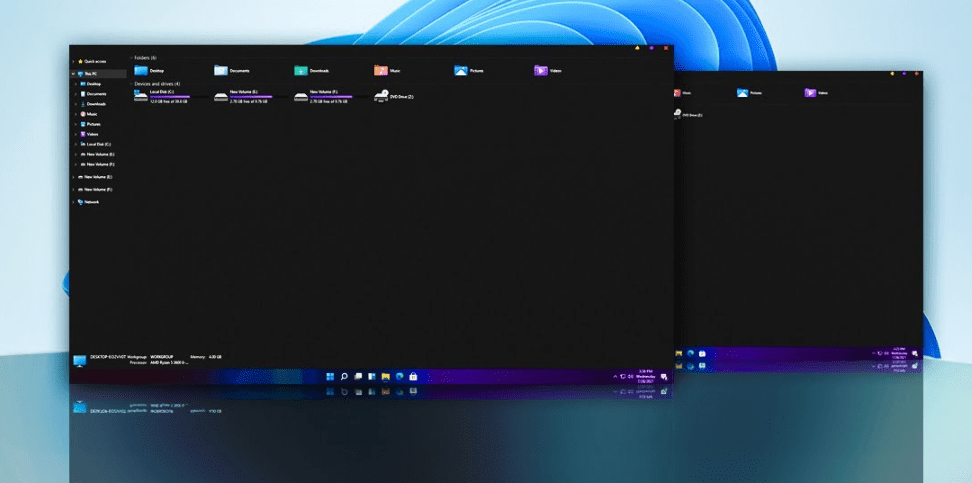
Let’s dive into a clean, step-by-step tutorial to create a visually stunning desktop experience.
🖼 Step 1: Download a High-Quality Abstract Wallpaper
- Open your web browser.
- Go to websites like Wallpapers.com, WallpaperAccess, or search for:
- “Windows 11 Abstract Wallpaper”
- “4K Windows 11 Wallpapers”
📸 Screenshot Suggestion:
Search results showing various abstract wallpapers.
- Choose your favorite wallpaper (light or dark, depending on your preference).
- Right-click the wallpaper and select “Save Image As…”
📸 Screenshot Suggestion:
Context menu with “Save Image As” highlighted.
🎨 Step 2: Set the Downloaded Wallpaper
- Go to the folder where you saved the image.
- Right-click the image and choose “Set as desktop background.”
📸 Screenshot Suggestion:
Context menu on the image with “Set as desktop background.”
🎨 Step 3: Match Taskbar and Accent Colors with Wallpaper
- Right-click on your desktop, then click Personalize.
- Go to Colors in the left sidebar.
- Scroll down and enable “Show accent color on Start and taskbar”.
- Select a color that matches your wallpaper for a unified look.
📸 Screenshot Suggestion:
Windows Settings > Personalization > Colors page, highlighting the accent color options.
🧼 Step 4: Clean Up Your Desktop for a Sleek Look
- Right-click on the desktop.
- Hover over View and uncheck Show desktop icons.
📸 Screenshot Suggestion:
Context menu showing “Show desktop icons” being unchecked.
🧰 Step 5: Simplify Your Taskbar
- Right-click the taskbar and select Taskbar settings.
- Toggle off:
- Search box
- Task view
- Widgets (optional)
📸 Screenshot Suggestion:
Taskbar Settings screen showing the toggles.
✅ Final Result
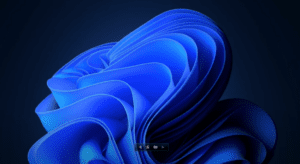
Your desktop now looks cleaner, more professional, and customized to your personal style—all without using third-party apps.
📸 Screenshot Suggestion:
Final desktop view with custom wallpaper, minimal icons, and matching taskbar.
Tags & Hashtags
windows 11, customization, wallpaper, themes, productivity, clean desktop, tech tips, tutorial, windows tips
#Windows11 #Customization #DesktopThemes #MinimalPC #TechTips #Wallpapers #Personalization