Do you want to make your Windows 11 system look visually stunning while keeping performance smooth and snappy? In this detailed guide, we’ll walk you through various steps to transform your desktop using themes, wallpapers, and tools like Start11. All of this can be done without compromising your system’s performance.
Step 1: Enable Dark Mode and Transparency Effects
The first thing you want to do is switch your system to Dark Mode. This not only looks sleek but also reduces strain on your eyes—especially at night.
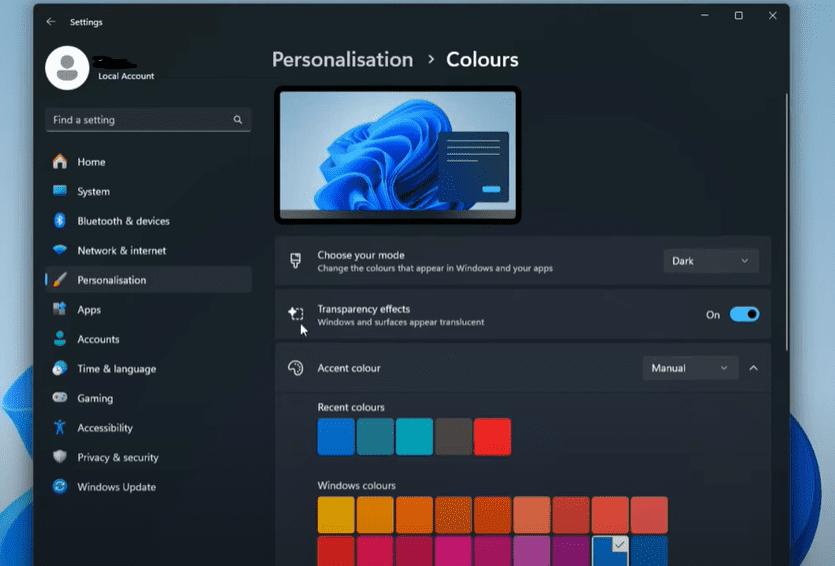
- Go to Settings → Personalization → Colors
- Choose Dark under “Choose your mode”
- Enable Transparency Effects for a modern translucent appearance
Step 2: Use High-Quality Abstract Wallpapers
A beautiful wallpaper plays a huge role in enhancing the overall desktop aesthetic.
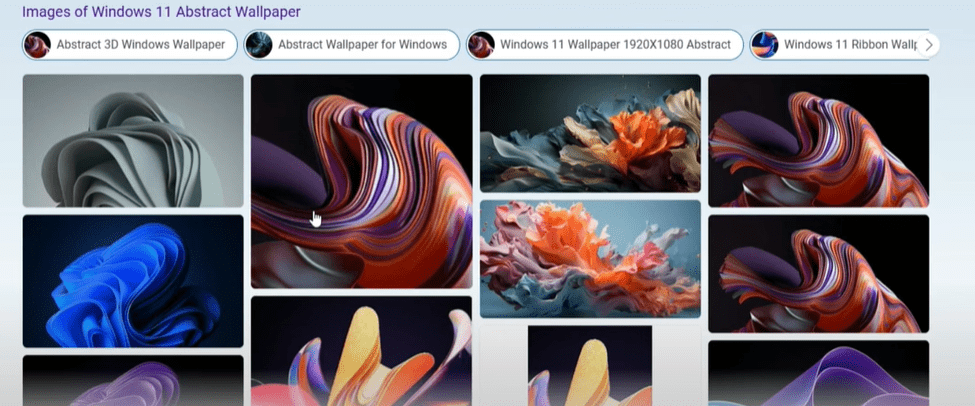
How to Download Quality Wallpapers:
- Open your browser and search for “Windows 11 abstract wallpapers”.
- Choose a design that fits your style—whether it’s minimal, colorful, or high-tech.
- Recommended sites for wallpapers:
Make sure the wallpaper resolution matches your display (1080p, 2K, 4K, etc.) for best results.
Step 3: Match Taskbar Color with Wallpaper
To take your look even further:
- Right-click on desktop → Personalize → Colors
- Scroll down and enable Show accent color on Start and taskbar
- Choose a color that complements your wallpaper
This small tweak creates a cohesive theme across your system.
Step 4: Clean Up the Taskbar
Removing unnecessary elements from the taskbar gives your desktop a cleaner and more professional look:
- Disable Task View, Search Box, or Widgets by right-clicking the taskbar and selecting Taskbar settings
- Set the search box to icon only or hidden depending on your preference
- Pin only essential apps to the taskbar
Step 5: Install and Use Start11 for Deeper Customization
Start11 by Stardock is a powerful tool that lets you fully personalize the Start Menu and taskbar.
How to Get Started:
- Download Start11 from its official website
- Install and launch the software
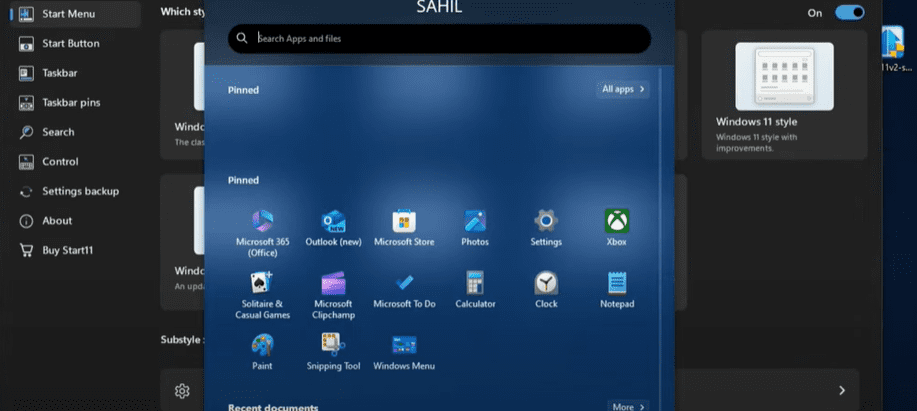
- Select your desired Start Menu layout – such as Windows Launcher Style
- Go to Configure Menu → Visual Customization
- Adjust menu transparency
- Enable rounded corners
- Reduce clutter by disabling recent files or folders
Customize the Taskbar:
- Navigate to Taskbar settings in Start11
- Enable Rounded corners and blur effects
- Adjust transparency and size for a more modern look
Start11 is lightweight and safe, having been tested for malware. It won’t slow down your system.
Step 6: Change Cursor Appearance
To complete the look, change the mouse cursor to something more stylish:
- Go to Settings → Personalization → Themes
- Click on Mouse Cursor
- Choose the Black theme or any other custom style that fits your aesthetic
Step 7: Upgrade Your File Explorer
For an even more modern experience, replace the default File Explorer with Files – a modern, elegant file manager.

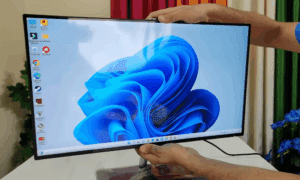







- Visit the official Files App website
- Download and install the latest version
- Enjoy a cleaner, tabbed file management interface
Final Touch: Sync Everything for a Cohesive Look
By now, you should have:
- A dark theme enabled
- A custom wallpaper matching your taskbar
- A neat and minimalist taskbar
- A sleek Start Menu using Start11
- An upgraded File Explorer
- A stylish mouse cursor
All of this makes your system visually impressive and more productive—without any performance drops.
If you found this article helpful, consider bookmarking it for future tweaks and share it with friends who want a better Windows experience.
Tags: Windows 11, customization, desktop, taskbar, Start Menu, Start11, file explorer, performance, personalization, wallpaper, dark mode, cursor
Hashtags:
#Windows11 #Start11 #Customization #DesktopTweak #WindowsTips #ModernUI #WallpaperSetup #TechGuide #WindowsPersonalization #ProductivityTools








