If you are feeling a little bored with the default look of Windows 11, don’t worry — you’re not alone! Many users eventually want to spice up their desktop’s appearance, and today, we will walk you through how you can easily give your Windows 11 system a fresh, personalized look.
This article will guide you through each step involved, from downloading the right tools to choosing stylish skins and wallpapers, so you can transform your desktop beautifully.
Let’s get started!
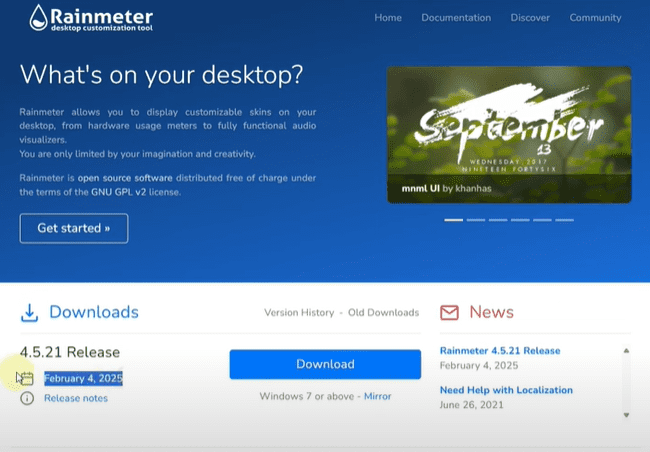
Step 1: Download and Install Rainmeter
The first thing you need is a tool called Rainmeter. It’s a powerful desktop customization software that allows you to apply different skins and widgets to your desktop.
Follow these steps:
- Open your web browser.
- Go to the official Rainmeter website: https://www.rainmeter.net
- Click on the Download button to get the latest version.
- Once downloaded, open the setup file.
- In the installer, select the Standard Installation option.
- Keep the default settings and click Next.
- Click Install, then Yes if prompted by User Account Control.
- Once installed, uncheck any additional options if you don’t need them and click Finish.
Rainmeter is now installed on your system! You might not immediately see anything on your desktop, but don’t worry. You can find it by typing Rainmeter in the Windows search bar.
Step 2: Open Rainmeter and Unload Default Skins
After installing Rainmeter, here’s what you should do:
- Search for Rainmeter from the Start menu and open it.
- You’ll see some default skins loaded.
- Right-click on each of these skins and choose Unload skin to clear the desktop.
Now your desktop is ready for new, more exciting skins!
Step 3: Download Rainmeter Skins
Skins are what give your desktop a new look. There are countless skins available online. Here’s how you can find and download them:
- Open your web browser.
- Search for Rainmeter skins.
- You’ll find many websites offering free skins. A highly recommended website is DeviantArt, which has a huge collection.
- In DeviantArt, search for Rainmeter skins and browse through the options.
- Find a skin you like and download it.
Skins come in different styles — minimalistic, futuristic, functional, and more. Choose the ones that match your personality!
Step 4: Install and Apply Skins in Rainmeter

Once you have downloaded a Rainmeter skin:







- Locate the downloaded file (usually a
.rmskinfile). - Double-click the file to open it in Rainmeter.
- Click on Install in the installer window.
- After installation, go back to Rainmeter, find your installed skin, and load it by right-clicking and selecting Load skin.
You’ll see new widgets, clocks, system monitors, music players, and other cool elements appear on your desktop!
Step 5: Download and Set a Beautiful Wallpaper
Custom skins will look even better with a matching wallpaper! Here’s what you need to do:
- Search for 4K wallpapers or HD desktop wallpapers on your browser.
- Websites like Wallhaven and Unsplash offer fantastic collections.
- Download a wallpaper that fits your new desktop theme.
- Once downloaded, right-click the image and select Set as desktop background.
Using a high-quality wallpaper will make your customized desktop look even more professional and visually pleasing.
Step 6: Hide Desktop Icons for a Cleaner Look
To achieve a truly clean and modern look:
- Right-click on an empty space on your desktop.
- Go to View.
- Uncheck Show desktop icons.
Now, your desktop will display only your Rainmeter skins and your beautiful wallpaper — no messy icons cluttering the screen!
You can still access your files and apps through the Start menu or the taskbar search.
Final Result
After following these steps, your Windows 11 desktop will have a stylish, unique appearance. From a personalized clock to a music player, weather widgets, and a stunning background — your desktop will feel brand new!
Explore different skins and wallpapers to keep things fresh whenever you want a change. This method of customizing Windows 11 is simple yet extremely effective, and you can personalize it completely to match your taste.
For any updates or more detailed guides on customization, keep referring to this article for future enhancements.
Tags
windows 11 customization, how to customize windows 11, rainmeter installation guide, rainmeter skins download, rainmeter skins installation, customize desktop windows 11, rainmeter customization, best rainmeter skins, desktop customization tools, rainmeter setup guide
Hashtags
#Windows11 #Customization #Rainmeter #DesktopSetup #WindowsCustomization #RainmeterSkins #CustomDesktop #Windows11Tips #TechGuide








