If you’re a Windows 11 user frustrated with the limited default right-click menu, you’ll love Nilesoft Shell—a free tool that supercharges your context menu with advanced customization options. This guide will show you how to install and configure it for maximum productivity.
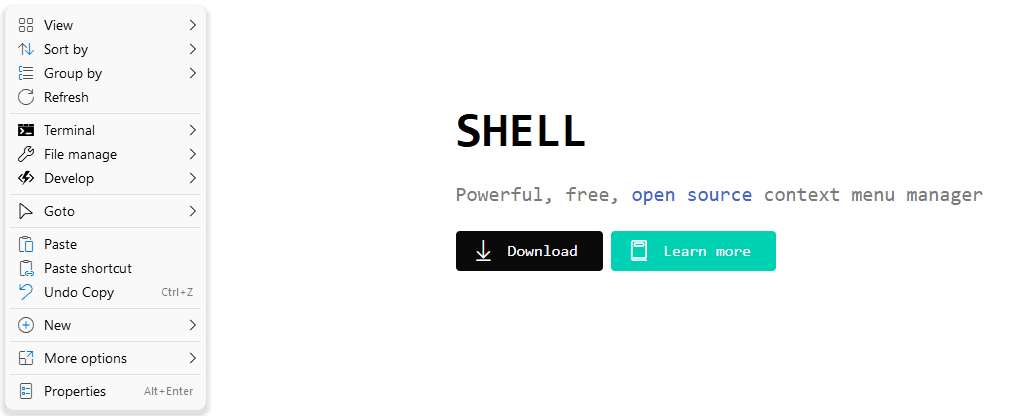
Why Customize the Context Menu?
The Windows 11 context menu hides many useful options behind a “Show more options” click, slowing down workflows. Power users need quick access to apps, system tools, and file operations. Nilesoft Shell solves this by:
✔ Adding favorite apps, games, and browsers directly to the menu
✔ Including system shortcuts (Control Panel, Run, Settings, etc.)
✔ Supporting themes, transparency, and visual effects
Installing Nilesoft Shell
Method 1: Using Winget (Recommended for Advanced Users)
- Open PowerShell or Command Prompt as Administrator.
- Run:
winget install Nilesoft.Shell- Press Y to confirm.
Method 2: Manual Installation
- Visit Nilesoft Shell’s official website.
- Go to the Download section.
- Run the installer (
.exe).
After installation, right-click anywhere to see the enhanced menu.
Customizing the Context Menu
1. Adding Applications (Example: Microsoft Edge)
- Open the config file:
- Press Shift + Right-Click Taskbar > Shell > Directory.
- Edit
shell.nssin Notepad or Notepad++.
- Add your app:
   {
     "title": "Edge",
     "image": "C:\\Program Files\\Microsoft\\Edge\\Application\\msedge.exe",
     "cmd": "C:\\Program Files\\Microsoft\\Edge\\Application\\msedge.exe"
   }
(Replace the path with your app’s location—check via Properties > Target.)
- Save & refresh (Ctrl + Right-Click).
2. Changing Themes & Effects
Edit theme.nss (in the Import folder) to adjust:
- Dark mode:
"theme": "dark" - Transparency:
"opacity": 20(0–100) - Blur effects:
"effect": 2(1=transparent, 2=blur, 3=default)
Example:
{
  "theme": "dark",
  "opacity": 30,
  "effect": 2
}
Final Thoughts
Nilesoft Shell transforms your right-click menu into a productivity powerhouse. Whether you need quick app access, system tools, or a sleek redesign, this tool delivers.
🔹 Tags:
Windows 11, Context Menu, Productivity, Nilesoft Shell, Customization
🔹 Hashtags:
#Windows11 #RightClickMenu #NilesoftShell #TechTips #ProductivityHacks
⚠️ Disclaimer: Modifying system files can cause issues. Backup configurations before editing. Nilesoft Shell is a third-party tool—use at your own risk.