Creating consistent characters is a common challenge for animators, game developers, and digital artists. While many tutorials focus on matching two characters in a single scene, the real difficulty arises when adding more characters—AI-generated images can become unpredictable, leading to glitches and inconsistencies.
In this guide, we’ll walk you through a step-by-step process to generate multiple consistent characters that look like they belong in the same scene—without weird distortions or mismatched features.
Step 1: Setting Up Your Project
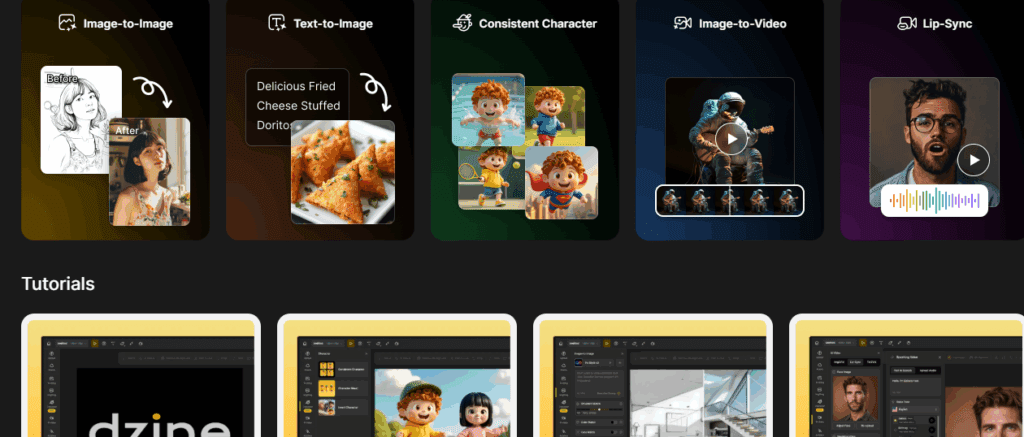
To get started, you’ll need an AI-powered design tool. For this tutorial, we’ll use Dzine AI, a powerful platform for character generation and animation.
- Sign Up & Log In
- Visit Dzine AI and click “Start for Free.”
- Log in using Google or your work email.
- Create a New Project
- Click “Create New Project.”
- Name your project (e.g., “Consistent Characters Animation”).
- Choose an aspect ratio (we recommend 16:9 for landscape scenes).
Step 2: Generating Your First Character
The key to consistency is creating well-defined characters before placing them in a scene.
- Use the “Character Sheet” Feature
- Navigate to “Consistent Character” and select “Character Sheet.”
- Choose a style (e.g., 3D Pixar for an animated look).
- Define Your Character with AI-Assisted Prompts
- Use ChatGPT (or any AI text generator) to create a detailed character description.
- Example prompt:
> “Create a 3D animated boy character with light brown tousled hair, big blue eyes, and a friendly smile. He’s wearing a black t-shirt with a rock and roll graphic, denim shorts, black Converse, and a green backpack.”
- Example prompt:
- Copy the generated description and paste it into Dzine AI’s character sheet.
- Generate & Refine Your Character
- Click “Generate” and adjust the style if needed.
- Name your character (e.g., “Ollie”).
Step 3: Creating Additional Characters
Repeat the process for each character in your scene:
- Generate a Female Character
- Example prompt for “Lily”:
> “A 3D animated girl with wavy blonde hair, green eyes, and a cheerful expression. She wears a pink hoodie, jeans, and red sneakers, carrying a skateboard.”
- Generate a Third Character (e.g., “Max”)
- Example prompt:
> “A 3D animated boy with spiky black hair, brown eyes, and a confident smirk. He wears a leather jacket, ripped jeans, and high-top sneakers.”
- Train Your Characters
- Once generated, the AI will train each character for consistency.
Step 4: Placing Characters in a Scene
Instead of generating all characters at once (which can lead to AI errors), we’ll use “Replace Character” to insert them one by one.
- Generate a Base Scene
- Example prompt:
> “A band playing on stage, dynamic lighting, crowd in the background.” - Generate the image with Ollie first.
- Insert Additional Characters
- Use the Lasso Tool to select a placeholder character.
- Choose “Lily” from your trained characters.
- Modify the prompt:
> “Lily playing the bass guitar.” - Repeat for Max:
> “Max playing the electric guitar.”
- Finalize & Download
- Save the scene as a PNG.
Step 5: Animating Your Characters
Want to bring your characters to life?
- Convert to Video
- Select “Convert to Video.”
- Enter a prompt (e.g., “The band is playing on stage”).
- Choose Cling 126 as the video model.
- Set duration (e.g., 5 seconds) and generate.
- Download & Refine
- Preview the animation and adjust as needed.
Bonus: Creating Alternate Scenes
You can reuse your trained characters in different settings:
- Winter Scene:
“Lily and her friends building a snowman in the mountains.”
- Beach Scene:
“Ollie, Lily, and Max singing by a bonfire at sunset.”- Park Scene:
“The group playing at a vibrant playground.”
Final Tips for Consistency
✔ Train each character individually before placing them in a scene.
✔ Use the “Replace Character” function to avoid AI blending errors.
✔ Keep prompts specific for better accuracy.
Conclusion
With the right tools and techniques, you can create multiple consistent characters that maintain their design across various scenes. Whether you’re working on animations, games, or digital art, this method ensures professional-looking results.







🚀 Ready to try it yourself? Visit Dzine AI and start creating!
Tags:
AI Art, Character Design, Animation, Digital Art, AI Tools, Game Dev, Creative AI
Hashtags:
#ConsistentCharacters #AIAnimation #CharacterGeneration #DzineAI #AIDesign #CreativeProcess







